


Inspiring
October 17, 2020
Answered

Permanently filtering out non image files

  • October 17, 2020
  • 3 replies
  • 2974 views

Hi,

When browsing in Bridge, I'd like to only see RAW files, JPEG files, TIFF files and that's it. I don't want to have to set these filtering options each time I open a folder or after I relaunch Bridge. This is an obvious feature that I can find in many other viewers. I can't believe that Bridge is unable to make this filtering settings sticky.

What did I miss ?


Thanks in advance.
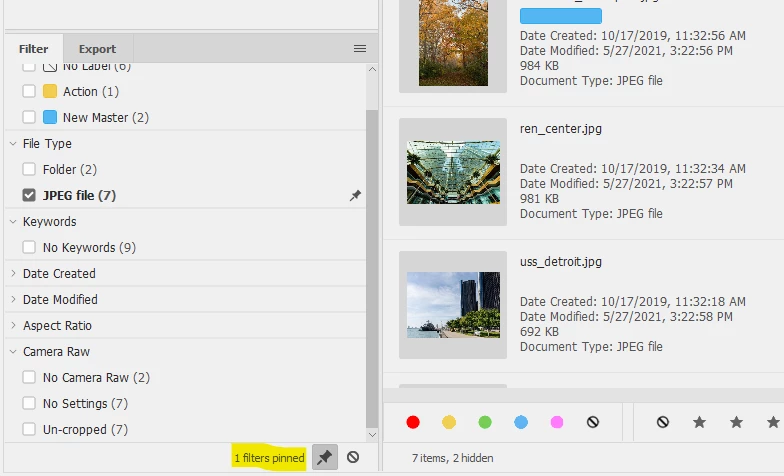
Correct answer Lumigraphics


As for filtering other types of files, you would need to write a custom filter extension in Extendscript.

3 replies

whcressall
Known Participant
November 12, 2022

I have the same question. And I found the functional solution - albeit not the literal solution.

Right-click in the "Content:whateveryounamedyourfolder" window and select "sort>by type". Yes you still have to scroll down to the .RAW section but there they are. All together in an alphabetical list.

It isn't perfect but it allows Bridge to at least organize your file ecosystem and makes finding what you want easier.

It does seem silly to me that once Bridge does its primary job (bridging access for all file types in the adobe ecosystem) it doesn't take the next logical step (now that I see everything, let's focus on the specific reason I opened Bridge in the first place: using the .xyz file). Although simply sorting by type goes nearly all the way to doing exactly this.


Hope this is even kind of what you were looking for.

LumigraphicsCorrect answer
Legend
December 29, 2021


As for filtering other types of files, you would need to write a custom filter extension in Extendscript.

gary_sc
Community Expert
Community Expert
December 29, 2021

Thanks Lumigraphics,


Because I tend to keep the contents of what I'm working on in the folder that I'm working with, I completely forgot about Bridge's tremendous filtering capability. 


I just created a folder with many different file types of things I had sitting on my desktop to see how varied the Filtering would go. Worked like a charm. If you want an option to combine several of these options into one checkbox, it might be possible to have that scripted for you, but with your background, that shouldn't be too hard.


As far as Adobe not listening to its users, that's an interesting subject: It's been my experience with over 25 years of using Adobe products, the advanced users claim they do not listen to them, and the beginners claim they do not listen to them. I think that Adobe looks at upcoming trends and tries to satisfy new users at the sacrifice of current users. For example, Adobe has been going all out on Cloud services to help get those who take pictures with phones and not as aggressively helping those with an SLRC.


But that's just been my observation which is partial and skewed. 

gary_sc
Community Expert
Community Expert
October 17, 2020

Hi Samoreen,


Can't be done and here's why: Bridge is designed (intentionally) to show you all the files in a folder. It was designed this way so that you could see Word files, FileMaker files, Illustrator files, InDesign files, Photoshop files, etc. It was intended to be the "bridge" between applications and for some part it has remained that way (admittedly not as well as originally intended).


Think of Bridge as an extended "viewer of files" as one finds in Explorer or Finder. So if you open a folder that has Word files, FileMaker files, Illustrator files, InDesign files, Photoshop files, etc, it will show you Word files, FileMaker files, Illustrator files, InDesign files, Photoshop files, etc. If you only want to see certain types of files you will have to either filter them or keep your images all in one folder.


So, here's one thing I do that helps me: Each month I do the newsletter for my woodworking club. I get sent Word files, web links, photos, and occasional other files as well. All of these files go into a folder for the upcoming newsletter (2020-11(Nov)). If you were to send me an article and some photos I'd put them into a folder (Samoreen) and inside that I'd have "Samoreen.docx" the images. That way all I'd see is the article you wrote and the images. But inside the issue's folder I'd just see a bunch of folders.


My point is to that I avoid have lots of mixed file types by organization, not filtering. 


Let me add that Bridge works WONDERFULLY for me for these kinds of tasks. When I'm JUST working on images, I use Lightroom Classic because that way I only see images because LRC cannot see other file types AND the structural organization of LRC doesn't mix file types.


Hope all that makes sense.

SamoreenAuthor
Inspiring
October 17, 2020

Thanks for the explanation, Gary. Very clear.


I understand the purpose of the software. However, it should not prevent me from deciding to filter out everything that's not an image. Usually, who can do more can do less. This is not the case here. Anyway, there is some inconsistency in the program's behavior : the folders I'm browsing with Bridge generally only contain images and their sidecar files. Bridge automatically filters out the XMP files but is not aware of the other sidecar files generated by other software (e.g. DxO Photolab generates .DOP files and Capture One generates .COS files). I should have a way to add these extensions along with XMP.


So, it seems that Bridge is not what I need. I'll have to resort to something else. Not a problem.

Greetings from Fontainebleau, France.

--Patrick
gary_sc
Community Expert
Community Expert
October 17, 2020

Hi Samoreen,


I'm sorry but you're missing the function of the xmp file. It has nothing to look at (although you are welcome to open it up in a text editing program to see the content but don't expect to see/understanding anything there of note.


The XMP file containes the interpretation of how you want the raw file to be seen. That's it. "Move along, these are not the droids you're looking for." You cannot "change" a raw image like you can a psd or a tif or a jpg. Those image formats allow pixels to be changed, layers to be added, etc. A raw file cannot be changed. What the function of an xmp file does is to "remember" the changes that you made for a given raw image so that when you revisit that image, those changes can be seen and/or if you convert that raw image into a tif, psd, jpg, etc. it will display those changes. In fact, if you move the xmp file out of the folder than you're viewing, the raw file will revert back to how it looked when you first opened it up before you could do any changes.


So not "seeing" an xmp file in Bridge is perfectly normal and desireable. Do you really want to see files you cannot do anything with?


Having not worked with either Capture one or DXO, I cannot say for sure but I'm going to assume that the DOP and COS files are "their" version of xmp fiels but I'm not sure. If you can see those files in their software, how much can you actually do with those files. Meanwhile, the reason why Bridge doesn't do anything with the DOP or COS files is that they are irrelavant to Bridge. Can you "see" the xmp files in Capture one or DXO? I'd guess not. And just out of curiosity, what do you think you'd be able to do with those files if you could see them in Bridge?


BTW, if you convert the your raw files to DNG (I always do this), you will not see any xmp files becuase the DNG format is a container format and the xmp file is contained within (like a folder) the DNG file as well as the original raw data. If you do do this than you will not be seeing these files at all. BTW, the JPG format is also a container file which is why you do not "see" xmp files associated with jpg files. If you make some changes to a jpg file in Adobe Camera Raw and then send that jpg to someone who does not have any Adobe products, they will not see any of the changes you made. That's why you need to resave the jpg after any ACR changes if you plan on sending that image to anyone else.


So, I'm not all that sure what you are looking for but I'm not sure you're going to find it. But good luck. And if you do find that application I'd appreciate you letting me know, I'm curious. Right now my only guess as to what that application might be would be the Finder or Explorer but I'm not sure what advantage that would give you.


Let me add that I do understand where you're coming from. For years I used Photomatix to create HDR images. But Lightroom couldn't "see" the .hdr files that Photomatix generated so (I thought) LR was useless to me. Later, when I realized that I didn't really need to generate or save those files, LR started looking better and better. Then, when Adobe figured out how to help generate HDR images that were much better than Photomatix, the problem was completely solved on a variety of levels.


So if I add anything else here, please try to determine why you want to see those files. That will help you determine what the best application for your needs might be. Good luck!!