Martinnel
Inspiring
January 24, 2018
Answered

Clipping Mask on Eyes as Explained in Character Animator New Features Pt.2

  • January 24, 2018
  • 1 reply
  • 8824 views

This is a great new feature, but what if blink is larger than the eye aperture? I tried this out as explained in the tutorial and I essentially see the blink layer through the mask. I've attached the layer hierarchy.

Martin

This topic has been closed for replies.
Correct answer oksamurai

OK, I just tried putting each blink in its own folder (see image) and then I confirmed they were tagged. With that setup, neither blinked. And if I put them both in the Eyes folder then I'm back where I started with the blinking being cropped by the mask.

You're right, looks like I need a samurai.

Martin
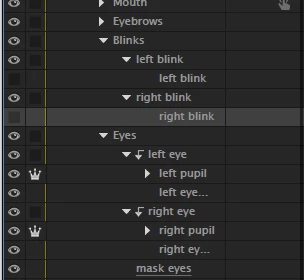

Remove all mentions / tags of "blink" except for the ones inside the groups and you should be set.

1. Select the "Blinks" group and make sure it doesn't have any tags associated with it.

2. Select the "left blink" and "right blink" groups inside "Blinks" and remove any tags from them. (This is why I named my groups a throwaway term like "go" instead).

3. Select the "left blink" layer and make sure it's tagged as "Left Blink." Do the same with the "right blink" layer and "Right Blink" tag.


1 reply

alank99101739
Legend
January 25, 2018

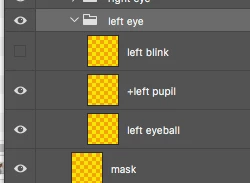
I think the blink replaces the other things in the same group. The following pattern is what I tend to follow these days. (I am not an expert however! I got something to work then just repeat it.)

I also use keyboard triggers to select all the Surprised and Angry subgroups, to get expression on the face. (I adjust the eye dimensions.)

  • +Left Eye
    • Left Blink (I hide this, it contains blink image, this replaces all the following when a blink occurs)
    • Left Pupil Range (I hide this, but it allows me to use a bigger range than the eyeball)
    • Left Eyelid Top
      • Neutral
      • Surprised (hidden by default)
      • Angry (hidden by default)
    • Left Closed Happy (hidden by default, with a keyboard trigger to block everything following - just showing the upper eyelid often looks like the person has eye closed and happy for my characters)
    • Left Eyelid Bottom
      • Neutral
      • Surprised (hidden)
      • Angry (hidden)
    • +Left Pupil  [CLIPPING MASK ADDED BY HAND]
    • Left Eyeball
      • Neutral
      • Surprised (hidden)
      • Angry (hidden)

I then set "Clipping Mask" on "+Left Pupil" which makes the eyeball clipped by the whites of the eyeball, plus the eyelids are in front.  I also check "Left Pupil Range" to remove the automatically added "Left Pupil Size" (which means the eye size is the same as the range - so nothing moves!) and there was another autotag that it gets wrong (forgot what it is just now).

The difference from what you are doing is the mask only applies to the pupil with the above arrangement, not the blink. So its just a matter of getting the grouping right so the blink is not covered by the mask (I think!).

In illustrator it looks a bit funny because the pupil is bigger than the eye ball...

But in character animator, it comes out nicely.

Oh, the "Left Closed Happy" look I tie to a keyboard trigger blocks the lower eyelid, ending up with the following. Err, well if there is a smile on the face it looks happy... ;-)  I splice the artwork around the eye into upper and lower eyelids.

(hmmm, if you look closely above you can see I have the mask not quite right still - it cut off some of the blush on the cheek. I need to tighten up the mask.

Showing the hierarchy in Character Animator...

(This one is still a work in progress - I have not done the mouth group yet.)

I hope this helps!

Martinnel
MartinnelAuthor
Inspiring
January 25, 2018

I really appreciate this detailed answer, but it's left me with more questions. Are you creating a clipping mask in Ch as shown in the New Features pt.2 tutorial at 17:01? I had found a way of addressing this issue before the clipping mask feature was introduced. I simply duplicated that part of my face and made eyeholes that appeared above the pupils and eyeballs and below blink. But I thought this clipping mask approach sounded more elegant. Your hierarchy doesn't show a mask layer.

From what I can see of it, that's a gorgeous puppet.

Martin

oksamurai
Community Manager
oksamuraiCommunity ManagerCorrect answer
Community Manager
January 26, 2018

OK, I just tried putting each blink in its own folder (see image) and then I confirmed they were tagged. With that setup, neither blinked. And if I put them both in the Eyes folder then I'm back where I started with the blinking being cropped by the mask.

You're right, looks like I need a samurai.

Martin


Remove all mentions / tags of "blink" except for the ones inside the groups and you should be set.

1. Select the "Blinks" group and make sure it doesn't have any tags associated with it.

2. Select the "left blink" and "right blink" groups inside "Blinks" and remove any tags from them. (This is why I named my groups a throwaway term like "go" instead).

3. Select the "left blink" layer and make sure it's tagged as "Left Blink." Do the same with the "right blink" layer and "Right Blink" tag.