


Rainsake
Participant
April 17, 2020
Question

How do you lock an arm pose in place?

  • April 17, 2020
  • 1 reply
  • 1129 views

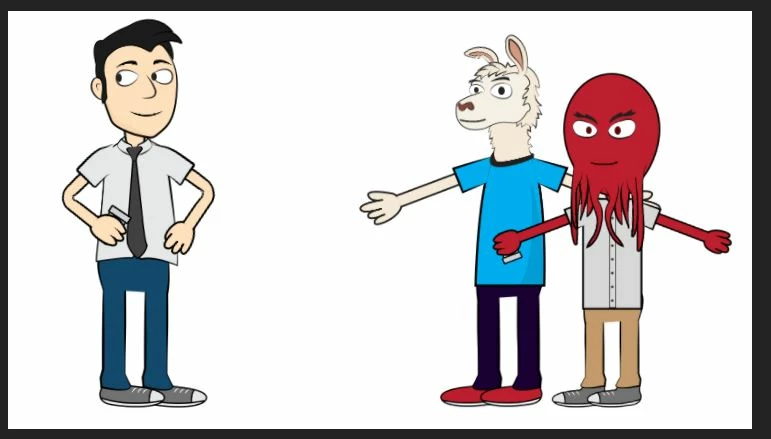
So I've created my characters and I pose one (the one on the left) in the "Record" window of Character Animator (As shown in the image). But as soon as I switch to another character on the timeline. His arms revert back to the default position. Is there a way to lock his arms down? Basically what I am trying to do is pose all their arms down (as the same as the one on the left). Record one character's voice over. Stop/Pause record. Then move to the next character in the timeline and continue the conversation. They're all meant to be holding cups of coffee and talking so it looks weird for their arms to just be wide open. I assume I could create different arm positions in illustrator (where I created the characters) and then switch those to default when I go to Record but that seems like a lot of work when I can already grab the handle on his hand and position it into place when I start the recording (like I've already done in the screenshot there). But again I can't get the arms to stay in position. Is there a video on this specifically? Am I missing something, is there another or better way to do this? Please help!

This topic has been closed for replies.

1 reply

alank99101739
Legend
April 17, 2020

When you arm (red dot) for recording, it remembers your values but does not record them. If you do something else, it loses the settings as it is not a recording. (This can be annoying, but its how it works.)


So set the arm pose, then start recording (control-R, or press the record button etc). I normally record for one second then stop. To get the exact duration right, I grab the right edge of the "take" (the recording) in the timeline panel (should be highlighted as blue after the record is made). If you stretch out the right edge it uses the last position in the recording and extends it out further, so the arms stay in position.


Note: you need to make sure the behaviors for the draggers you are using to pose the arms are active (red dot visible next to it) or else the values will not be recorded. Puppets get a default dragger behavior you can use (but you can add extra ones yourself, so there might be more than one). You just want to make sure one dragger behavior has a recording for the arms, extended to the length you need for the scene. You can layer additional recordings on top to override parts of the scene later (e.g. to make the arms move a bit later). It is common to rewind and do multiple records of the one puppet (voice, then left arm, head movements, facial expressions, etc). You just layer down a recording (a "take") per behavior you have active. E.g. make sure you record the voice once - turn it off after that.


I often record the voice separately, clean it up with Adobe Audition, then export separate audio clips. (Others use one big clip.) I then move the audio clips around in the scene (without lipsync) just to get the timing right - need hand movements etc to all fit in. Once finished, you can add the lip sync from the audio file later using "Compute lip sync" in the menus. You don't have to do it that way, but that is my personal workflow. If you generate the lipsync earlier you have to make sure you move it lined up with the audio file if you want to adjust timing. So I just create the visemes once I am happy with the timing. Using audition can be helpful to remove any background noise from the audio track (it has a "noise reduction" feature).