


New Participant
September 24, 2021
Answered

Lip Synch not working AT ALL

  • September 24, 2021
  • 2 replies
  • 857 views

what I did:

  • make Illustrator file with 11 visemes on separate layers, named by Adobe doctrine
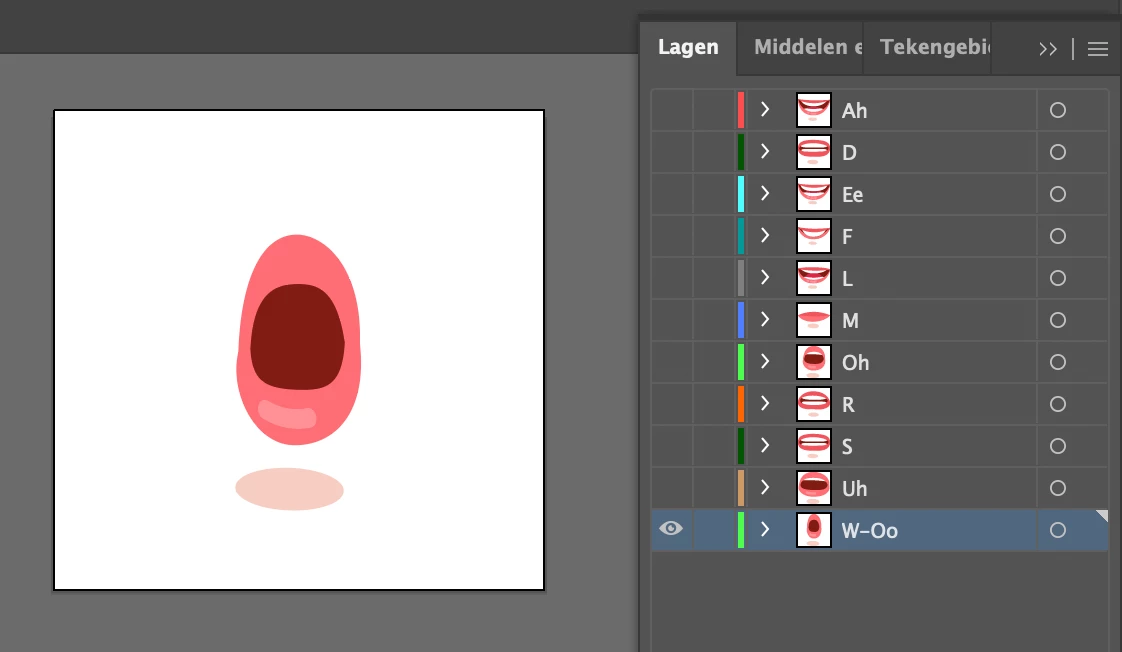
  • import into Character Animator
  • import sound into character animator
  • drag both onto timeline
  • click imported puppet on timeline, go Timeline > Compute Lip Synch Take From Scene Audio
  • Now, I got a ‘visemes’ sublayer to my layer, with a whole lot of different visemes declared
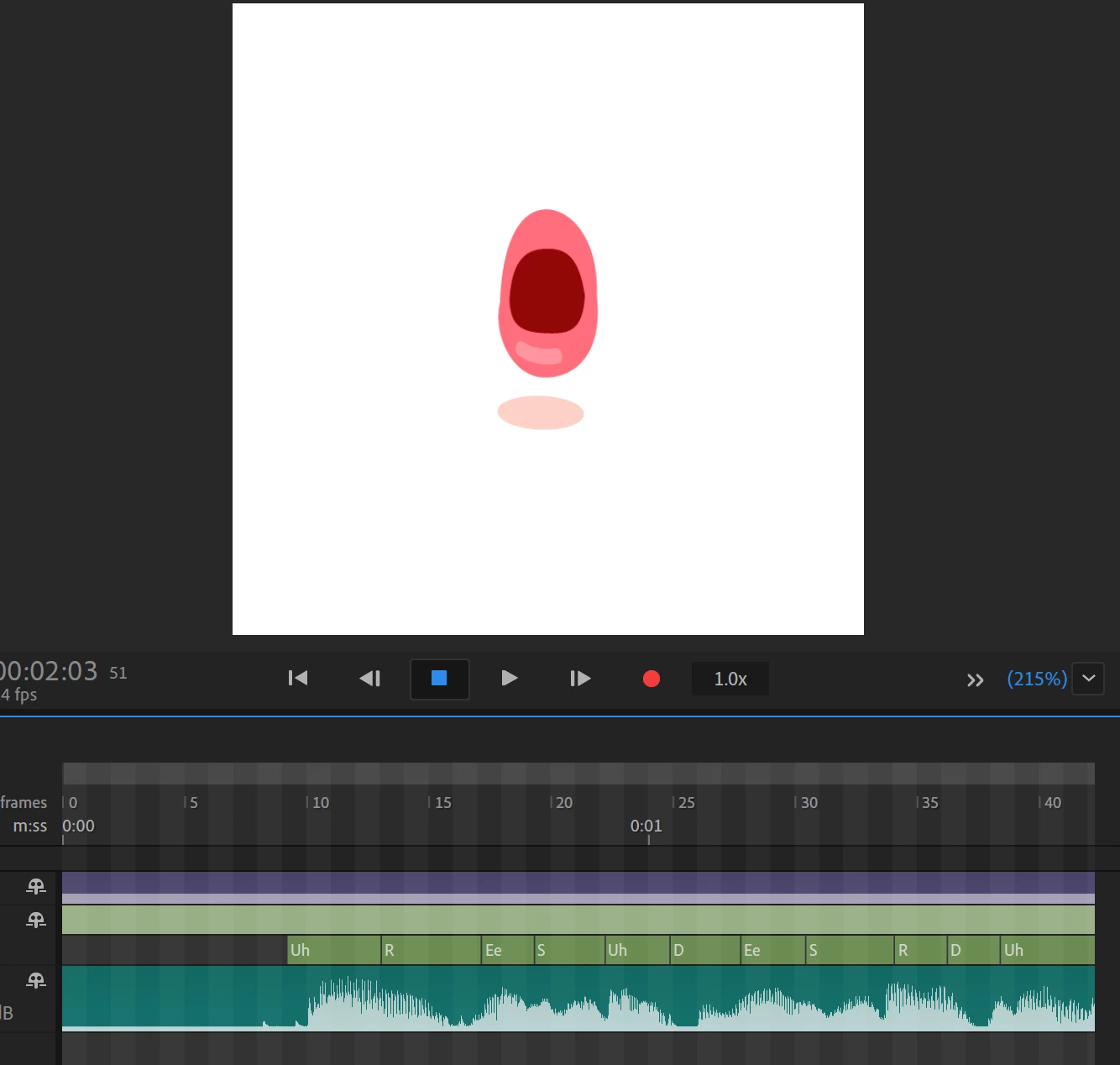
  • Mouth doesn’t animate —at all—

There doesn’t seems to be a comprehensive tutorial that just outlines the steps besides ‘click the button and everything works by magic’. If it doesn’t work, is there a way to just rig it manually?

Many thanks in advance!

This topic has been closed for replies.
Correct answer Dan Ramirez

Yep, you need your lip sync layers within a folder that's tagged with Mouth Group. This is done automatically if you put them in a folder named "Mouth"

2 replies

TheOriginalGC
Community Expert
September 24, 2021

I don't see your mouth layer. Do you have one for the mouth parts to be sublayers of?

New Participant
September 28, 2021

Not sure – this is what I have:

The illustrator document is called ‘visemes’ (and so is the layer I think)

TheOriginalGC
Community Expert
September 28, 2021

At the bottom of this page is a set of  Blank templates for the puppets (both PSD and AI in a single zip). Download it and open the Illustrator template. You will see that inside the Head folder is one for the mouth and all of the visemes are in the mouth folder. You may or may not need the head, but I think the Mouth is needed for Character Animator to keep the positions sorted.

New Participant
September 24, 2021

Oh yeah, in the 'rigging' screen, I get warnings that the layers aren’t used by any behaviors. Any tips?

Dan RamirezCommunity ManagerCorrect answer
Community Manager
September 28, 2021

Yep, you need your lip sync layers within a folder that's tagged with Mouth Group. This is done automatically if you put them in a folder named "Mouth"