


zenbaby*
New Participant
November 15, 2017
Question

Creative Cloud creating huge log files

  • November 15, 2017
  • 12 replies
  • 27067 views

So recently I noticed a huge slow down of my iMac, after using disk utility to look at storage I found my hard drive almost completely full, this was not right as I have less than 300gb of document files on here
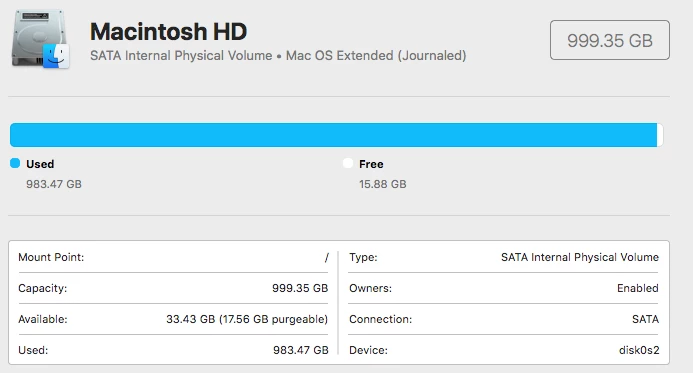
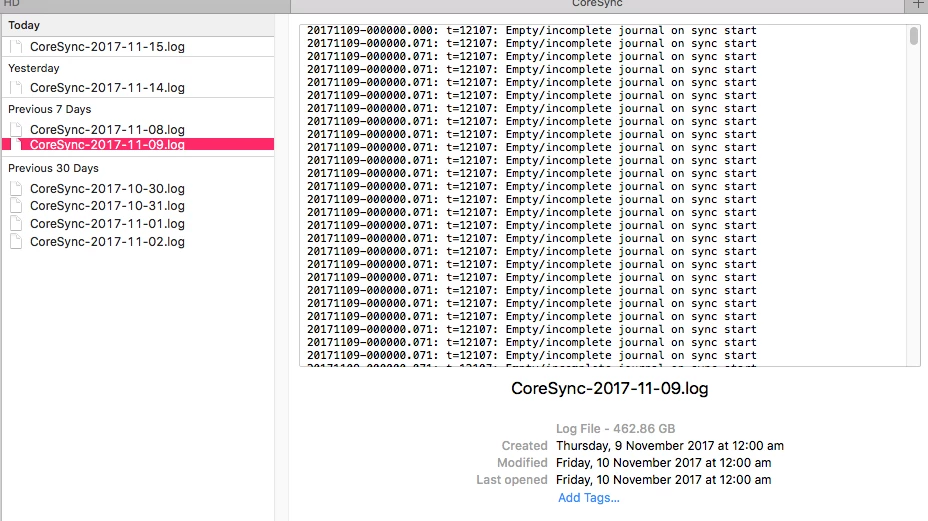
after 4 days of cleaning and restarting and basically going through all available options I downloaded a file program called Daisy Disk, which locates large files on the hard drive, and what I found astounded me completely. The creative cloud log files were huge the largest being over 460gb in size. I don't know what the hell happened to do this but I was happy to delete the log files and disable my creative cloud account, not only is the cloud close to useless as far as syncing issues and not being able to download folders (wtf is that about) but it completely ground my Mac to a standstill.

I hope this may be of use to someone else who may be having system usage issues and not be able to find the offending files.
[Here is the list of all Adobe forums... https://forums.adobe.com/welcome]

[Moved from Comments forum to the Creative Cloud forum... Mod]

This topic has been closed for replies.

12 replies

chxado
New Participant
June 5, 2021

June 2021, 40 GB "ACPLocalLogs" log files on macOS Catalina. 


How nice. 

Eric and Amelie
New Participant
May 5, 2022

2022 and this is still a problem. I just discovered 5 gb of logs on my mac.

Participating Frequently
August 10, 2022

NYC DOB is currently suffering 177 GB CoreSync log file problems with Creative Cloud Desktop installed. This is shutting down multiple users who use Acrobat Pro, and as we're a City Agency, we have a LOT of Acrobat Installs.


Best fix is remove Cloud Desktop entirely and leave just Acrobat Pro DC. Thanks Adobe.

Droxine
Known Participant
January 8, 2021

In the year 2021 and nothing has changed ... CC and Adobe apps are still the dirtiest programs I've seen. Still doesn't do any housekeeping. Still writes useless status logs (vs fatal & serious errors) on the hour. Still loads BS services not needed to keep apps updated and licensed. Still pimping other apps not subscribed to.

Inspiring
May 5, 2021

Same here. Adobe CC on macOS BigSur - Adobe keeps creating huge log files. I'm happy to have found them so I was able to delete them - I wonder what happens to people who couldn't find this thread. Their disk space just keeps disappearing. Apart from that my adobe CC isn't able to sync for ages now. I can't do my work and keep loosing time simply trying to make the sync work. This is ridiculous.  

New Participant
September 13, 2019

CoreSync filled up my external hard drive, resulting in an invalid B-tree node size error.

This happened during a Adobe support session, while trying to fix a corrupt Lightroom catalog.

CoreSync was eating up all the memory of my iMac, and froze several times resulting in restarting the computer.

I asked the clerk if the sync can be stopped somehow, because it was obviously not healthy for my computer, but the answer was no. I do not know what the setting in Creative Cloud app preferences, which I found does?


Anyhow the try to fix the corrupt catalog, resulted in another disaster, corrupting my working hard drive.

Luckily I have a backup from BackBlaze for that drive. To retrieve my backup costs money, time and extra work. And if the catalog cannot be fixed, A LOT OF EXTRA WORK.


The issue with catalog is strange because I have an archival copy of the catalog which I can open, and work awhile with Lightroom, but then quits...


During the session, I sent my catalog to support clerk by Google Drive link, with a promise that he/she will get back to me by email in "a few hours". 

Now it is two days and I have heard nothing... not even a reply on a second question by email.


With all the nice features of Lightroom (while working), these kind of problems, makes one really consider seeking for other solutions...

paoloPS
Participating Frequently
June 26, 2018

I've solved with the steps listed below, I've found this solution in another thread :

  1. First, stop syncing and shut down the Creative Cloud app
  2. Second, just in case, delete all temporary files in AppData\Local\Temp
  3. Third, delete the {hash}.db, {hash}.db-shm and {hash}.db-wal from AppData\Roaming\Adobe\Coresync
  4. Finally, launch the Creative Cloud app and start syncing
Known Participant
June 26, 2018

@paoloPS, Would you mind posting in a few hours if the solution still holds? Our IT service costs extra money so I'm supposed to wait until a solution is proven viable before we do anything about it. One similar to that elsewhere ended up not working.

paoloPS
Participating Frequently
June 26, 2018

It is working now since a couple of hours, I've also tried to reboot a couple of times and it looks good.

Participating Frequently
June 26, 2018

This is driving me nuts - I'm considering an alternative as this is seriously blocking my team's workflow.

As an update, I have uninstalled - reinstalled, deleted my entire Creative Cloud Files Folder to try let it re-sync 13Gb!

The sync worked fine up until 71791 of 73112 Files and then started erroring.

The Help documentation gives no real help for the "Due to server error"

Error: "Unable to sync files" to the Adobe Creative Cloud

1. This is not a network issue as I have tried over different networks, both firewalled and un-firewalled.

2. Another PC  member of my team seems to be syncing ok and have the files that are not syncing to my PC

3. The OSX user in the team Is syncing fine.

My next step is going to be formatting my PC, trying again although this will cost me more downtime and money!

Adobe, you need to get to the bottom of this before you lose customers to competitors.

Mark

bldgr
Participating Frequently
June 26, 2018

Just to let you know; I formatted my MacBook Pro - didn't help. It also happens that I get error messages like yours for certain files saying they were unable to sync, even though the files are there and have actually synced successfully.

Participating Frequently
June 25, 2018

As an update, after adding the Registry hack.

I am not getting the huge log files, but Cloud sync continues to try sync continuously, then showing "7 items have been updated", and shows sync complete for less than a second before looping through the same thing continuously.

I am worried about using this now a in a work environment we cant afford to have loss of data and ongoing issues like this.

Has any particular issue been identified?

Thanks

Mark

paoloPS
Participating Frequently
June 25, 2018

here the same... and this sync loop keeps the CPU of the CC costantly at 10%.

Please do something I need to go back to normality as soon as possible.

bldgr
Participating Frequently
June 26, 2018

Same here regarding the sync loop. Core Sync also using 100% CPU.

zekem
New Participant
June 21, 2018

Just FYI from another mac user, when you have a 500GB SSD every few GB counts!  I've decided to turn off creative cloud sync.  There are so many other better options out there.

If anyone else is looking, I've really enjoyed using Resilio to sync files between my laptop/desktop.  I don't have any need for mobile app sync.

Resilio Sync Home - the fast and secure way to get all your files on all your devices  

paoloPS
Participating Frequently
June 20, 2018

Hi Adobe,

any solution?

I confirm that this happen after the system reboot.

Please, this is very annoying.

Participating Frequently
June 19, 2018

Hi,

You can add me to this Issue, constant syncing and huge log files filling up my hard drive. Very frustrating.

Mark

Participating Frequently
May 31, 2018

I'm having the same issues on a Mac with CoreSync taking up tons of CPU and creating huge log files. I signed out of CC, deleted the log files (~60GB) and am going to log back in to restart sync.