


New Participant
June 22, 2015
Answered

Creative Cloud Desktop Folder Right click on File Missing Options

  • June 22, 2015
  • 4 replies
  • 7066 views

Hi,

My Creative Cloud  DESKTOP FIles folder is not working properly since last week.  I already wasted nearly 3 hours with Tech support. Sharing my screen and trying various things.   I think the Tech guy was incompetent. He didn't understand the issue And Just kept trying the same things over and over again for 3 hours. 


MY FILES SYNC PROPERLY. THERES NO ISSUE WITH SYNCING.  If i Drag files into the Creative Cloud desktop folder. THey Sync up properly into the cloud.   I can access them online  no issues.

THe issue I'm having has to do with the Actual FOlder.  It does not Seem to be installed/ working properly.   Here's an image from The The Adobe help site.  (Creative Cloud Help | Collaborate on folders and libraries)
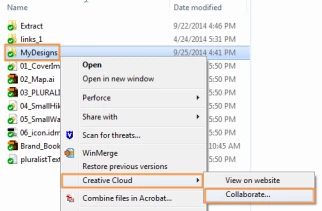
1. Notice How At the bottom left of each file / folder inside the Creative cloud files folder theres a GREEN CHECK ( this changes depending on the file Status).
2. ALso Notice when the file is Right Clicked  theres a "CREATIVE CLOUD" drop down Menu with Options to View on Website , Collaborate.  Sendlink etc..

Until LAst week, My Creative cloud folder was EXACTLY LIKE THIS! working Perfectly fine.   I think eversince the new CC update it Stopped doing this.

HERE's a Screenshot of MY Creative Cloud Files folder
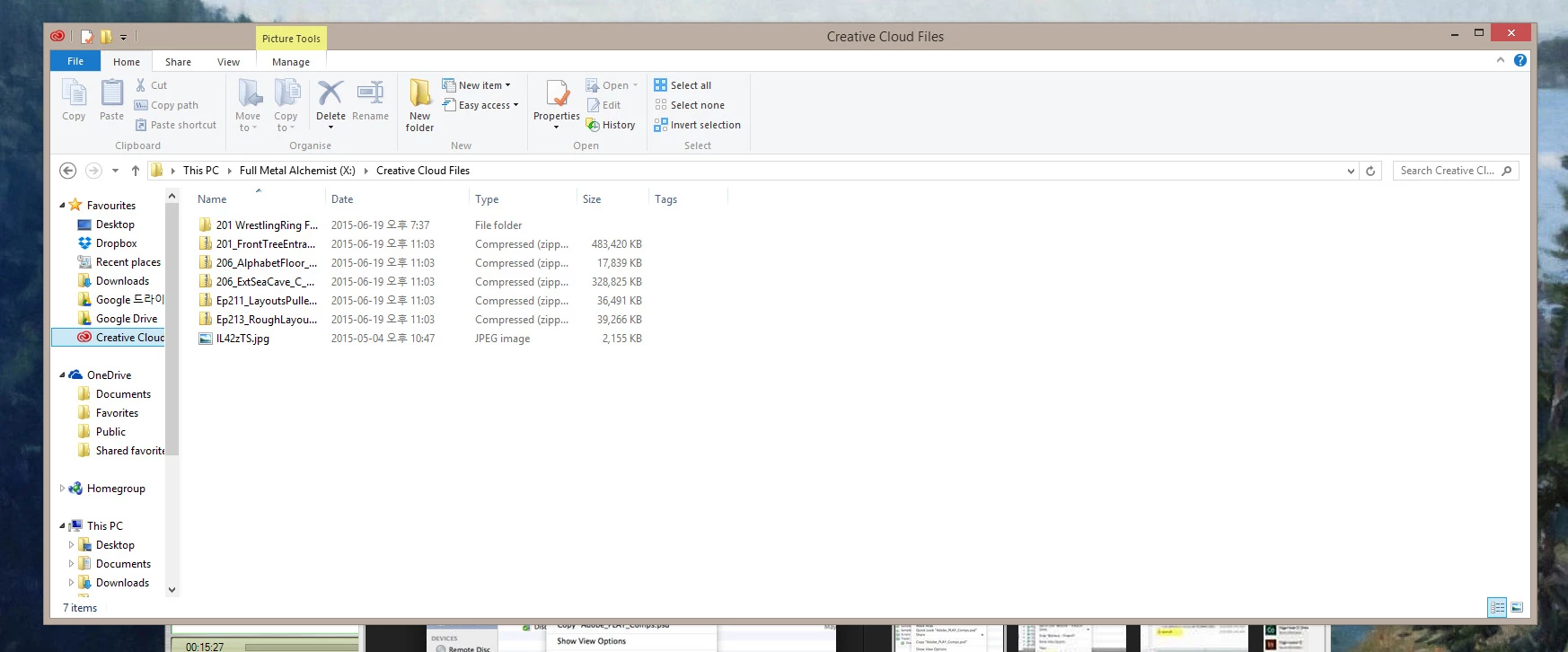
1. Notice how i dont have those Green check icons on the bottom left of each file/folder Showing The status of the FIles/folder.  (  YES THE FILES ARE SYNCED THEY SHOWS UP ON THE WEBSITE SERVER eventhough I dont see the checks on the files...)

2.  You can't see it in the screen shot but if i right click a file/folder I DO NOT have the CREATIVE CLOUD drop down menu giving me option to Send Link, View on website etc... 

As I mentioned i already spent nearly 3 hours with an incompetent tech guy. He Just kept deleting .db files , Deleting the coresync folder,  getting me to Logout/ quit CC etc.. for 3 hours.    After 2hours he said there was no problem and Had to reexplain to him the issue...   A bit Frustrating Really.      Yes, I've rebooted by computer several times. This does not fix the issue.

I'm on a Pc with Windows 8.1.
Running the latest version of Creative Cloud.
my case number is 0186758070

I hope this issue can be solved.  It used to be very convienient for me to Right click files and Send Link directly. as opposed to going to the website cloud server and Sharing link there!!!!

THANKS

This topic has been closed for replies.
Correct answer Lin He

If your engineers fail to fix this quickly then try hiring minions!

Rumours say they're not that happy with Scarlet lately; perhaps they'll perform better serving (finally) a good boss, who knows.

Regards


Hi Sgtfrog83:

Many thanks for letting us know that your issue has been resolved after reinstall Creative Cloud.  The issue is caused by Windows Explorer integration, and there are at least three sync applications with similar integration methods and that may cause install conflicts.

Best Regards.

Lin

4 replies

New Participant
March 18, 2018

This isn't working for me with Windows 10. I right click on a folder but creative cloud collaborate isn't an option

please advice me on how I can fix this.

bkish
New Participant
September 21, 2015

Any other solutions? Still doesn't work for me...

New Participant
June 23, 2015

Hi Sergeant Keroro,

Looks like the issue is caused by Windows Explorer integration, which provides green check marks and context menus you've mentioned. I see from the screenshot that you have at least three more sync applications with similar integration methods (DropBox, GoogleDrive, OneDrive), that may cause install conflicts.

The easiest way to repair would be to re-install Adobe Creative Cloud application.

If you prefer not to re-install, and are familiar with command line, we might try the alternative approach:

1. Start Admin command prompt (e.g. from Win-X menu).

2. Run the following command there:

"C:\Program Files (x86)\Adobe\Adobe Creative Cloud\CoreSync\customhook\CoreSyncCustomHook.exe" --install="C:\Program Files (x86)\Adobe\Adobe Creative Cl
oud" --component="CoreSyncExtension" --update=true

Your task bar and other Explorer windows will disappear for a moment - that is expected. If the green checkmarks and 'Creative Cloud' context menu will not appear after that, please restart the machine yet again. 

If the issue will not be resolved after one of these workarounds, please, send us the CoreSyncInstall-CoreSyncExtension.log  from your temp folder (the fastest way to get there is to type %temp% in Windows Explorer address bar).

Thank you,

Andrey

Sgtfrog83Author
New Participant
June 24, 2015

Hi There ,

I tried Removing / reinstalling the Creative cloud application but its not allowing me to uninstall creative cloud only.

So I did the command line alternative. Like you said the desktop disappeared for a moment and then came back.

I checked the creative cloud files folder and it’s the same as before. No Changes.

I did a Reboot and checked the creative cloud files folder again Still no change.

The Green Checks and Right click options are Still missing.

I’ve Attached the CoreSyncInstall Log file.

PLease let me know what I should try next.

THANK YOU.

/Ben

wharress
Community Manager
Community Manager
June 24, 2015

Hi,

We have your log files now and are currently investigating your issue.

Thanks

Warner

Lin He
Adobe Employee
Adobe Employee
June 22, 2015

Hi Sgtfrog83:

Apologizes for the inconvenience for you and we have logged the Bug # 4010732 for it.  In order to further understand the behavior you are experiencing, could you please send us your log files? And the log file can be found here:

Windows:

C:\Users\<username>\AppData\Roaming\CoreSync\CoreSync-YYYY-MM-DD.log Please kindly zip the CoreSync folder (C:\Users\<username>\AppData\Roaming\CoreSync) and send them to SyncForum-Communication@adobe.com with this forum URL in the email.


Note: The AppData folder is hidden by default this doc shows how to show it if needed

http://helpx.adobe.com/x-productkb/global/show-hidden-files-folders-extensions.html


Also can you please provide the following details?

Adobe ID:

Using a Virtual Machine Windows 8.1(Y/N):

Using a proxy (Y/N):

Type of internet connectivity (LAN/WiFi):

Firewall (Corporate/Local):

Many thanks.

Lin


Sgtfrog83Author
New Participant
June 23, 2015

Hi Lin,


I just emailed and sent the Zip File.
let me know what the issue is!

THANKS so much.

Lin He
Adobe Employee
Adobe Employee
June 23, 2015

Hi Sgtfrog83:

Thanks for the information and email. We are investigating your issue and I will let you know the solution ASAP and keep you updated.

Many thanks.

Lin