


New Participant
June 5, 2018
Answered

Delete Creative Clouds files locally while still keeping them in the cloud?

  • June 5, 2018
  • 3 replies
  • 17034 views

Hi, I'm using CC on my MacBook and disk space is slowly running out. Is there any possibility to delete the files from on my macbook without deleting them out of the cloud? I haven't found anything about that yet.

Thanks & greetings from germany,

Alex
Correct answer David__B

Hi Alex,

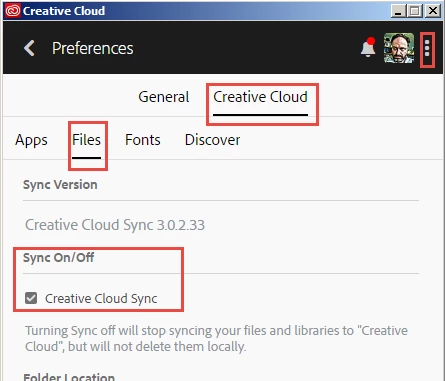
Normally file sync maintains identical copies of your Creative Cloud Files folder, one locally on your computer and one online in your Creative Cloud file storage. It is possible to only have copies on the cloud, and delete the local copies, but that wasn't really the way it was intended to be used. To do that you would want to turn off file sync from the Creative Cloud app preferences. I'd just caution you to make sure anything you delete locally has already been uploaded to the cloud before deleting. You can work through a browser to upload and download files with file sync turned off. Adobe Creative Cloud

You can turn file sync off here

Cheers,

- Dave

3 replies

New Participant
March 21, 2022

If you pause your file sync, delete the local file, then you enable the sync again, the file in the cloud also deleted. Any suggestion?

David__B
Adobe Employee
Adobe Employee
March 21, 2022

Hi there,

Adobe doesn't recommend using synced files as a backup solution. This post is somewhat outdated, the stop syncing feature has been changed to pause syncing. The behavior you describe is expected. Whenever sync is enabled, it attempts to make the files in the local Creative Cloud Files folder match what is online. The sync files feature is not a good option for backing up local files to the cloud in order to free up local HD space because of this. Sync may get unpaused accidentally and cause the online files to get accidentally deleted. 

New Participant
August 31, 2023

I completley agree @rafaelo1996. This is beyong annoying that you simply can't "disable" this folder once synced!

How do I remove the folder, or some of the folders from my local computer?


The sync is implemented incredibly bad. After I made this post in 2018, I disabled the sync and since the update "paused" it. Never turned it on again.

The CC is probably used by a lot of people running it on MacBooks with limited storage so the reasoning behind not being able to have the files downloaded only when needed is beyond my understanding. All other cloud providers seem to support this feature.

Adobe is just being extra (as usual)

David__B
Adobe Employee
David__BCorrect answer
Adobe Employee
June 5, 2018

Hi Alex,

Normally file sync maintains identical copies of your Creative Cloud Files folder, one locally on your computer and one online in your Creative Cloud file storage. It is possible to only have copies on the cloud, and delete the local copies, but that wasn't really the way it was intended to be used. To do that you would want to turn off file sync from the Creative Cloud app preferences. I'd just caution you to make sure anything you delete locally has already been uploaded to the cloud before deleting. You can work through a browser to upload and download files with file sync turned off. Adobe Creative Cloud

You can turn file sync off here

Cheers,

- Dave

phototocanvaspdx
Known Participant
March 30, 2020

 Can this no longer be done? I can't seem to find that screen with the new interface on the dekstop app.

New Participant
July 28, 2021

You can disable syncing here:

click on the cloud image next to fonts, notifications and your profile picture and pause file sync. i was too scared to try out the deletion though.

kglad
Community Expert
June 5, 2018