New Participant
July 31, 2015
Answered

How can I disable core sync and updaters?

  • July 31, 2015
  • 18 replies
  • 280755 views

Creative Suite installed a bunch of auto-running programs like update checkers and core sync. Now that I just found out Core Sync was the culprit hogging the CPU at 100% and draining the battery (this is on OSX) I am looking to disable it altogether — or more precisely, prevent them from running on startup. I'll run the updater manually and don't need to sync stuff to a cloud that don't use. What's the best way to do disable these services?

Correct answer David__B

Our developers helped create this support article providing info about some of the background processes and why they are required https://helpx.adobe.com/x-productkb/global/adobe-background-processes.html


If you don't use the file sync functionaltiy you can pause it in the Creative Cloud desktop app preferences
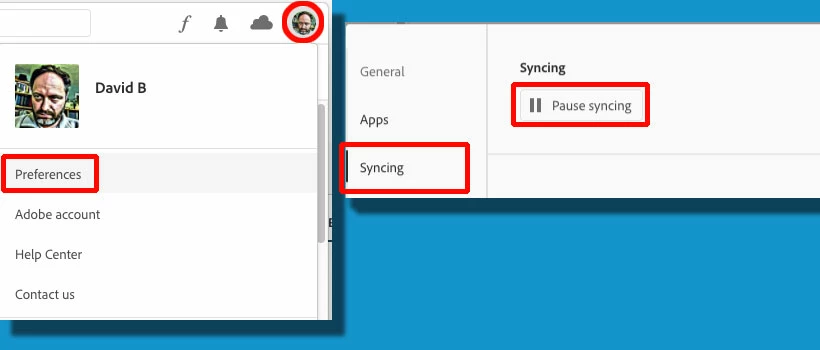
 

Although many of the background processes can't be quit, they shouldn't have any significant impact on system performance. If you're seeing performance issues due to Adobe background processes first ensure your operating system is up to date and that you're using the latest version of the Creative Cloud desktop app. You can manually check for updates by selecting Updates on the left-hand side of the app and then Check for updates from the flyout menu on the top right.

If you're still experiencing performance issues with everything up to date please contact our support directly for assistance. https://helpx.adobe.com/contact.html?rghtup=autoOpen

If you have feedback for our developers related to the background processes the best way to let them know is to share your feedback here: https://creativecloud.uservoice.com/


18 replies

cameronc27882719
New Participant
December 22, 2018

Adobe Core Sync is pure evil. Leaving processes running in the background after a user closes an app without alerting the user is unethical. Core Sync used 19% of my brand new MacBook Pro's battery within 10 minutes.

Shame on you Adobe.

New Participant
February 26, 2019

I simply removed Adobe Core Sync folder from my computer. Seems to work at the moment.

Brainiac
July 18, 2018

Use the Creative Cloud Cleaner Tool to solve installation problems ]

You can remove creative cloud desktop, coresync and application manager with the removal tool.

do this :

1) Install creative cloud, login into your account and install the adobe apps you need

2) Use the removal tool (link at the top) to remove coresync, creative cloud desktop  and application manager - you'll notice a big difference in resources NOT being hogged by adobe  bloat once they've been removed.

3) Periodically I reinstall creative cloud desktop and install any available updates then use the cleanup tool again to remove creative cloud deskop etc.

repeat periodically to keep apps up top date

Paul-M - Community Expert
New Participant
March 4, 2019

RE: "

You can remove creative cloud desktop, coresync and application manager with the removal tool.

do this :

1) Install creative cloud, login into your account and install the adobe apps you need

2) Use the removal tool (link at the top) to remove coresync, creative cloud desktop  and application manager - you'll notice a big difference in resources NOT being hogged by adobe  bloat once they've been removed."

My computer will not let me uninstall creative cloud bc I have applications that require it. It will only let me repair it or delete it after I uninstall all the other creative cloud apps.

kennygeee
New Participant
March 18, 2018

Well apparently I need to uninstall all of the services basically because when you try to reformat the drive it will not allow you to do that because of Core Sync. I suppose I will uninstall and then reinstall after I have upgraded my drive to SSD because apparently it will not allow me to unmount or erase the HDD Disk I have in there now. Just happen to think it may be alive on the HDD i booted in on Portable SSD Thanks for helping me think lol

_SPJ
Inspiring
December 9, 2017

tacoe65143738  wrote

What's the best way to do disable these services?

The only way I have been able to disable these services (temporarily) is to open up Activity Monitor and quit each culprit process individually. PITA I know because you have to remember to do so each time you boot up the computer.

I just wish any Adobe processes would only activate when I open an Adobe product, and close with the programs.

tyrell-x86
New Participant
November 13, 2017

Hi Adobe staff,

although Core Sync is disabled in the Creative Cloud application, the background daemon is still running. I am in this situation with the latest Creative Cloud on macOS 10.12.6. Isn't there a simple way for us to disable CPU- and memory hungry background apps we don't need? I am (as likely many of us) a long time Adobe user (since Photoshop 3). I experienced every iteration and to be honest: your software got so much more worse in the past 5 years. Actually beginning with the Creative Cloud transition, things got even worse.

Without being rude, I can only quote what has been written before:

Does Adobe Staff genuinely not understand the monster they've created or is there some mandate forbidding you guys to actually help people who do not want all of the extra childish crap you keep gluing and taping to our applications?

New Participant
May 22, 2017

up vote33down voteaccepted

+50

This is a Finder Sync extension.

In OS X, the Finder Sync extension point lets you cleanly and safely modify the Finder’s user interface to express file synchronization status and control. Unlike most extension points, Finder Sync does not add features to a host app. Instead, it lets you modify the behavior of the Finder itself.

Extensions are parts of an app that are able to integrate with certain core components of the OS. Finder Sync extensions in particular enable tighter integration with Finder by way of sync status badges, and allowing buttons to be added to the toolbar, sidebar, and right click menus.

OS X keeps a database of all known apps on your computer, and this also includes any extensions (.appex bundles). When Finder launches, it queries this database for Finder Sync extensions and launches them. For security reasons, each extension lives in its own process.

Fortunately, you can disable this easily from the Extensions preferences pane (grey puzzle piece icon) – just untick Finder under the app name in question.

wharress
Community Manager
Community Manager
September 16, 2015

Hi,

Core Sync is a critical component of Creative Cloud, without it you wont be able to use some features. I would suggest upgrading to the latest version of Creative Cloud Creative Cloud Help | Creative Cloud desktop app | Release Notes. If you continue to see CPU issues after all of your files have synced or a machine restart on the very latest version of 2.2.0.129 then please let us know.

New Participant
December 19, 2016

I don't want to use some features, I want to turn Core Sync off. I am working remotely, using limited data Verizon Mi-Fi, and Core Sync is using far more of it than I need or want.

Ken G. Rice
Community Manager
Community Manager
December 20, 2016

You can turn off Core Sync from the Preferences of the Creative Cloud desktop application.

Click on the gear icon in the top right and from the drop-down menu select Preferences. Switch from the General tab to the Creative Cloud tab and then select the Files sub-tab below this. Under the section Sync On/Off select Off.

Artyyyyyyy
Inspiring
July 31, 2015

Why is all this bloatware installed alongside CC? For instance IPCBroker constantly runs in the background on Mac OS X Yosemite, shutting down the process restarts it in the background the next second. What are these mysterious background apps? They weren't there in CS6 so I have no clue why they're here in CC. Please explain. 

David__B
Adobe Employee
Adobe Employee
August 3, 2015

Hi Arty,

Here is a brief explanation about what these do

•     Adobe Application Manager URI handler – Component that makes sure that web page download of app opens up in Creative cloud hence CC app is already installed and the plugin is enabled in browser.
•     Adobe Application Manager – Component within the Creative Cloud app for updating applications and showing UI for licensing.
•     AASlap – Component that manages secured licensing of application.
•     IPC Broker – Component that is required for inter adobe app communication and also communication between various components of same app.
•     AAM Launcher – for launching the the correct workflow in Adobe Application Manager. i.e. Licensing, Update etc.
•     AAM Registration Notifier – Component that reminds you fill out registration form after several launches of the app.

Hope that helps,

- Dave

Artyyyyyyy
Inspiring
August 4, 2015

Holy cow, isn't just easier to make one app that completes all these functions vs. infest people's computers with 6 single-purpose apps? At least thanks for replying, it's the first post on the internet that had a staff member coherently answer this question.