Participant
July 7, 2017
Question

Creative Cloud Sync Not Working

  • July 7, 2017
  • 8 replies
  • 21353 views

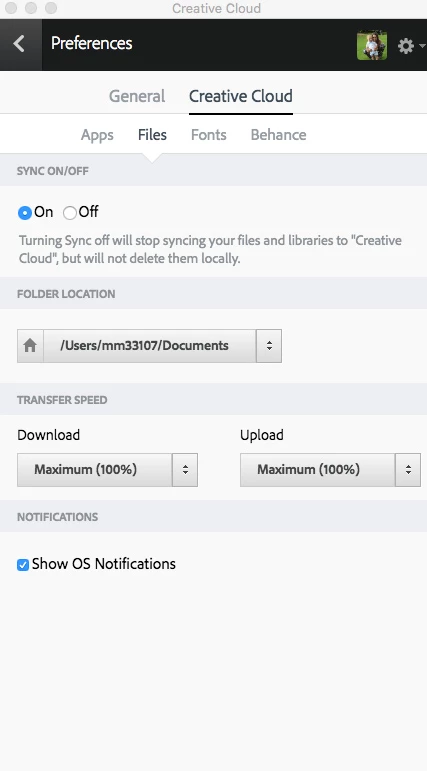
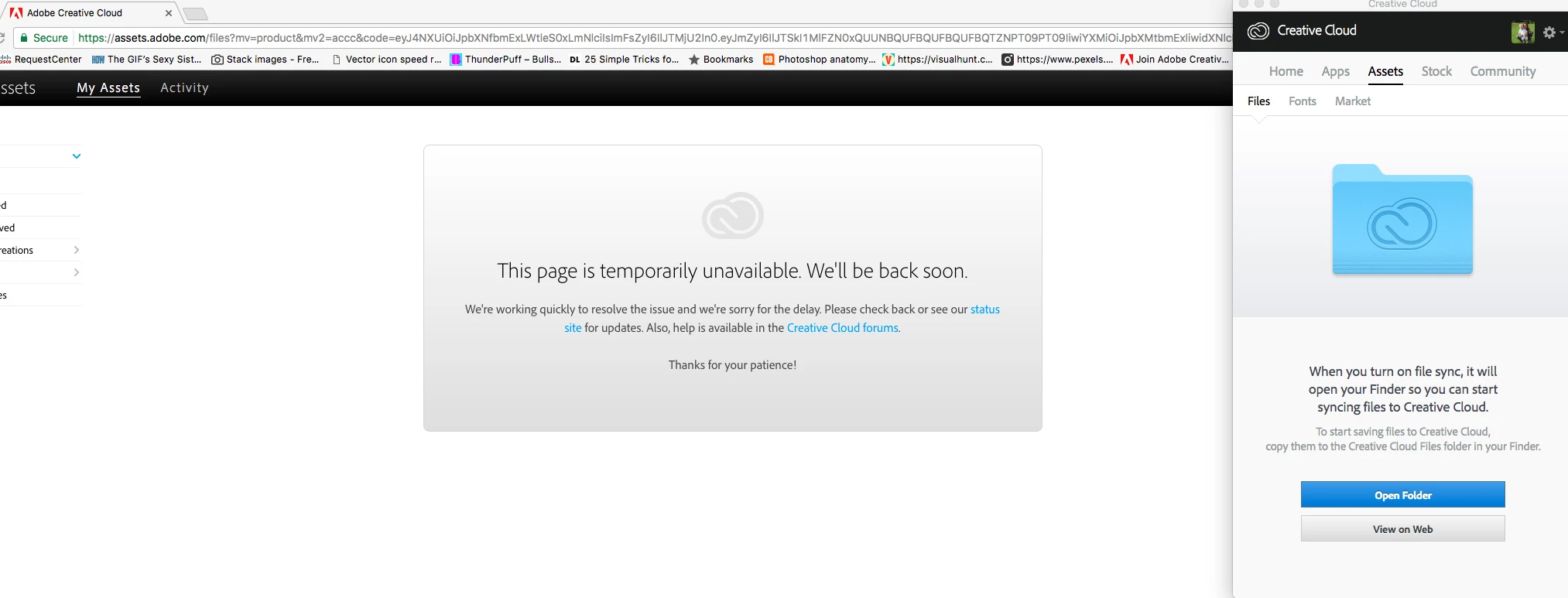
For more than a week  now, my CC files are not syncing. In fact, I'm told to turn file sync on, but it IS and HAS BEEN on as shown in the second image below, but I still get errors. Then, when I click to view on web, I get another error. It's an endless circle of nonsense. I called the help desk several days ago and still no resolution.  Please help!
This topic has been closed for replies.

8 replies

Known Participant
April 17, 2018

Hello,

there is another thread with the same issue.

Re: Creative Cloud Syncing never ending / doesnt stop / continuously going

Some Adobe people like David__B    do react but they mainly asking people about settings etc. Since many more people experience these issues it should not be hard for a big company like Adobe to recreate the problem and find a solution. Or at least a workaround. All the workarounds come from users and are not always for general use.

Like somebody said: Adobe created Creative Cloud Sync as an afterthought, not as a core service.

My advice: don't waste time on CC and use DropBox for at least half a year. If enough people stop trying CC and switch to a service that works, Adobe may be pushed to take their own service seriously and rebuild it.

Paul Roos

Mike Bav
Participant
April 17, 2018

Also have the same issue since Jan 2018. PC Win 10. Sync Version v2.4.6.82. 1.5GB of 100GB used.
Syncing works for a while, then some days not sync anything. Makes it difficult to collaborate. I am waiting for another designers files to sync to my PC. I created the folder initially and invited them to 'Edit'. They can see all my updates, but I can't get theirs.

- Turned off syncing in Preferences, closed, reopened, turned on sync (as per the steps above by georghilmarsson​).

- Closed Creative Cloud App. 
- Opened Task Manager and 'End Process' for  all CC Background processes, eg 'Creative Cloud (32 Bit)', 'Core Sync (32 Bit)', etc (about 6 of them).
- Re-opened Creative Cloud App.

- Turned on syncing in Preferences
- 'Syncing...' appears briefly at the bottom of the CC App.
- nothing changes.


Also tried:

- Permanently delete the 'Deleted' files via browser (Assets > Deleted)

- sign in/sign via CC App

- restart PC several times

- update all CC Apps (even though nothing to do with syncing)

Nothing is working, except waiting a few weeks and it might work then.

Interim solution: Use DropBox

mickeyreliant
Participant
March 29, 2018

Also seeing this issue. Was syncing fine but hasn't at all in the last couple days. No warning messages or anything. Just not syncing.

Participant
March 26, 2018

I also experienced a synching problem, but I managed to resolve it by updating CC on the computer that had the most recent files.

Hope this helps some of you

Participating Frequently
March 26, 2018

I had same issue here, but I found a fix that worked for anyway.
- I turned off sync in preferences
- Closed Creative Cloud
- Open again and turned sync on
- Went to startup page in creative cloud and then I could click "start sync"

Files are syncing now

guys52264996
Participant
January 31, 2018

So, no answer is an ASSUMED ANSWER?

I have the same exact issue as everyone here. My CC app is not syncing files. Does Adobe have any response except "sorry to hear the problem you are facing"? I am not going to re-install all of this Adobe crap all over again and lose preferences like I did last time. Can someone please provide even a clue as to why all of us are having the same issue???

DR Brandt
Known Participant
February 3, 2018

Hi @guys52264996... I finally got SOMETHING to work. I emptied the contents of my Archive folder in assets.adobe.com.

When you delete files from your CC folder, the files are only "archived" on CC online. What I had archived were two very large folders of many many many pieces of clipart nested inside of many levels of folders. When I clicked "permanently delete," the CC desktop app FINALLY started syncing!

I hope this helps you, too.

Participant
February 6, 2018

Sadly my archive folders appears empty even when I archive/delete documents.

Participant
January 29, 2018

The same problem for me, constant syncing since last week. Tried restoring cloud app and uninstalling- installing which did not work. I looked into the maps with a browsers but everything is okay there. I have used the cloud app for a while now and this is the first time it is going highwire like this.

My computer is a Macbook pro 2017.

processor 2,9 GHz intel i7

memory 16GB 2133 MHz LPDDR3

macintosch HD

Video Radeon Pro 560 4GB

intel HD Graphics 630 1536MB

Others working in the same maps do not yet have this problem.

Sheena Kaul
Community Manager
Community Manager
July 7, 2017

Moving to File Hosting, Syncing, and Collaboration

Hi Lorrie,

That is very strange!

Have you tried to connect via a different network and check if the sync is working?

Regards,

Sheena

Participant
July 7, 2017

Thank you for the quick response. I actually work from home with an iMac on a secured network provided by my company...I don't really have the ability to try another network.

Lorrie

miesj9605829
Participant
March 21, 2018

I too am having this same issue. I have followed the steps listed to try and resolve the issue but no joy.

I have noticed that the files stop syncing Jan 16 2018. I am using both a Mac ( for home ) and a PC ( work ) but they share the same CC account. Both machines are not syncing anymore.

Any help would be appreciated as I think I have exhausted all options suggested even down to deleting the option.tix file (I think that is the extension!) but this file does not exist on my PC or Mac.

Creative Cloud Sync version 2.4.4.71
Creative Cloud App version 4.4.1.298

If you need log files I can send.


Hi

I am also having problems with the syncing, I found this conversation thread and tried deleting my Archives, but I got a Page Not Found error message. And the options.tix file doesn't exist on my computer. So I guess we'll have to wait for something to happen on their side, I don't think it's our computers where the problem lies.