


Inspiring
January 12, 2020
Answered

Error 146 Creative Cloud Update Failure/Mac OS Catalina

  • January 12, 2020
  • 2 replies
  • 14014 views

MacOS Catalina 10.15.2


Getting "Creative Cloud Update Failed" error as shown:
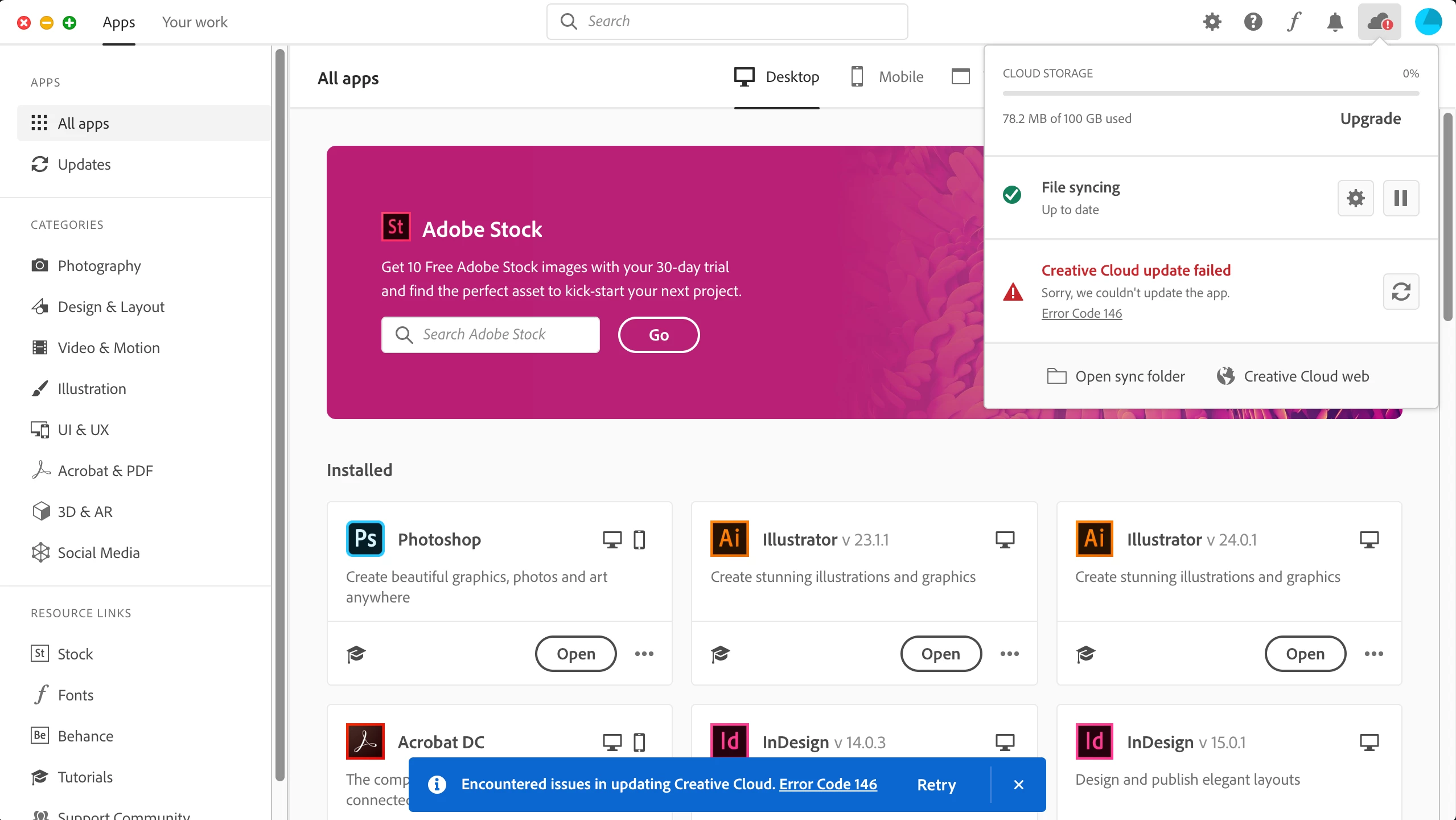


Have tried all suggestions: disable antivirus; complete uninstall/reinstall CC and all it's service files; disable Apple SIP. Nothing so far has corrected the problem. Can't say precisely when I first noticed it, but I do have a sense that it falls within the last week or so (have been running Catalina for well over a month so I don't think there is a direct relationship to my OS upgrade).


Any suggestions?

This topic has been closed for replies.
Correct answer JoeLigo

Just a quick followup - I finally resolved this problem by uninstalling Creative Cloud, then reinstalling, then running the "AdobeCreativeCloudCleanerTool" application (download here):


https://helpx.adobe.com/creative-cloud/kb/cc-cleaner-tool-installation-problems.html 


2 replies

JoeLigoAuthorCorrect answer
Inspiring
February 15, 2020

Just a quick followup - I finally resolved this problem by uninstalling Creative Cloud, then reinstalling, then running the "AdobeCreativeCloudCleanerTool" application (download here):


https://helpx.adobe.com/creative-cloud/kb/cc-cleaner-tool-installation-problems.html 


New Participant
October 23, 2020

Just upgrade to Catalina, release 10.15.7, having similar problems. Contacted support and they could only offer is to uninstall everything and try to re-install with different version of the installer. None of these options worked.

New Participant
February 4, 2021

Had the same problem and took me an evening to find the rather simple solution (without uninstalling anything).

Running Mac OS Big Sur here.


The problem is that Adobe somehow manages to create unwritable folders and then tries to move files there while installing an update. That of course fails due to missing write-permissions.


In my case is was the folder Adobe Creative Cloud Experience in which a new folder should have been created that failed and caused the error 146.


So I went about to change rights via Terminal with chmod which wasn't possible. Deletion of the folder also did not work. Chown neither and also trying to delete hidden attributes (which usually is used for files, but I tried what I could) via xattr command also did not work - no matter if I was root or not.


So: write down the path you find in the logs in which the update process tries to move files or create folders.

Then reboot to safe mode pressing cmd+R when the Apple logo appears.


Log on with your user when asked and then unlock the start volume via the Apple Icon in the top bar entering your harddrive password.

After that open the terminal and go to the path you have written down and remain one directory above it. Now you should be able to use chmod to set the necessary rights. In my case I deleted the whole folder and rebooted. After reboot I created it myself and started the update again which worked just fine.

Nancy OShea
Community Expert
January 12, 2020

This is a permission's problem.  Error 149 means the installation routine cannot delete a directory on your hard drive.  Click on more info to see the file location. See links below.

https://helpx.adobe.com/creative-cloud/kb/troubleshoot-download-install-logs.html#moreinfo


You could also try creating a new Mac user account with administrative level permissions.


Nancy O'Shea— Product User, Community Expert & Moderator
JoeLigoAuthor
Inspiring
January 13, 2020

Per the screenshot provided, it's a 146 error (vs 149).


I have tried these suggestions and all the other 'official' answers in the various postings re this error on a Mac. The one thing I can add is that the error recurs even when logging in under a different user account. My primary log-in also is administrative level, btw.


As for ferreting around log files - in 30 years of working on Macs, I've never once found a useful clue to a problem by spending hours reading through log entries that are meaningless to me as a layman. I'm not unwilling to do it, but I think Adobe should weigh in here and give me some value (i.e. focused guidance) on what to look for.


I think this is reasonable given the time I've already wasted trying to fix this, and the money I'm paying every month for my CC subscription.


JoeLigoAuthor
Inspiring
January 14, 2020

Mucking about in the Install log at the time the error occurs, I found this entry:


------

FATAL: Error (Code = 146) executing in command 'MoveFileCommand' for package: 'CoreSync-mul', version:4.3.20.55
FATAL: Error occurred in install of package (Name: CoreSync-mul Version: 4.3.20.55). Error code: '146'
ERROR: Failed to create directory at path ex /.adobeTemp/F66806FF-7C9F-4807-9659-E6F68AFB0FD3
ERROR: Failed to create directory at path ex /.adobeTemp/D16F0764-3E9B-4593-A732-493F9AEEB299
ERROR: Failed to create directory at path ex /.adobeTemp/BEB5F8D1-D3FA-4F04-A1D5-95462B6909AF
ERROR: Failed to create directory at path ex /.adobeTemp/E8FE58DB-FA11-4E1B-BC32-80B299559F7A
ERROR: Failed to create directory at path ex /.adobeTemp/B2EAD846-056F-4900-A626-CD318552B93D
ERROR: Failed to create directory at path ex /.adobeTemp/F82BD9D9-6C21-449C-9BF0-9A449E2AF0AE
ERROR: Failed to rollback folder /Mac HD 4 18 17/Applications/Utilities/Adobe Sync/CoreSync with error Source: /tmp/F4E469F0-C905-4A55-9341-747806F28718/customhook/CoreSyncCustomHook; Destination: /Mac HD 4 18 17/Applications/Utilities/Adobe Sync/CoreSync/customhook/CoreSyncCustomHook; ErrorDesc: Unable to delete existing file at destination.
ERROR: Failed to rollback folder /Mac HD 4 18 17/Applications/Utilities/Adobe Sync/CoreSyncExtension with error Source: /tmp/C2AB53F5-C58E-446A-8570-E141DC31C629/customhook/CoreSyncCustomHook; Destination: /Mac HD 4 18 17/Applications/Utilities/Adobe Sync/CoreSyncExtension/customhook/CoreSyncCustomHook; ErrorDesc: Unable to delete existing file at destination.
ERROR: Failed to rollback folder /Mac HD 4 18 17/Applications/Utilities/Adobe Sync/CoreSyncPlugins/DesignLibraryPlugin with error Source: /tmp/034A8C2D-3BB9-4BA5-A12F-85A7F173EEDC/DesignLibraryPlugin.framework/DesignLibraryPlugin; Destination: /Mac HD 4 18 17/Applications/Utilities/Adobe Sync/CoreSyncPlugins/DesignLibraryPlugin/DesignLibraryPlugin.framework/DesignLibraryPlugin; ErrorDesc: Unable to delete existing file at destination.
ERROR: Failed to rollback folder /Mac HD 4 18 17/Applications/Utilities/Adobe Sync/CoreSyncPlugins/LiveType with error Source: /tmp/F2DB7C5A-7986-4724-9CB6-29200C8EDB83/livetype.framework/Versions/Current; Destination: /Mac HD 4 18 17/Applications/Utilities/Adobe Sync/CoreSyncPlugins/LiveType/livetype.framework/Versions/Current; ErrorDesc: Error Domain=NSCocoaErrorDomain Code=516 "“Current” couldn’t be copied to “Versions” because an item with the same name already exists." UserInfo={NSSourceFilePathErrorKey=/tmp/F2DB7C5A-7986-4724-9CB6-29200C8EDB83/livetype.framework/Versions/Current, NSUserStringVariant=(
Copy
), NSDestinationFilePath=/Mac HD 4 18 17/Applications/Utilities/Adobe Sync/CoreSyncPlugins/LiveType/livetype.framework/Versions/Current, NSFilePath=/tmp/F2DB7C5A-7986-4724-9CB6-29200C8EDB83/livetype.framework/Versions/Current, NSUnderlyingError=0x7fc275928f10 {Error Domain=NSPOSIXErrorDomain Code=17 "File exists"}}.
ERROR: Failed to rollback folder /Mac HD 4 18 17/Applications/Utilities/Adobe Sync/CoreSyncPlugins/SynKit with error Source: /tmp/32F1D0F4-BE74-4B7E-8FEE-0089D7D8B30A/SynKit.framework/SynKit; Destination: /Mac HD 4 18 17/Applications/Utilities/Adobe Sync/CoreSyncPlugins/SynKit/SynKit.framework/SynKit; ErrorDesc: Unable to delete existing file at destination.
WARN: Failed to create extract directory /.adobeTemp/F66806FF-7C9F-4807-9659-E6F68AFB0FD3, applying fallback to temp location

-----

This seems to be related to my problem, but as I said before I have no idea how to interpret down to an understanding of how to correct my problem. I hope someone here on the board can help.


One thing - the reference to "Mac HD 4 18 17" is bogus; that disk name is long out of use on my system, so I don't know why it's appearing in the error logging, nor if it has anything at all to do with the 146 error.