


cervelo_s3
Participant
September 24, 2014
Answered

How do I resolve the error "Another installer is currently running, which must be closed before updating" when updating CC on MacOS 10.9.4?

  • September 24, 2014
  • 4 replies
  • 59508 views

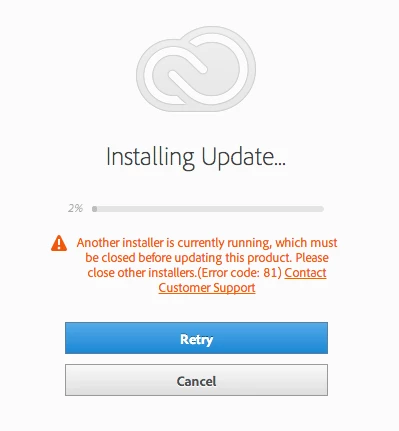
Creative Cloud keeps alerting me to an available update but whenever I try to install it it tells me there is another installer running which must be shut down first.

I've now shut down and restarted the Mac completely and nothing else is running but it still gives me the same error (Error code: 81). See screen shot below.

I'm running Mavericks (OSX 10.9.4). How do I resolve this?
This topic has been closed for replies.
Correct answer Govardhan.V

Absolutely same.. Hacked off with this..paying a monthly anpport


Ok , First check whether any Mac updates are running .

If multiple users are logged on ( Switch User)    , log off from all user account.

Restart the computer.

Launch Activity Monitor , make sure the view option is set to All Processes.

Look for processes named like AAMupdater, PDAPP , Install , Setup ., if present , Force Quit it.

Then try to update/ install again.

Still same??

Try Safe boot mode :

Try safe mode if your Mac doesn't finish starting up - Apple Support

Still same?? let us know .

4 replies

Participant
September 18, 2021

Hey


Another installer is currently running which must be closed before updating this product. Please close other installers (Error code: 81)


problem please solve all this issue

Participant
October 21, 2021

I deleted the adobe installer and creative cloud in Utilities and installed the update available on my Mac High Sierra and the Photoshop Elements began installing. Hope this helps


C_G
Participant
September 16, 2019

i) Go to Activity Monitor. 

ii) It will normally start on the CPU tab, select the network tab.

iii) Select Adobe Creative Cloud from the list and quit it.

 It will resume the installation.

Participant
July 7, 2021

This worked for me. Thanks! Note: The program I had to quit from the Activity Monitor was called Adobe Desktop something or other, but it still did the trick.

georgef84131404
Participant
March 6, 2018

We have just had this issue on one of our users laptops.

We tried the cleaner tool and and reinstalling and still got error 81.

We went into the library folder and changed the OOBE file to OOBE.old and this didn't work.

Changed the whole Adobe folder to Adobe.old and tried the cleaner tool and reinstall, didn't work.

We tried login in as the local admin account on the laptop and the reinstall worked(completed the install) and allow us to test by login in with the users account. We then logged in as the user and login without issue.

Rajashree Bhattacharya
Community Manager
Community Manager
September 24, 2014

Please try the mentioned steps:

1. Navigate to Applications/Utilities/Adobe Installer and look for CC desktop, if present run the uninstaller to uninstall it.

2. Navigate to Applications/Utilities and look for Adobe Application Manager folder and Creative cloud folder. If present move to trash and empty it.

3. Navigate to Library/Application Support/Adobe/OOBE and rename to OOBE.old

4. Download CC desktop from: https://creative.adobe.com/products/creative-cloud and try to install again.

Other references are:

Regards

Rajshree

cervelo_s3
Participant
September 24, 2014

Hi Rajshree,

I followed instructions 1-4 (although there was no “Creative Cloud” folder to delete in step 2)

But when I ran the installer I downloaded in step 4 it returned the same error message (Error code: 81) as the updater before hand (see screenshot below).

There is nothing else running except Outlook, Chrome and iTunes.

Any suggestions?

Regards,

Tim Robinson | Marketing & Communications Manager

Risk Management Technologies | Tel: +61 8 9322 1711 | Mob: +61 0 402 444 718