


How to: Resetting install location back to "Default Location..." (Windows 8)
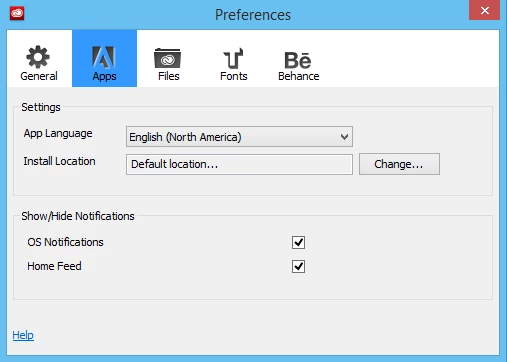
I recently upgraded my PC and added an SSD as my primary drive. Like most people, I also have a secondary drive for most apps and files. In the Creative Cloud App manager, I changed the Installation location to a directory on my secondary drive. The problem was, Some applications I wanted on my SSD for performance reasons and there was no way to change back to the setting "Default location..." Because CC installs both a 32 bit and 64 bit version of some applications, I wanted to make sure that it put them in the correct "Program Files" or "Program Files (x86)" folders. After some poking about in the config files I finally found out how to do it.
(NOTE: The path below is for Windows 8 and possibly Windows 7, for other OS's it will likely be in a similiar path)
- Close the Adobe Creative Cloud app (File > Quit)
- Open this file in notepad: C:\Users\ExampleUser\AppData\Local\Adobe\OOBE\com.adobe.accc.apps.....prefs
- Search through the text untill you find the install location that you set. Mine was "E:\Program Files\"
- Delete only that path (leave the <) and then save the file.
- Relaunch the Adobe Creative Cloud app
Then check the Install Location in Preferences. It should now be set back to "Default Location..."
 AdChoices