


New Participant
October 31, 2016
Answered

Installation Failed : Insufficient Disk Space : error code 133

  • October 31, 2016
  • 1 reply
  • 19343 views

I am trying to download Photoshop CC through Adobe Creative Cloud

but it keeps telling me that the installation failed due to my insufficient disk space.

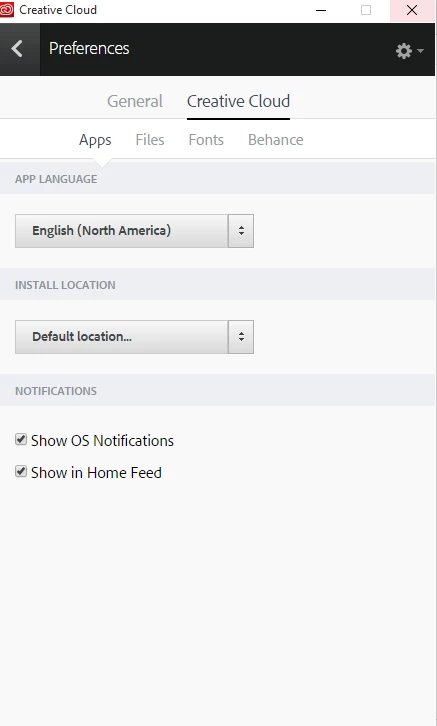
I changed Creative Cloud's file directory to another hard drive with a bigger space

but it would give me the same answer.

emptied the hard drive before and changed directory again, still same answer.

when i click "learn more", this is what shows up :

Exit Code: 133

-------------------------------------- Summary --------------------------------------

- 2 fatal error(s), 0 error(s), 0 warnings(s)

FATAL: Total size required for installation is '2839509011' bytes, but only '2631614464' bytes are available on the installation directory

FATAL: Error occured in install product workflow with error code 133 error message 2839509011#@#2631614464

-------------------------------------------------------------------------------------
This topic has been closed for replies.
Correct answer Bani Verma

Hi Daniellec43908609,

Please check the FAQ section of this link : Download and install Adobe Creative Cloud apps

NOTE: We would suggest you to install your application on the primary drive, however you can configure the installation destination from within the Creative Cloud app preferences.

Please be aware that there will still be shared resources stored to your primary drive, In addition during the install process temporary files will also be created on your primary drive.

**** If you have already installed apps you'll have to uninstall it and then make the location changes in Creative Cloud Desktop app after that reboot the machine and now install your apps again and it should install on new selected location.

Let us know if this helps.

1 reply

Bani Verma
Community Manager
Bani VermaCommunity ManagerCorrect answer
Community Manager
October 31, 2016

Hi Daniellec43908609,

Please check the FAQ section of this link : Download and install Adobe Creative Cloud apps

NOTE: We would suggest you to install your application on the primary drive, however you can configure the installation destination from within the Creative Cloud app preferences.

Please be aware that there will still be shared resources stored to your primary drive, In addition during the install process temporary files will also be created on your primary drive.

**** If you have already installed apps you'll have to uninstall it and then make the location changes in Creative Cloud Desktop app after that reboot the machine and now install your apps again and it should install on new selected location.

Let us know if this helps.

New Participant
September 11, 2023

Hi Bani,

I've been having the same issue with Premiere Pro and After Effects and while I'm aware that these programs will always store some data on the main drive, I doubt that this amounts to 12 GB's.

The file path is set correctly (to F:\PP), but it somehow still tries to completely install everything on C:\ as shown in the two screenshots (sorry, one is in german but should be pretty self-explanatory). The setup.exe was executed from the F.\ as well.


Hopefully there is an easy solution to this and i just completely overlooked something.

kglad
Community Expert
September 11, 2023

i think your screenshot shows there's only 6.47 gb free space on your f drive.