New Participant
November 3, 2020
Answered

Fix Adobe Error: ‘We Can’t Verify Your Subscription Status’ [Step-by-Step Guide]

  • November 3, 2020
  • 4 replies
  • 93567 views

We have a single user that is having issues using Adobe Pro DC. He may be able to work for a while but eventually gets a message that says 


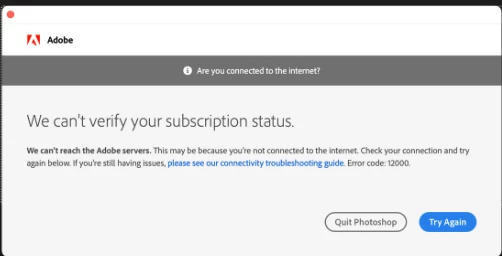
We can't verify your subscription status. We can't reach the Adobe servers


We were able to temporarily get the user working again by removing all adobe credentials within Windows Credential Manager, but within 30 minutes the issue returned. 


We have tried using the Adobe CC Removal Tool to wipe the computer clean of Adobe and reinstall, but still no luck. The user's computer is a wired desktop and has no unusual network settings that would set it apart from anything else on our network. This is the only computer in the company behaving like this. This issue started approximately 1 week ago. 

Correct answer Anshul_Nautiyal

Are you seeing “We can’t verify your subscription status” while trying to access Adobe apps? Here’s how to fix it.


If you encounter this error, follow these troubleshooting steps. If you are using an office-provided device or network, involve your IT team—some actions may require admin access or elevated permissions.


Step 1: Check Internet Connectivity
Make sure you have a stable internet connection.
Adobe apps need an active connection to download, install, and validate licenses.
If prompted, click Try again.  

Sign out of the Creative Cloud Desktop app and sign back in. 

Step 2: Try a Different Network
Switch to another internet network to rule out firewall or network restrictions.

Step 3: Configure Your Software Firewall
Temporarily disable your firewall to check if it’s causing the problem:
Windows: Firewall and Network Protection in the Windows Security App - Microsoft Support
macOS: https://support.apple.com/en-in/guide/mac-help/mh11783/mac

Step 4: Update Your Operating System
Install any pending updates.
Outdated systems can block internet access for security reasons.

Step 5: Restart Credential Manager
Follow this guide to restart the credential manager:
https://helpx.adobe.com/download-install/apps/troubleshoot/licensing-activation-issues/user-license-information-creative-cloud-2022.html#restart-credential-manager

Step 6: Fix Clock/Certificate Issues
Ensure your system clock is correct.
If network sync causes time jumps, temporarily disable “Synchronize with an Internet time server,” open an Adobe app while online, then re-enable syncing.
Clear Adobe Intermediate CA/Adobe Content certs if invalid:
https://helpx.adobe.com/download-install/apps/troubleshoot/login-issues/cannot-verify-subscription-status-offline-mode.html

Step 7: Allow Adobe Apps Access Through Firewall
Allow Creative Cloud apps through the firewall.
If you weren’t prompted, temporarily disable the firewall to test.

Step 8: Reset Hosts/Proxy and Repair Endpoint Access
Use the Limited Access Repair tool, verify firewall settings, and ensure CC/Acrobat executables are allowed:
https://helpx.adobe.com/in/download-install/kb/common-network-connectivity-issues.html

Step 9: Troubleshoot Common Network Issues
Follow Adobe’s guide: Unable to install Adobe apps due to connectivity issues

Step 10: Verify TLS 1.2 Browser Support
Make sure your browser supports TLS 1.2:
https://helpx.adobe.com/x-productkb/multi/eol-tls-support.html

Step 11: Test Secure Server Connectivity
Ensure you can connect to Adobe servers:
http://helpx.adobe.com/x-productkb/policy-pricing/activation-network-issues.html

Step 12: Reset Hosts File
Follow this guide to reset the hosts file:

https://helpx.adobe.com/download-install/apps/troubleshoot/licensing-activation-issues/reset-hosts-file.html

Step 13: Update Adobe Certificates
Outdated certificates may block activation:

https://helpx.adobe.com/download-install/apps/troubleshoot/licensing-activation-issues/user-license-information-creative-cloud-2022.html
Step 14: Reset Internet Options (Windows Only)
Go to Internet Options from the Start menu.
Select the Advanced tab.
Click Restore advanced settings and then Apply.

Step 15: Allow Required Adobe Domains (If you are a part of a teams and enterprise contract please check with your admin)
Verify that all required Adobe domains are allowed:
https://helpx.adobe.com/enterprise/kb/network-endpoints.html

Step 16: Create a New Administrator Account (If you are a part of a teams and enterprise contract please check with your admin)
Try installing under a new admin account:
Windows: https://helpx.adobe.com/x-productkb/global/create-local-administrator-account-windows.html
macOS: https://support.apple.com/en-in/guide/mac-help/mtusr001/mac

Step 17: Use Creative Cloud Cleaner Tool
Remove corrupted installations and fix permission issues:
https://helpx.adobe.com/creative-cloud/kb/cc-cleaner-tool-installation-problems.html

Once done, restart your machine and install the creative cloud app again.

If the problem continues after completing these steps, please reach out with details—we’ll be glad to help further.


4 replies

Anshul_NautiyalCommunity ManagerCorrect answer
Community Manager
August 27, 2025

Are you seeing “We can’t verify your subscription status” while trying to access Adobe apps? Here’s how to fix it.


If you encounter this error, follow these troubleshooting steps. If you are using an office-provided device or network, involve your IT team—some actions may require admin access or elevated permissions.


Step 1: Check Internet Connectivity
Make sure you have a stable internet connection.
Adobe apps need an active connection to download, install, and validate licenses.
If prompted, click Try again.  

Sign out of the Creative Cloud Desktop app and sign back in. 

Step 2: Try a Different Network
Switch to another internet network to rule out firewall or network restrictions.

Step 3: Configure Your Software Firewall
Temporarily disable your firewall to check if it’s causing the problem:
Windows: Firewall and Network Protection in the Windows Security App - Microsoft Support
macOS: https://support.apple.com/en-in/guide/mac-help/mh11783/mac

Step 4: Update Your Operating System
Install any pending updates.
Outdated systems can block internet access for security reasons.

Step 5: Restart Credential Manager
Follow this guide to restart the credential manager:
https://helpx.adobe.com/download-install/apps/troubleshoot/licensing-activation-issues/user-license-information-creative-cloud-2022.html#restart-credential-manager

Step 6: Fix Clock/Certificate Issues
Ensure your system clock is correct.
If network sync causes time jumps, temporarily disable “Synchronize with an Internet time server,” open an Adobe app while online, then re-enable syncing.
Clear Adobe Intermediate CA/Adobe Content certs if invalid:
https://helpx.adobe.com/download-install/apps/troubleshoot/login-issues/cannot-verify-subscription-status-offline-mode.html

Step 7: Allow Adobe Apps Access Through Firewall
Allow Creative Cloud apps through the firewall.
If you weren’t prompted, temporarily disable the firewall to test.

Step 8: Reset Hosts/Proxy and Repair Endpoint Access
Use the Limited Access Repair tool, verify firewall settings, and ensure CC/Acrobat executables are allowed:
https://helpx.adobe.com/in/download-install/kb/common-network-connectivity-issues.html

Step 9: Troubleshoot Common Network Issues
Follow Adobe’s guide: Unable to install Adobe apps due to connectivity issues

Step 10: Verify TLS 1.2 Browser Support
Make sure your browser supports TLS 1.2:
https://helpx.adobe.com/x-productkb/multi/eol-tls-support.html

Step 11: Test Secure Server Connectivity
Ensure you can connect to Adobe servers:
http://helpx.adobe.com/x-productkb/policy-pricing/activation-network-issues.html

Step 12: Reset Hosts File
Follow this guide to reset the hosts file:

https://helpx.adobe.com/download-install/apps/troubleshoot/licensing-activation-issues/reset-hosts-file.html

Step 13: Update Adobe Certificates
Outdated certificates may block activation:

https://helpx.adobe.com/download-install/apps/troubleshoot/licensing-activation-issues/user-license-information-creative-cloud-2022.html
Step 14: Reset Internet Options (Windows Only)
Go to Internet Options from the Start menu.
Select the Advanced tab.
Click Restore advanced settings and then Apply.

Step 15: Allow Required Adobe Domains (If you are a part of a teams and enterprise contract please check with your admin)
Verify that all required Adobe domains are allowed:
https://helpx.adobe.com/enterprise/kb/network-endpoints.html

Step 16: Create a New Administrator Account (If you are a part of a teams and enterprise contract please check with your admin)
Try installing under a new admin account:
Windows: https://helpx.adobe.com/x-productkb/global/create-local-administrator-account-windows.html
macOS: https://support.apple.com/en-in/guide/mac-help/mtusr001/mac

Step 17: Use Creative Cloud Cleaner Tool
Remove corrupted installations and fix permission issues:
https://helpx.adobe.com/creative-cloud/kb/cc-cleaner-tool-installation-problems.html

Once done, restart your machine and install the creative cloud app again.

If the problem continues after completing these steps, please reach out with details—we’ll be glad to help further.

New Participant
July 28, 2023

In my case there was a problem with router setting. 

I am using a custom firewall setting so not all coonections via specified ports are allowed. Thats why adobe subscription verification failed. Two solutions. First is to change simple firewall setting to allow for a while all connections (or disable the firewall at all) or in advanced firewall settings add connection port to the list with allowed ports. I have no idea which port number is used by Adobe for verifaction, so i change only the siumple firewall protection setting from "custom" to "low". Verification passed. After that i once again change my setting to "custom" but there was no problem with ceryfication anymore.

kglad
Community Expert
August 6, 2023
New Participant
July 12, 2022

I've tried everything from deleting the registry keys to uninstalling/reinstalling, and Creative Cloud will allow me to sign in, but then signs me out as soon as I open Photoshop or Illustrator. Upon signing into those individually, I get the error that Adobe can't verify my subscription. This has been eating into my productivity and it's beyond frustrating that they require internet to verify subscription. I miss the old CS days. 😠

New Participant
September 13, 2022

Same! It's wasting too much of my time. 

Community Manager
September 13, 2022

I would highly recommend contacting the support team if none of the above suggestions fixed your issue. There could be multiple scenarios why the CC apps are not able to verify your subscription like the AV blocking the connectivity, permission issues on the Adobe folders, or the security/third party tool blocking Adobe to save the details locally on the machines.

The support team would be able to find the issues from the Adobe logs. 

Nancy OShea
Community Expert
November 3, 2020

Hi brandonv,

I assume by Adobe Pro you mean Acrobat Pro DC and not the free Acrobat Reader.

Is this an individual plan or a Teams/Enterprise plan? 


Nancy O'Shea— Product User, Community Expert & Moderator
New Participant
November 3, 2020

Yes, this is a Pro DC license assigned to a user from our Enterprise plan. 

New Participant
November 9, 2020

This error generally occurs when the application is not able to connect to the Adobe server and there can be multiple reasons. Please check the host file for Adobe entries, reset the setting of internet explorer, check with the admin's account on the same machine and check if getting the same issue. This article might be able to help you: https://community.adobe.com/t5/adobe-xd/install-solved-can-t-verify-my-subscription-status-windows/td-p/10618585?page=1


We were able to solve the user's issue by removing the key HKEY_Current_User\Software\Adobe\. Adobe treated the next launch as a first time sign in and allowed him to sign in.