July 3, 2019
Answered

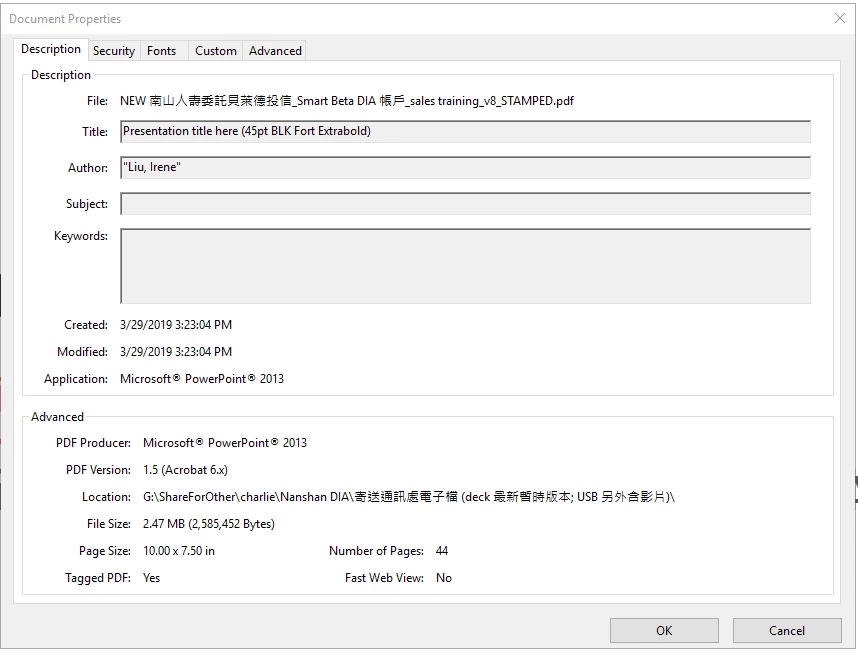
How could I change the file name which shows in the "description" of document properties? Thank you.

  • July 3, 2019
  • 2 replies
  • 7193 views

Hi,

How could I change the PDF file title which shows in the "description" of document properties? I couldn't revise it there.

By the way I'm the author of it.

Thank you.
    This topic has been closed for replies.
    Correct answer alisterblack

    3. However, when I open this file, the name which shows at the top of the screen, isn't the same as "Presentation title here...".

    Thanks.


    Hi,

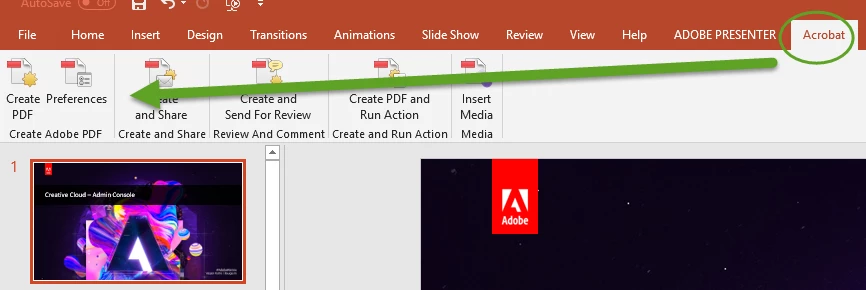
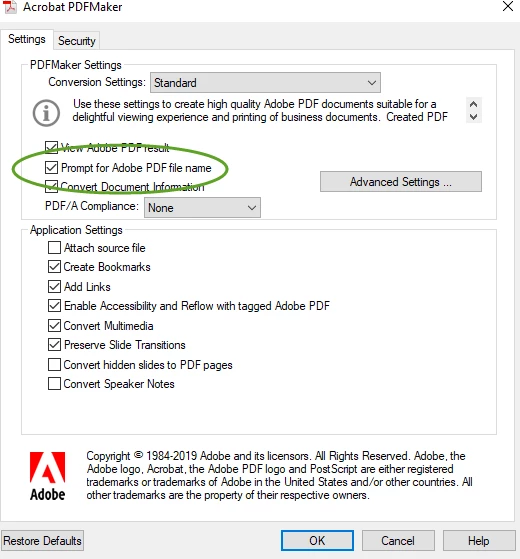
    You are using the built-in Powerpoint method - you will be able to set the document title and many other features if you use the PDFMaker which will be installed with Acrobat. This will give you an 'Acrobat' tab in Powerpoint.

    Then you can set the Preferences to prompt for the PDF filename.

    2 replies

    alisterblack
    Community Manager
    Community Manager
    July 8, 2019

    Hi,

    How are you creating the PDF? Do you use Acrobat?

    July 9, 2019

    Hi,

    Actually, I'm not that sure.... I'll show you the process.

    1. Saving the power point as PDF like this.

    2. And below is the format it shows in the folder after saving.

    Thank you!

    July 9, 2019

    3. However, when I open this file, the name which shows at the top of the screen, isn't the same as "Presentation title here...".

    Thanks.

    alisterblack
    Community Manager
    Community Manager
    July 3, 2019

    Hi,

    If you click on the Security tab - have you set document security which would prevent changes?

    Protect PDF files with permissions |

    July 4, 2019

    Hi,

    Please find below for your information.

    It seems that the security which would prevent changes is ON.

    Furthermore, there's no "Protect" tool to choose...

    Thanks for replying.

    July 5, 2019

    Hi,

    What version of Acrobat are you using? Is it Reader?


    Hi,

    Yes, it's Adobe AcrobatReaderDC 19.012.20034. Thanks.