


Participant
January 20, 2022
Answered

Installation fails on Mac OS 12.1

  • January 20, 2022
  • 3 replies
  • 28909 views

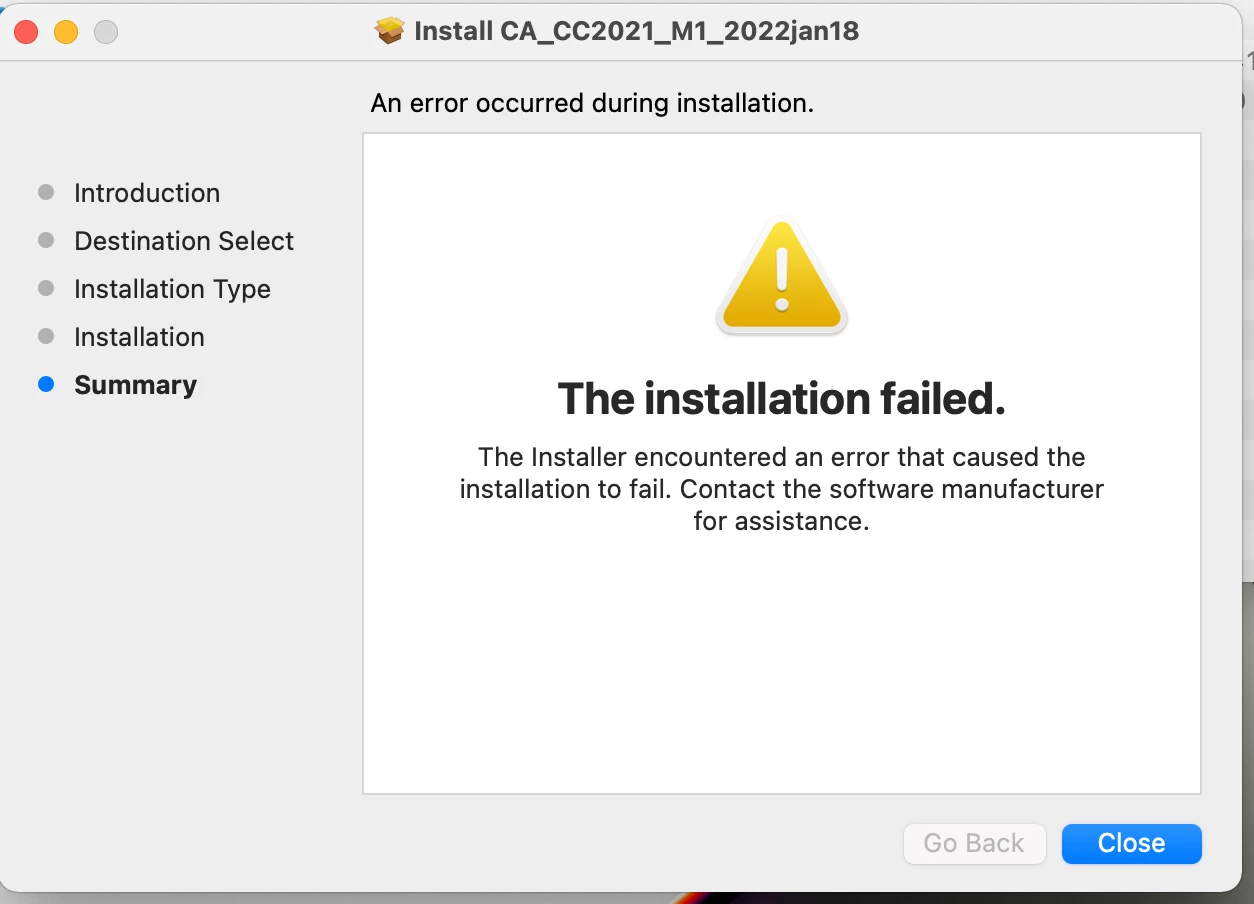
Trying to install Adobe CC on a Mac with M1 CPU (Apple Silicon).  It fails with the following message:

An error occured during installaion.

The installation failed.

The intstaller encountered an error that caused the installation to fail.  Contact the software manufacturer for assistance.


Any ideas how to get this to install?
I've looked at a few other posts.  Some say to type in the install error code.  Where would I find the error code on a Mac?
Also, another post said to run   sudo chmod -R 755 NameOfYourPackageFile.pkg  from the terminal.  Tried that and the command worked fine, but the installer still fails with the same error.


This is a new install package for Mac M1 created two days ago using Adobe's Admin Console website.  I also tried older install packages, they all fail with the same error on Mac OS 12.1.  The older packages work fine on earlier versions of Mac OS.

Thanks for any help/suggestions.
This topic has been closed for replies.
Correct answer Subnet91351

Found a work-around.  In a nutshell, download the current version of the Creative Cloud app, install it, restart, then install your package.  More detailed instructions:

1.  Download Creative Cloud app ( https://creativecloud.adobe.com ) and install it.

2.  Restart, open Creative Cloud app, Log in with your Adobe account.

3.  In Creative Cloud app preferences, turn OFF "Launch Creative Cloud at login"

4.  Sign out of Creative Cloud app and Restart.

5.  Install your Adobe package.

After your package installs, you can set Creative Cloud app preferences however you want.   I'm not sure if I actually needed to turn off its autostart (ie: "Launch Creative Cloud at login"), but I've had problems with installs/updates in the past when it autostarts, so wasn't taking any chances.


3 replies

Participant
July 4, 2022

I just had this issue and it appears to be caused by the Adobe installation package expecting (or requiring) Rosetta 2 to be installed on the Mac, and when it isn't it fails the installation. You can initiate the installation of Rosetta 2 manually using the Terminal by entering the following command:

/usr/sbin/softwareupdate --install-rosetta

jonathans47651502
Participant
August 5, 2022

This worked!

Participant
June 8, 2022

I cannot at all install anything creative cloud-related on MacBook max M1.


 What can I do?

Subnet91351AuthorCorrect answer
Participant
January 21, 2022

Found a work-around.  In a nutshell, download the current version of the Creative Cloud app, install it, restart, then install your package.  More detailed instructions:

1.  Download Creative Cloud app ( https://creativecloud.adobe.com ) and install it.

2.  Restart, open Creative Cloud app, Log in with your Adobe account.

3.  In Creative Cloud app preferences, turn OFF "Launch Creative Cloud at login"

4.  Sign out of Creative Cloud app and Restart.

5.  Install your Adobe package.

After your package installs, you can set Creative Cloud app preferences however you want.   I'm not sure if I actually needed to turn off its autostart (ie: "Launch Creative Cloud at login"), but I've had problems with installs/updates in the past when it autostarts, so wasn't taking any chances.


Participating Frequently
March 21, 2022

Another workaround is to install the creative cloud removal tool it will download some kind of update on first run and then you are able to install the package.

Participant
October 3, 2022

This is what worked for me!