


September 25, 2014
Answered

Post Installation/Deployment Software License Agreement Suppression Acrobat X Pro

  • September 25, 2014
  • 2 replies
  • 10636 views

I just stated with a new organization and we recently [successfully] deployed Adobe Acrobat X Pro (10.1.0.534).  However, we're receiving reports (from users and IT staff alike) that when launching the application, it runs for 30 seconds or so, quits then prompts the user to accept the Adobe Software License Agreement before they can actually use the application.  Having just walked into the door, I can't confirm it was packaged with the Customization Wizard, but that is looking less & less likely.

So, having deployed this to about 2000 clients, how can we go about suppressing (read: accepting) this Acrobat Software License Agreement at an enterprise level?  (We'll figure out how, I just want to know what setting needs to be in place to eliminate this prompt.)
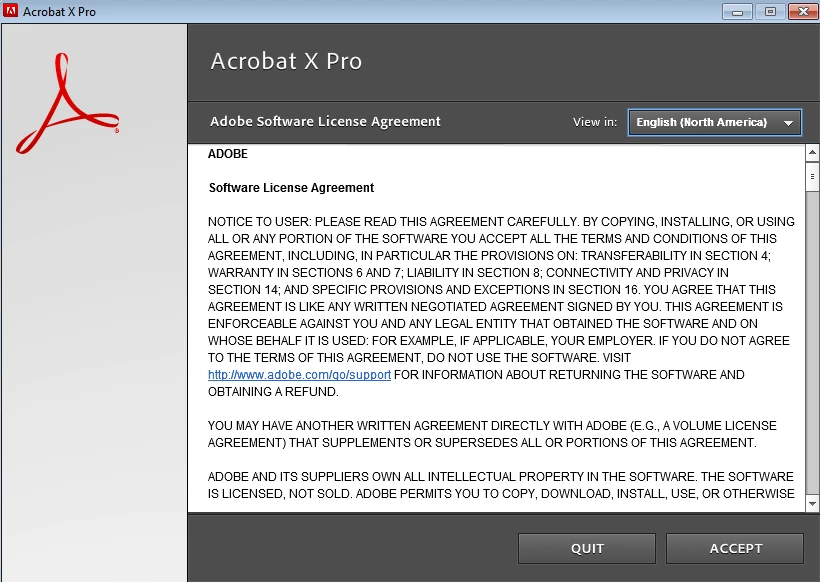
In the past (e.g.: Acrobat 7, 8 & I think 9) we were able to suppress this via a registry like:

  • reg add "HKEY_LOCAL_MACHINE\SOFTWARE\Adobe\Adobe Acrobat\VERSION\AdobeViewer" /v Registered /t REG_DWORD /d 00000002 /f >>!_BatchLog! 2>>&1
  • reg add "HKEY_LOCAL_MACHINE\SOFTWARE\Adobe\Adobe Acrobat\VERSION\AdobeViewer" /v EULA /t reg_dword /d 00000001 /f >>!_BatchLog! 2>>&1
  • reg add "HKEY_CURRENT_USER\Software\Adobe\Adobe Acrobat\VERSION\AdobeViewer" /v EULA /t reg_dword /d 00000001 /f >>!_BatchLog! 2>>&1

But I believe either in 9 or X (10.x) EULA changed to EULAAcceptedForBrowser and with this being a 64-bit version of Windows 7, I figured it would be in one of a few places:

  1. HKEY_CURRENT_USER\Software\Adobe\Adobe Acrobat\10.0
  2. HKEY_LOCAL_MACHINE\SOFTWARE\Adobe\Adobe Acrobat\10.0
  3. HKEY_LOCAL_MACHINE\SOFTWARE\Wow6432Node\Adobe\Adobe Acrobat\10.0

I'm seeing EULAAcceptedForBrowser in the AdobeViewer key in locations 1 & 3 above so I exported both AdobeViewer keys & imported it elsewhere, but its still prompting.

So, on a whim, I added the three bulleted keys above and when launched, it worked fine.  Yay!

After about 30 seconds or so, it behaves exactly as I described above: The application launches, you can work in it, but after at most 30 seconds, the application closes and launches the licensing agreement (PDApp.exe) again.  What.  The.  Heck.

So, experts out there, what are we missing?  How can we get this resolved without doing in place reinstalls or uninstalling/installing?  We have to keep user interruption and fatigue to a minimum, and another 'deployment' is just not an option.

This topic has been closed for replies.
Correct answer

There are two other ways that you can attempt to do this.

1.  Use the EULA_ACCEPT property at install time: 

http://www.adobe.com/devnet-docs/acrobatetk/tools/AdminGuide/properties.html

Installation    9.0 & later    EULA_ACCEPT    YES prevents the EULA from appearing the first time the viewer is invoked. For 10.1.4, see the release notes.

2.  Use APTEE after installation for the applications already installed

4   Installation Workflows — Enterprise Administration Guide

adobe_prtk --tool=Type1Exception --accept --serial=<serialNum> --responsecode=responseCode --leid=DriverLEID

2 replies

Correct answer
September 26, 2014

There are two other ways that you can attempt to do this.

1.  Use the EULA_ACCEPT property at install time: 

http://www.adobe.com/devnet-docs/acrobatetk/tools/AdminGuide/properties.html

Installation    9.0 & later    EULA_ACCEPT    YES prevents the EULA from appearing the first time the viewer is invoked. For 10.1.4, see the release notes.

2.  Use APTEE after installation for the applications already installed

4   Installation Workflows — Enterprise Administration Guide

adobe_prtk --tool=Type1Exception --accept --serial=<serialNum> --responsecode=responseCode --leid=DriverLEID

October 10, 2014

Thanks for the reply Sabian Zildjian.

While the information you shared will likely prove helpful to others who find this post, it doesn't quite fit the bill.

  1. Item one in your reply isn't an option because the application is already installed & deployed.  This requires repackaging Acrobat (and correctly I might add!) then re-deploying it.  That's not something we're willing to do at the moment.
  2. Item two would be nice to use except (from the page itself): "The Adobe Provisioning Toolkit Enterprise Edition is a command-line tool that helps you track and manage serialization of Adobe®Creative Suite® products that you have deployed using the Adobe Application Manager Enterprise Edition."  Well, (a) this isn't CS5/5.5/6 or part of a CS bundle and (b) it wasn't deployed (or packaged) using AMEE.  The command line utility requires the application LEID which can be found here (http://www.adobe.com/go/aptee_leid), and again, its for CS products; there's nothing there for Acrobat.

Again, good information here, but unless I'm missing something, this isn't going to work for the current situation.

EnterpriseHelp
Community Manager
Community Manager
October 10, 2014

See if this helps:

  • There is no EULA setting in HKLM for any product.
  • Acrobat uses HKEY_CURRENT_USER\Software\Adobe\Adobe Acrobat\<version>\AdobeViewer\EULAAcceptedForBrowser. Acrobat is a 32 bit app. This is the path I use on my 64-bit machine.
  • APTEE can be run on non-CS products. See the Admin Guide.

Ben

EnterpriseHelp
Community Manager
Community Manager
September 25, 2014

The reg prefs haven't changed over time and are documented correctly in the Pref Ref.

If you don't see any mismatch wit the doc, export your registry and paste it here.

Ben

October 10, 2014

Thanks for the reply brogers_1.

That page will no doubt serve others who stumble across this page.

Now, for the record, if one searches for "EULA" on the page you linked, it will take them to AdobeViewer (PDF Viewer Settings) page here: http://www.adobe.com/devnet-docs/acrobatetk/tools/PrefRef/Windows/AdobeViewer.html?zoom_highlight=EULA

And that confirms that Acrobat uses 'EULAAcceptedForBrowser'.  Although the path isn't specified there, its presumably:

  1. On a 64-bit machine:
    1. HKEY_LOCAL_MACHINE\SOFTWARE\Wow6432Node\Adobe\Adobe Acrobat\10.0\AdobeViewer
    2. HKEY_CURRENT_USER\SOFTWARE\Wow6432Node\Adobe\Adobe Acrobat\10.0\AdobeViewer
  2. On a 32-bit machine:
    1. HKEY_LOCAL_MACHINE\SOFTWARE\Adobe\Adobe Acrobat\10.0\AdobeViewer
    2. HKEY_CURRENT_USER\SOFTWARE\Adobe\Adobe Acrobat\10.0\AdobeViewer

Since this is a 64-bit machine, here's an export of the former registry location:

Windows Registry Editor Version 5.00

[HKEY_LOCAL_MACHINE\SOFTWARE\Wow6432Node\Adobe\Adobe Acrobat\10.0\AdobeViewer]

"EULAAcceptedForBrowser"=dword:00000001

"bLaunched"=dword:00000001

[HKEY_CURRENT_USER\SOFTWARE\Wow6432Node\Adobe\Adobe Acrobat\10.0\AdobeViewer]

"EULAAcceptedForBrowser"=dword:00000001

"bLaunched"=dword:00000001

Despite having set that, when I launch Acrobat, I get the Software License Agreement screen.

To be sure I even went as far as adding the above settings to the 32-bit location, but the problem persists.

So, if I'm missing something, kindly point it out!