


jerry303
New Participant
January 29, 2020
Question

Creative Cloud Storage - Permanently delete files - Where's the "Select all" checkbox!?

  • January 29, 2020
  • 3 replies
  • 973 views

Hello,


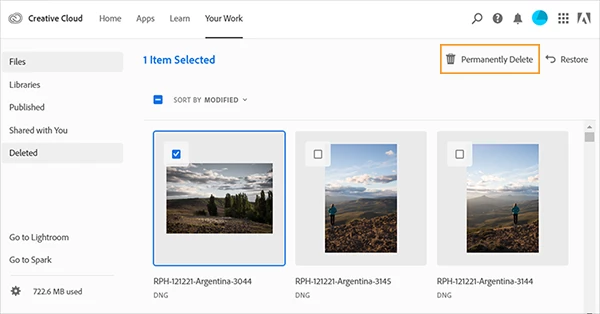
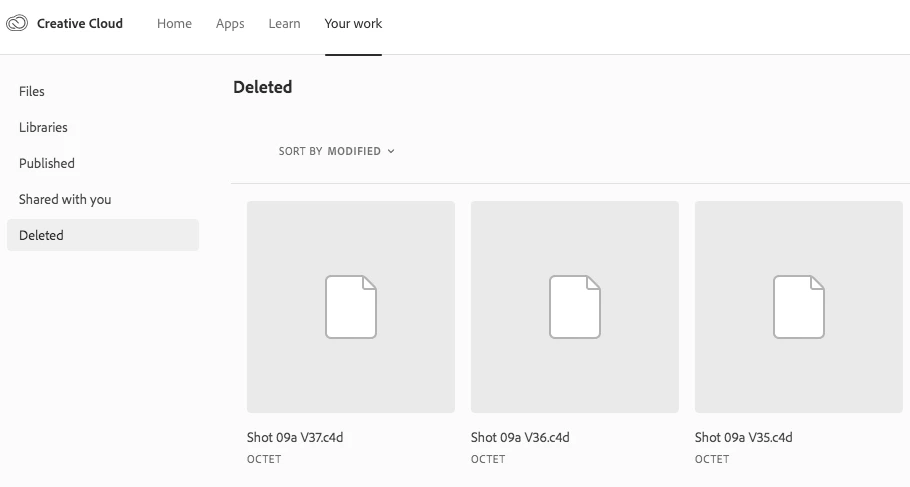
Until recently, there was checkbox to permanently delete all files that we're moved to the trash / bin / deleted files part of the Creative Cloud storage. But now that checkbox is gone! Why was this removed? Very inconvenient because now one has to manually check many files (sometimes over hundreds of them) everytime, to permanently remove these and clean-up the cloud storage.


I'm talking about the deleted files section on https://assets.adobe.com/deleted to be precise.


Screenshot of how it once was - with the blue checkbox left of "sort by" to select all files:


The new situation - no checkbox anymore:


Can you fix this and bring back the checkbox please?

That would be a real time-saver!

Thanks, Jeroen.

This topic has been closed for replies.

3 replies

DavidMatos
Inspiring
August 18, 2021

Unbelievable. This seems intentional and a very bad joke.

mandalalunar
New Participant
August 7, 2020

I am also having this issue. I am out of space and there are thousand of files on the Deleted folder.
Why is there no checkbox to select all?

Participating Frequently
March 30, 2020

I had 2000+ files in trash so I made this Auto Hotkey script that selects every Item by pressing Arrow-Down & Enter in a loop.
It takes some time, but it's still faster than selecting everything manually.

Workaround Instructions (Windows only):

  1. Upvote this Uservoice in hope that Adobe brings back the checkbox
  2. Install AutoHotkey
  3. Create a new text file
  4. Change the file extension to .ahk
  5. Open the file in Notepad
  6. Paste in the following code:


~$*F4::
While (GetKeyState("F4", "T")){
Send, {Down}
Sleep 20
Send, {Enter}
Sleep 20
}


6. Save and run the file

7. Open Your Creative Cloud Storage in Browser

8. Change to List View

9. Select the first item by hand!

10. Then press F4 and enjoy

11. Press F4 again to exit the loop when end of page is reached

12. Exit the script by rightclicking on the green H-icon in the Windows-Tray menu.