


Help! How to get rid of Target/Transparency
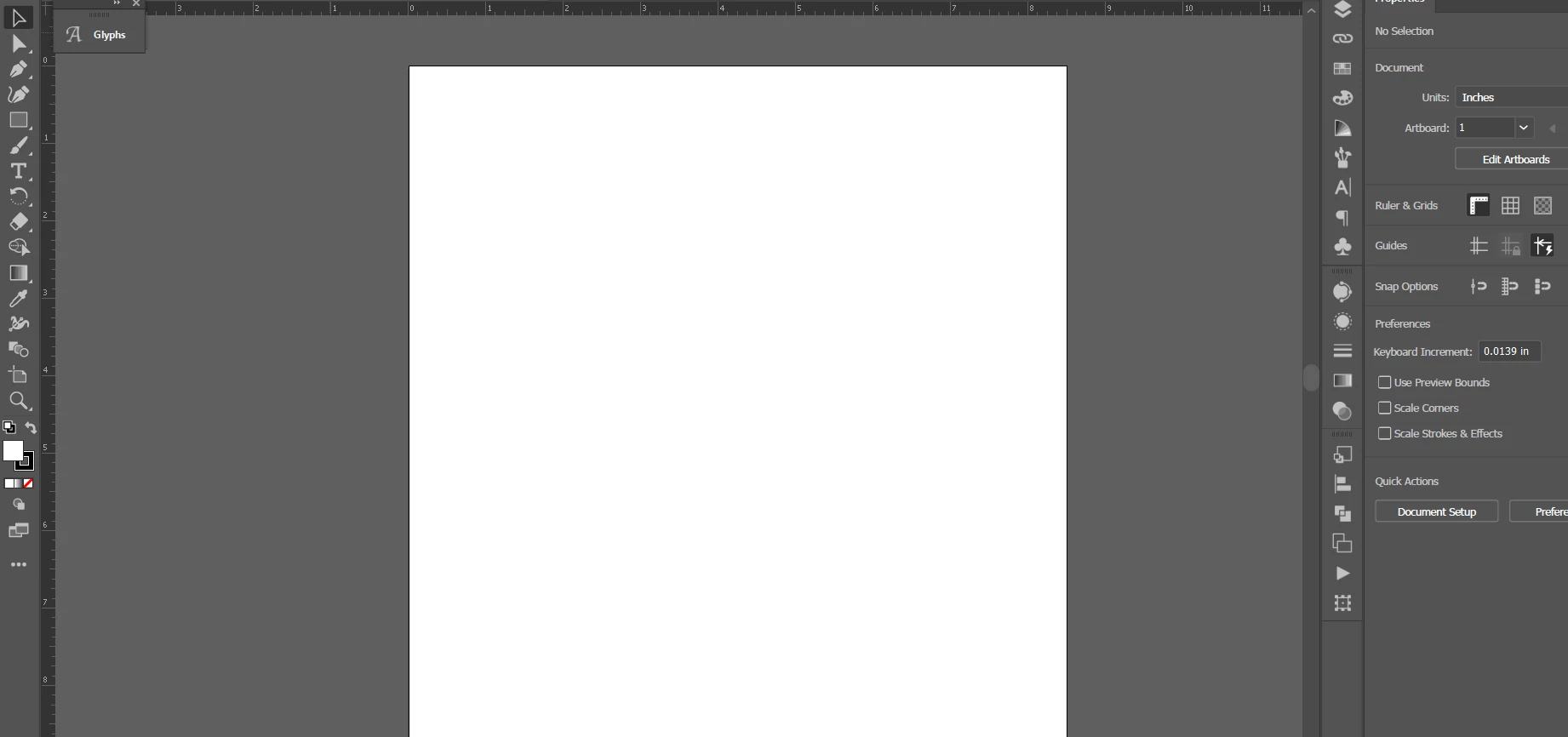
I like to work with this type of view for my projects (dark grey, plain background with a plain, white artboard and the rulers enabled):
But I think I may have accidentally hit some buttons when I was typing really fast and now, every time I start a new file in Illustrator, it looks like this:
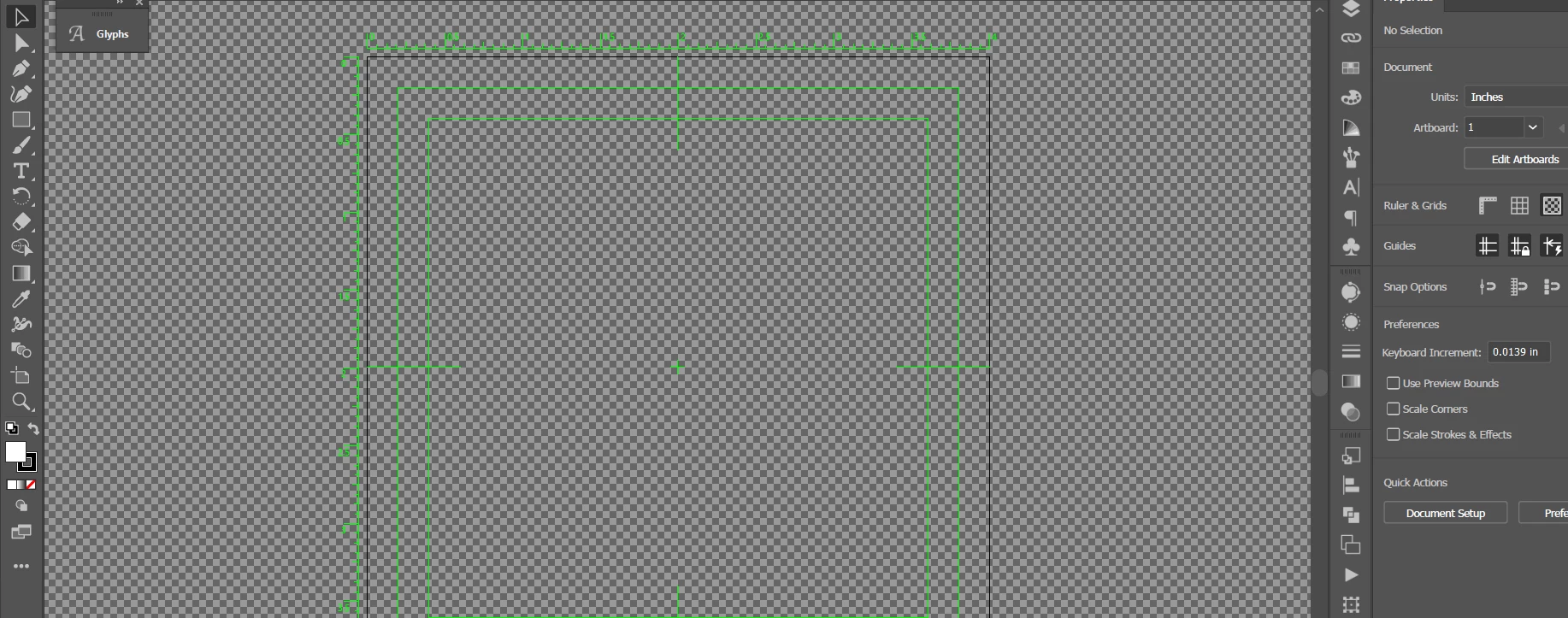
I know I can get rid of the checkerboard background by doing Ctrl + Shift + D but 1) that makes the background white, not dark grey, 2) it doesn't get rid of the "target" (the green measurements and lines), and 3) if I start a new file (even if I've turned the transparency grid off), the new file will open with the checkboard background and green target again.
What did I do? And how do I get my normal view back?!
*Note: I did not change anything in Preferences before this happened and to fix it, I've tried changing to Trim, Pixel, and Overprint view and none of them have worked.
 AdChoices