




Intertwine: Overlap and intersect shapes and text in 3 simple steps
Want to create overlapping designs with ease and in a non-destructive way? With the latest MAX update 27.0, you can now intertwine your artwork and objects in Illustrator using Intertwine in Illustrator.
See this article for information on installing the latest update.
For detailed information on using Intertwine in Illustrator, see this help article: Intertwine objects.
Check out this quick tutorial by Tony Harmer, AKA Design Ninja, to know more about this feature.

Tony Harmer Chief Enchantments Officer at Wizardry Ltd. Tony Harmer (a.k.a The Design Ninja) is a creative Swiss-army-knife and learning-content author with a three-plus-decade career that has given him a broad experience base to draw upon, including some time as a press operator, several years as a concept artist in IP development, several more as an instructor in many applications, delivering graphic production training worldwide, and a few more as a specialist solutions consultant for Adobe. He is the author of several video tutorials on LinkedIn Learning and running a growing YouTube channel. Tony is a popular speaker/presenter. His often-off-the-wall sessions always provide a ton of tips, techniques, insights, and inspirations delivered with humor and enthusiasm that is totally infectious.
This feature makes interlocking letters and objects super easy and non-destructive.
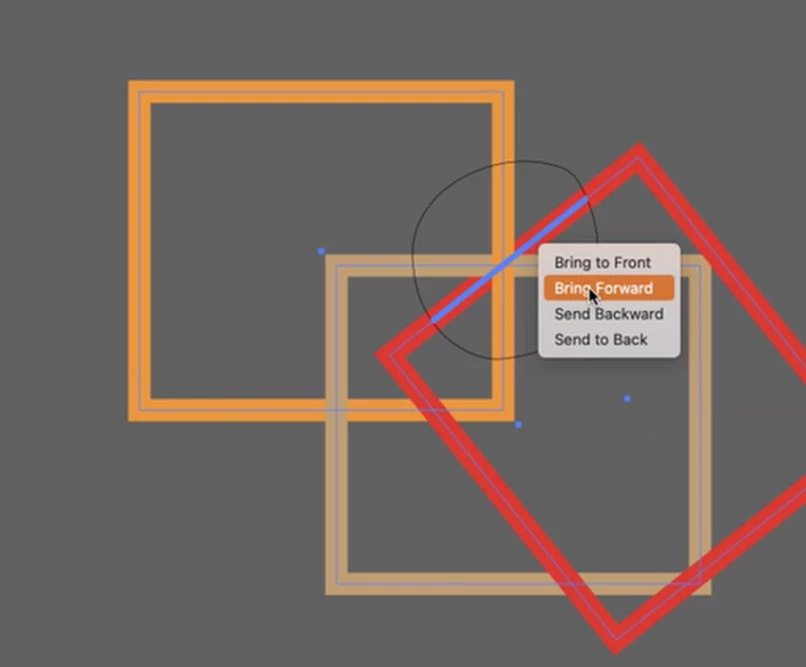
- Select the objects to be overlapped.
- Select Object > Intertwine > Make.
- Draw an enclosed path around the sections of the artwork that you want to intertwine. To make a rectangular selection, press the Shift key while you draw.
If there are more than two objects, you can simply right-click the line segment you want to move and rearrange the position.
Pressing the modifier 'shift' and then dragging gives you a rectangular marquee.
Frequently asked questions related to this feature:
- Will the objects retain their original shape?
Yes, this is a totally non-destructive workflow.
- Will the objects get grouped in the Layers Panel?
Yes, objects will be grouped but will retain their original shape.
- Can we release the intertwined objects?
Yes, you can easily restore the order of the objects to their original state.- Select the set of intertwined objects.
- Select Object > Intertwine > Release. Alternatively, select Release in the Properties panel or the Control bar.
Limitations:
- Objects with fill may end up with some weird artifacts like this.
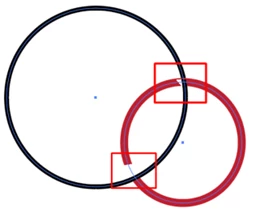
- This feature's effect is only valid until the boundaries of freeform selection bounds you create. If the stroke of the objects goes beyond the boundaries you created, the objects will appear in their original order.
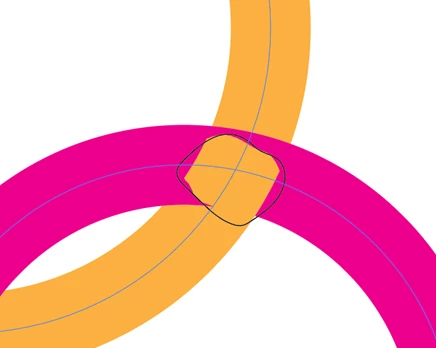
- If you export Ai files to PDF, Intertwined objects will appear as Raster images. The team is aware of it and is working towards resolving the issue in a future update. Till the time it is fixed, please upvote this request on this UserVoice page and stay tuned for updates.
We would love to hear from you about how you found this feature and what you created. Reply to this post to share your observations with us.
Please feel free to share your suggestions and feedback related to this feature on this UserVoice Page.
Regards,
Srishti
 AdChoices