


Participant
July 31, 2021
Question

How do I remove white lines from an Ai file I'm trying to send via email

  • July 31, 2021
  • 6 replies
  • 754 views

Hello, 

I have an Ai file I'm trying to send via email. 

My designs/objects are perfectly okay before I send them:
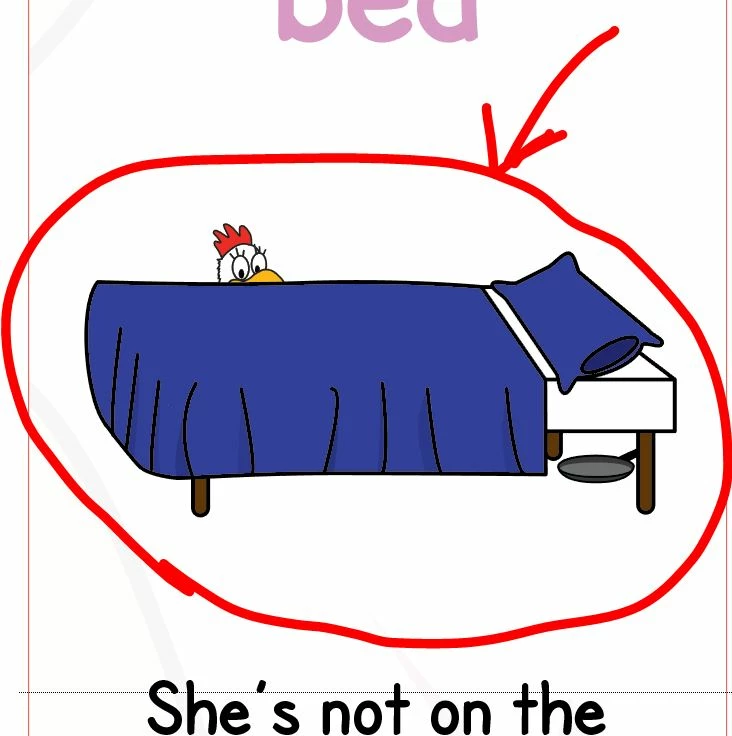
 

When the person receiving the email opens it, it looks like this: 
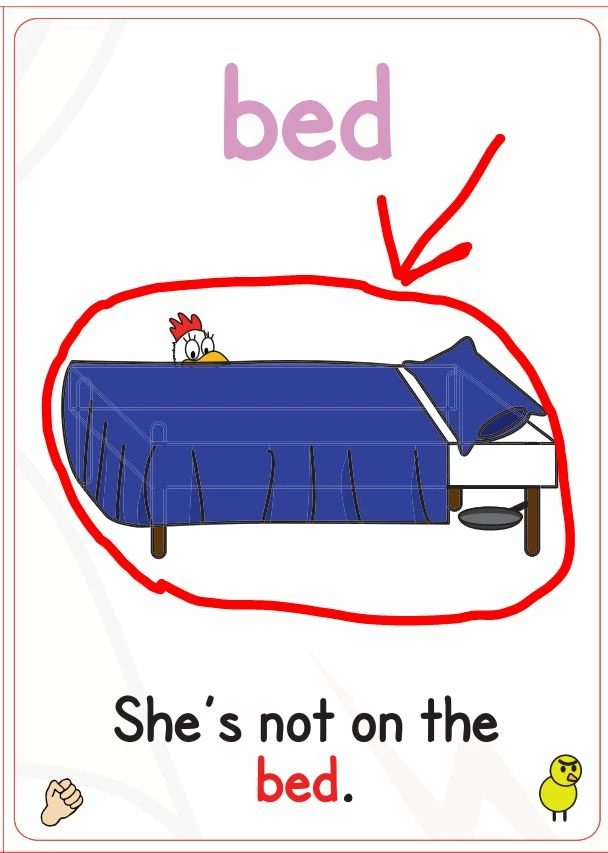
I've searched online for a quick fix to this problem (The horrible white lines that keep appearing), but can't find a solution (aside from just photoshopping the object and placing it back into the project). 


Can anyone suggest an easy fix? Sorry for the amateur question. 


-JN

    This topic has been closed for replies.

    6 replies

    Monika Gause
    Community Expert
    Community Expert
    July 31, 2021

    For the shadows: they need to overlay. As long as they are just neighboring the other blue shapes, there will be fringes.

    Jacob Bugge
    Community Expert
    Community Expert
    July 31, 2021

    JN,


    What happens if you turn Anti-aliasing off?


    Participant
    July 31, 2021

    This is with anti-aliasing off in an email I sent to myself:

    White lines in the shadows still there. 😞 

    Although, it's just in the image preview. When I download the file and open it with my own Ai software it opens without the white lines just fine. 

    Since the recipient of the email is abroad, it's tough to communicate directly with them. They're supposed to print out this design and the mockup/layout design shows the white lines for them. And they seem to be pinning the blame on me for the white lines. I suspect they aren't that great at Illustrator, but then again, neither am I, so I give them the benefit of the doubt. 


    Rather than argue it out, I'm just trying to eliminate any doubt and remove all the white lines myself. I didn't realize it was such a chore though and thought it would just end/print as it appears onscreen. 

    Ton Frederiks
    Community Expert
    Community Expert
    July 31, 2021

    "White lines in the shadows still there"

    You could try to select the shadows and use Object > Path > Offset Path and use a tiny amount like 0,01 px or even smaller or use the Offset Path effect.

    Mohammad.Harb
    Community Expert
    Community Expert
    July 31, 2021

    Are they viewing the file on mobile or Desktop ? Mac or windows? What kind of file format did you send ? 

    Participant
    July 31, 2021

    Unsure whether they use Mac or Windows. I sent in PDF (Editing capabilities preserved) and AI files. 

    Doug A Roberts
    Community Expert
    Community Expert
    July 31, 2021

    What file format are you sending them, and what software are they viewing it in?

    Participant
    July 31, 2021

    Doug, 


    I'm sending them in Ai and PDF format (Preserve Illustrator editing capabilities). 


    As far as I know, they're viewing it with standard Adobe Illustrator software.

    Participant
    July 31, 2021

    First select the white lines.  
    you can first select one with a single select tool. Then say select all similar or select same color and Phil. When you select those you will need to combine them through the Pathfinder panel. So combine all of those once those are combined use your color selection tool and select the blue once you select the blue go back up to select say select same fill color and then go back to the Pathfinder and say combined then save that file it's one object it will be saved when you send it send it it'll be fine

    Participant
    July 31, 2021

    Phil should be fill.   Sorry I should proof read more. 

    Participant
    July 31, 2021

    Thanks Raymond. Handy tip. It worked mostly, but it will require lots of tinkering and there's still a few lines there for the bed shadows which I can't seem to remove:

    For these I'm still not sure what to do. 

    Ged_Traynor
    Community Expert
    Community Expert
    July 31, 2021

    Moving thread to the Illustrator forum from Using the Community