


1721media
Inspiring
July 27, 2017
Answered

Adding month/day to each page

  • July 27, 2017
  • 13 replies
  • 9778 views

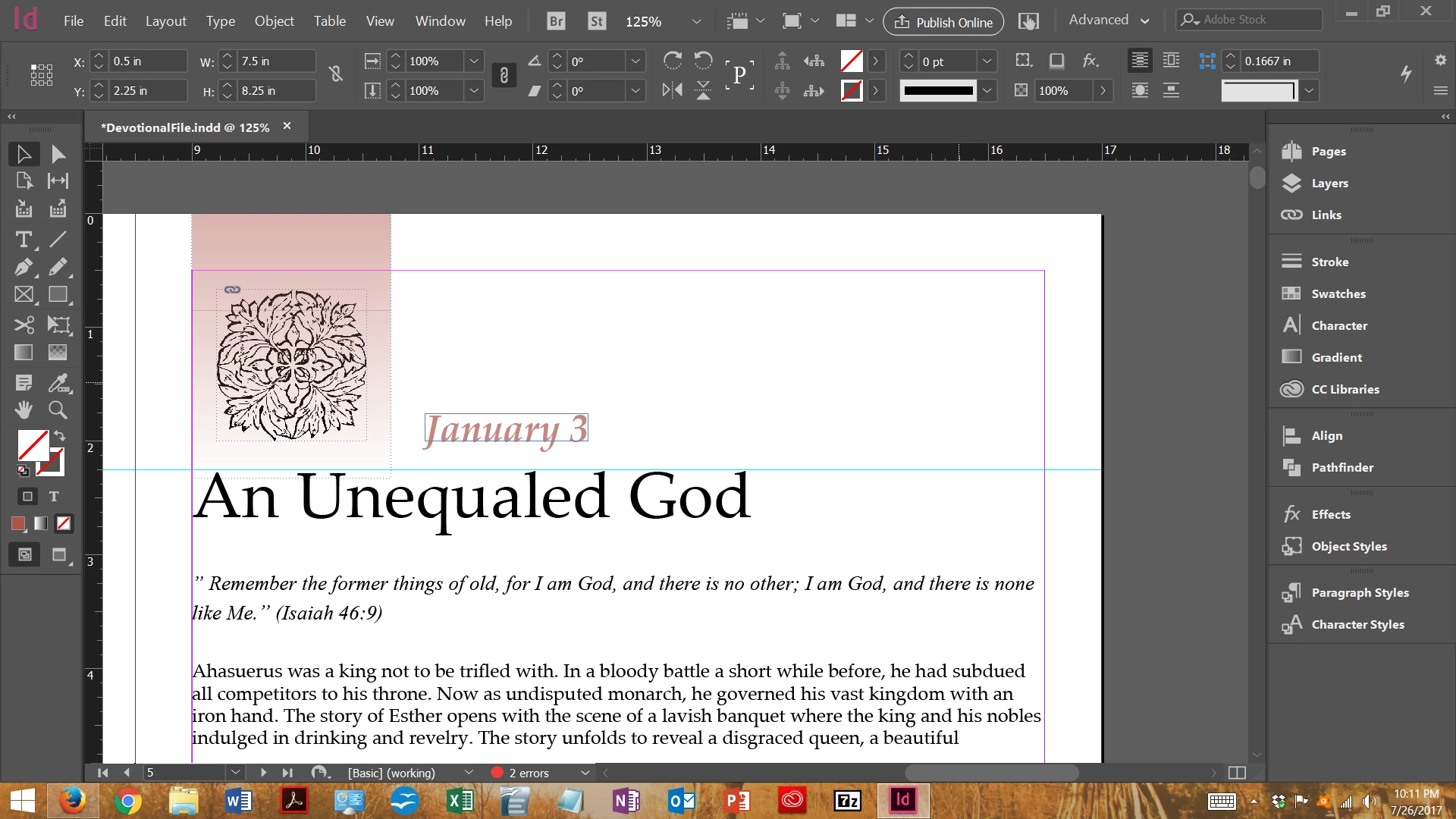
I'm working on a freelance project. There are 366 pages. The client wants each page to have the month and day, using the Gregorian calendar.

I've tried data merge but I'm not sure I'm doing it correctly. I've also found a calendar script on Sourceforge but I don't want a full calendar on the page, I only want a month and day on the page. See my screenshot. The month/day shown was placed manually. I want to avoid having to manually place all of them.
    This topic has been closed for replies.
    Correct answer 1721media

    Success!!! Many thanks to all who helped (or attempted to help) me along the way, especially to vinny38​. I followed vinny38's instructions, except I did NOT put placeholder text into the text frame in the master and I held down the Shift+Alt keys when I clicked to place the RTF data. It flowed into the text frames perfectly with no additional blank pages at the end like before.

    I love ID and the ID community. This took a while to figure out but I hope it helps someone else. This might be a good feature to have in future releases, particularly for people needing similar dated headers like in diaries and such. Just a thought.

    13 replies

    vinny38
    Braniac
    July 27, 2017

    Hi

    If I had to do it, I would do it this way:

    - first, create your date list in Excel. Format your date using Custom format cell, for example [$-409]mmmm j

    - save it as Text file (i.e. Unicode in order to use paragraphs as separators, instead of tabs or semicolons)

    - open it in Word. Select all and assign a paragraph style (i.e. "Normal")

    - save it as Word or RTF document.

    - in Indesign, create a paragraph style for your date (let's call it "Calendar"), set Keep options to start in next frame.

    - in your Master pages, create threaded frames where you want to place your dates

    - go to page 1. File > Import, check "Import options", select your Doc or RTF file

    - click Style Mapping and map "Normal" to your "Calendar" INDD style

    - now hold Shift in order to Autoflow your text and click on your date frame

    - that's it

    1721media
    1721mediaAuthor
    Inspiring
    July 27, 2017

    vinny38​, thanks. My French is really rusty though. Sorry. I think something got lost in the translation. Your written explanation helped ... when I held shift + clicked to add in the imported text, I did not get the same result. My RTF file has all the dates but I just get January 1 and January 2, alternately on EACH page in the document.

    As you can see, the text frame around January 2 has overset text so the text is there, but for some reason it does not flow through the document. Not sure what I did wrong here?

    Also, I'm using Indesign CC and I don't have simple "Import" option. I have 'Import XML' and 'Place'. So I had to use Place. Could that render a different result?

    vinny38
    Braniac
    July 27, 2017

    This is where you got it wrong:

    You placed* rtf file IN your master pages. 

    You must place it in your normal page, where it should start (page 4 I assume, although I'm not sure why master A is applied to page 3)

    * yeah right Place, not Import. My translating mistake

    Willi Adelberger
    Inspiring
    July 27, 2017

    This is not a dynamic date as you make a book with dates as part of the sub title. In such a case I recommend to use normal text. Make EVERYTHING als Paragraph Style. I don't see any reason, why you make the das in its own frame, keep it part of the text story in the same frame.

    And an opening apostrophe should not be followed by a space, neither a closing precided by an other space.

    You don't need your guide abe the title. Set up baseline grid, Object style and Paragraph Styles and it will fall automatically on the correct position.

    Inspiring
    July 27, 2017

    I'm sorry but I am not sure what you are trying to do. Is it as simple as just putting the date on a Master page?

    Willi Adelberger
    Inspiring
    July 27, 2017

    No, on maste page must not be any part of the content. Imagine if you would make an EPUB, it would be omitted.