


Known Participant
October 12, 2020
Answered

Autocorrect - Find word and add superscript in a part of it.

  • October 12, 2020
  • 9 replies
  • 1656 views

Hi everyone,

I need your help. In my document I'm using text like SomethigSpecial but the word Special is a superscript as below:

It is hard to remember always about the superscript while typing. So how I can add an autorect (or something else) to word "Somethingspecial" so I can be sure that every time it will change to something I showed you on the picture?

I don't want to use search/change option after I'm done with the file but as a autocorrect to have changes live. I wan't it to be changed while I'am typing. 
This topic has been closed for replies.
Correct answer vladan saveljic

9 replies

pixxxelschubser
Community Expert
Community Expert
October 13, 2020

@JA Kowalski,

There is a difference between Grep Find & Replace (menu command) and Grep Styles.

Grep Find & Replace can delete characters - a Grep Style cannot.


That's why:

Like @vladan saveljic wrote before: Use the menu command Grep Find & Replace at the beginning for substitutions and clean you texts. After that - use Grep Styles in Paragraph Styles for "Live formatting".


BTW: This Grep Find & Replace could do the first step.


vladan saveljic
Inspiring
October 13, 2020

one simply way could be (without using script) with find replace in two steps:
1)
find
something special
change to
SomethingSpecial

and then
2)
find
somethingspecial
change to
SomethingSpecial

Known Participant
October 13, 2020

Thank you @vladan saveljic but I know this solution. I have a very complicated file with a 500 pages. So I need to have any changes "live", not after file is done because it could cause many problems. That's why I'm looking for solutions with GREP.

vladan saveljic
Inspiring
October 13, 2020

Ok, but grep can't do all these changes "live."

For example you could do these substitutions at the beginning, not after file is done

Known Participant
October 13, 2020

@Manan Joshi @vladan saveljic @SJRiegel @pixxxelschubser 

Hi again,

I thought that there is something missing while I was working on a document today.

Is it posible adding to your GREP [to remind you: (?i)\bSomething\KSpecial\b] some line that will:

- make both words capitalics (always "SomethingSpecial", not e.g. "SomethingSPECIAL")

- delete space. (I found in document few "Something special" and I need i to be "SomethingSpecial"). I know it need to be a task like delete space always after "something" but if there is a "special" after.


vladan saveljic
Inspiring
October 12, 2020

can you share with us one page of your indesign file with your settings?

Known Participant
October 12, 2020

@vladan saveljic @SJRiegel @pixxxelschubser @Manan Joshi 

Guys, I found a solution. I forgot to add in a "superscript" in a Character Styles a superscript in a Basic Character Formats!

It works! Thanks guys!


Community Expert
October 12, 2020

Ahh, thats a bummer 🙂

-Manan

-Manan
pixxxelschubser
Community Expert
Community Expert
October 12, 2020

select your text frame

open Panel "Style znakowe"

click on [Brak]

Known Participant
October 12, 2020
Legend
October 12, 2020

try adding (?i) at the front of your expression - this removes case-sensitivity

(?i)\bSomething\KSpecial\b

vladan saveljic
Inspiring
October 12, 2020

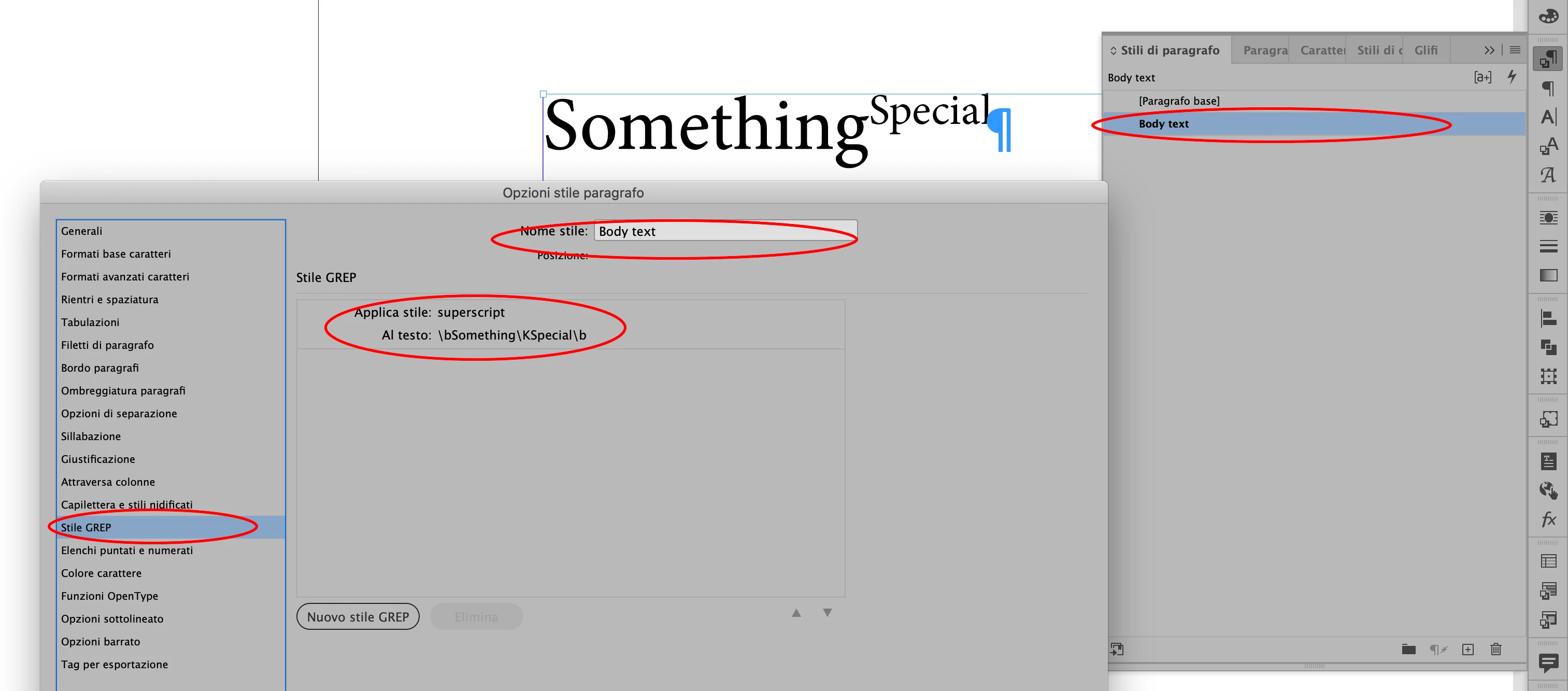
Just write with the "Body text" applied SomethingSpecial.

(don't select the character style "Superscript")

vladan saveljic
Inspiring
October 12, 2020

Don't apply the character style "Superscript" on your paragraph

vladan saveljic
Inspiring
October 12, 2020

tray in this way as in the screenshot.
Feel free to ask if you need further assistance

Known Participant
October 12, 2020

@vladan saveljic I've done all you wrote but it doesn't work. Now all text is as a superscript 😉 .

I wrote in GREP style:

\bSomething\KSpecial\b

Community Expert
October 12, 2020

I tested and it works for me too. Can you show some screenshots on what is your document state

-Manan

-Manan
vladan saveljic
vladan saveljicCorrect answer
Inspiring
October 12, 2020