


Participating Frequently
August 3, 2024
Question

Bitmap images print pixelated

  • August 3, 2024
  • 11 replies
  • 3529 views

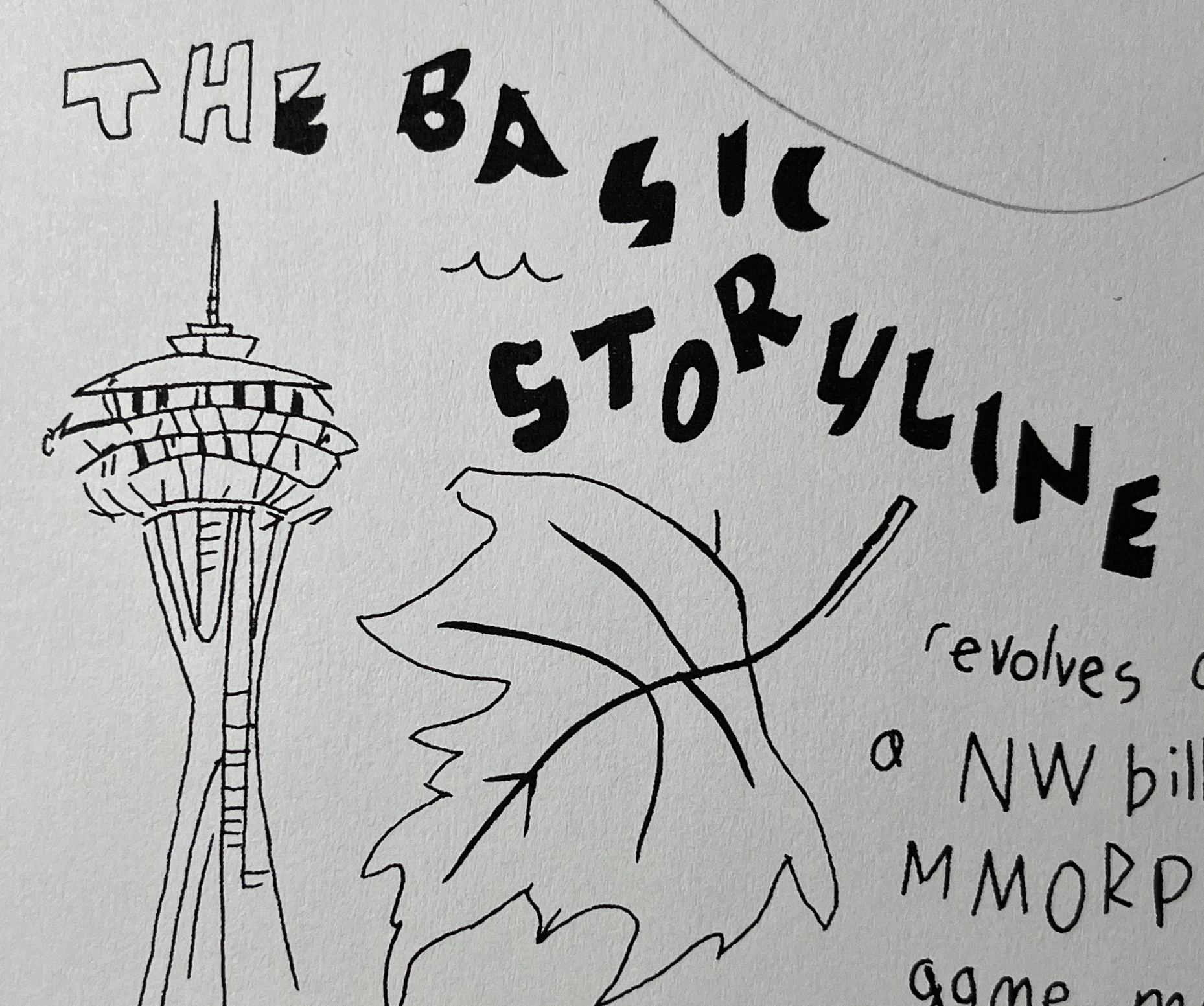
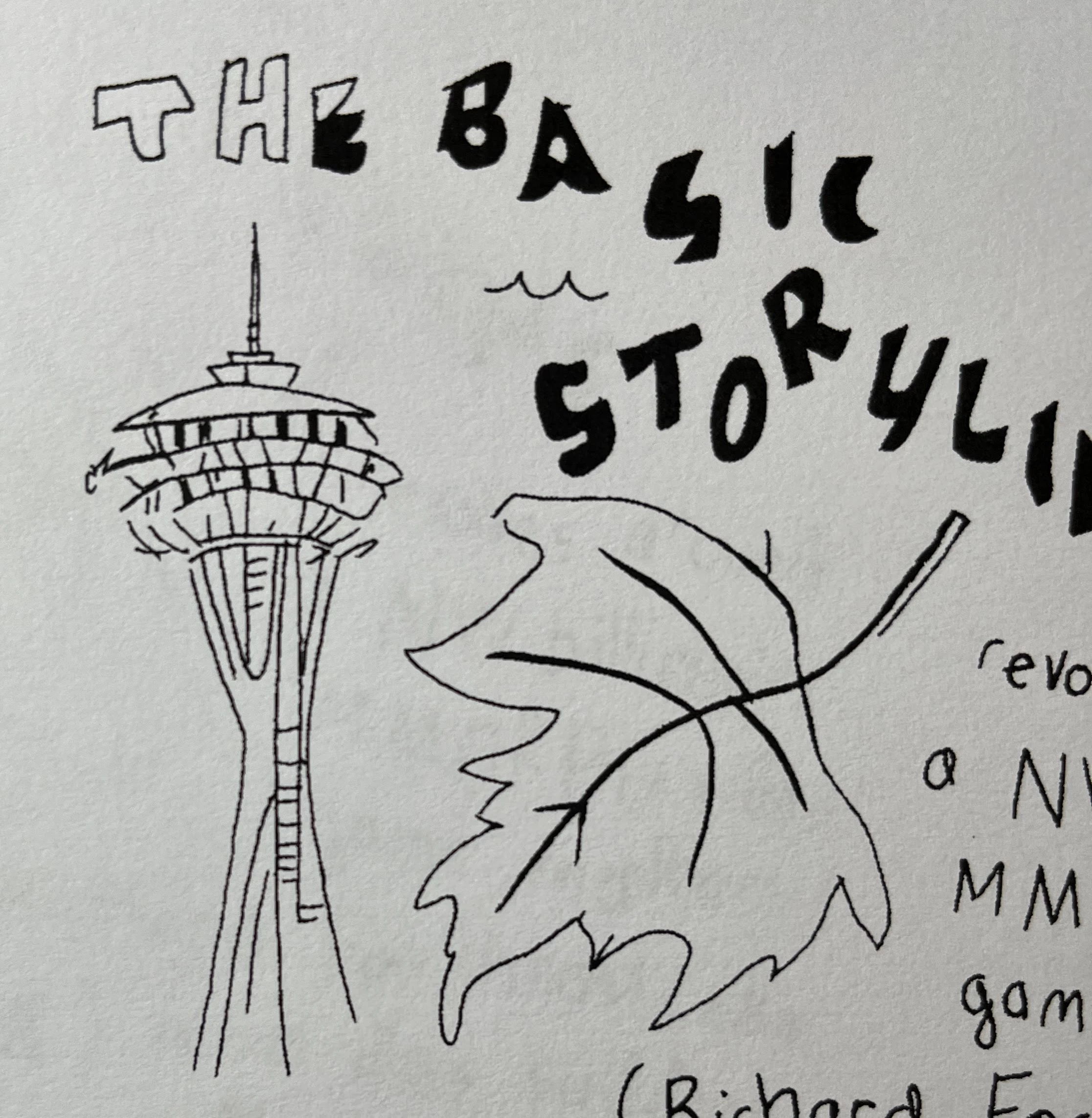
I am creating a booklet using InDesign made up of images from Photoshop.  All images have been converted to 600dpi BMP files.  These print nicely in Photoshop, but come out slightly pixelated when printing either directly from InDesign or when exported to a PDF.

Example from Photoshop:

Example from InDesign:
This topic has been closed for replies.

11 replies

Dave Creamer of IDEAS
Community Expert
August 4, 2024

I received the file from Jason @Jason28603059yx35 

It was a 1200 ppi RGB TIFF. He also sent one he process and downsampled to 600 ppi, but I used the original scan.

(I don't know if it was scanned at 1200 or upres'd to 1200, but it was 1200 ppi.)


First, the original art was hand-drawn so the lines were "shaky" to begin with. Original from Photoshop screen capture:

I processed the file three ways after increasing the contrast with levels a bit. 

  • RGB with LZW compression. (LZW is lossless)
  • Grayscale with LZW compression.
  • Bitmap Mode with LZW compression.

I placed them in InDesign and printed them, sending All data. (I had to take a close-up photo with my phone since my scanner did not allow that much scaling, so you are seeing the paper texture.) The color and grayscale were identical under a loop and both looked soft a actual size compared to the line art version. As I mentioned, they would be screened at the printers linescreen, and it shows on the image. (My printer is also a 600 dpi so I believe it prints at 170 lpi.)

Line art (Bitmap mode from Photoshop using 50% dither) printed from InDesign:

You can see that there is no screening and a definite improvement vs the color/gs.


I stand by my original settings on scanning/printing line art.


David Creamer: Community Expert (ACI and ACE 1995-2023)
Dave Creamer of IDEAS
Community Expert
August 4, 2024

BTW, not that file size should be a deciding factor over quality, but the sizes were as follows:

  • Original RGB, 66.9 MBs
  • LZW RGB, 22.1 MBs
  • LZW GS, 9.4 MBs
  • LZW BM mode, 0.19 MB

Again, LZW is lossless. Although it can take a little longer to print since it has to decompress at that time, but I don't think this has been a major issue for 30+ years.


David Creamer: Community Expert (ACI and ACE 1995-2023)
Participating Frequently
August 4, 2024

Based on that, do you think there is an issue with my InDesign settings?  Similar to you, I did achieve a better result with a TIFF in bitmap mode saved with LZW compression, but it still was visibly pixelated compared with when I printed directly from Photoshop.

Brad @ Roaring Mouse
Community Expert
August 4, 2024

Okay,  chiming in here.

1. nothing wrong with BMP format, as long as you are saving this as a 1-bit BMP. That being said, yes, it's an old format so I would rather see 1-bit TIFFs in this case. Plus, you can save 1-bit TIFFs with LZW to save oodles of drive space.

2. If you are printing from InDesign directly, there are a few places, that by default, InDesign sets a "compromise".

Under Graphics, ID defaults to Optimized Subsampling. Use "All" instead; this sends the complete image data no matter how large it is. When optimized is set, ID will send a reduced resolution version based on the final resolution of your printer.

For non-PS printers, under Advanced, ID defaults to Print as Bitmap > 300 dpi, so again, it's downsampling, even though your Brother has a native 600. For Color/Greyscale images this isn't a probem, but for line art, will increase edge jagginess that the naked eye can pick up.

3. As for printing from your PDF, your Export setting shouldn't be affecting anything; you have properly turned off downsampling on monochrome images. To check, If you zoom in on the image in your PDF, does the image show the degradation there? If not, your issue is downstream (i.e. printer/printer settings).

4. If your line art images are interacting with any transparency opbjects in ID, you need to check your Transpareny Flattening settings and chnage them accordingly.

Participating Frequently
August 4, 2024

I feel like I've checked all of these boxes, and I'm still having the same issue.

Participating Frequently
August 4, 2024

The pdf does not look smooth when zoomed in.  I adjusted the Transparency Flattening setting to be High Resolution.

Mike Witherell
Community Expert
August 4, 2024

I can understand converting to grayscale, but why bother to convert to bitmap?

Mike Witherell
Dave Creamer of IDEAS
Community Expert
August 4, 2024

Grayscale will be screened at the printing screen, e.g. 150 LPI. Bitmap mode/line art is not.


David Creamer: Community Expert (ACI and ACE 1995-2023)
James Gifford—NitroPress
Brainiac
August 4, 2024

"Yeahbut," as an annoying colleague of mine is prone to say, and if I can kick this dead horse one more time — you're again comparing technicalities that may not reflect real world results.


An optimized and fairly high res grayscale image, processed for print through optmized screening, even 150lpi, is likely to produce a more acceptable result to most eyes from most 600dpi and down devices. That the dots are technically coarser is irrelevant.


A very high res B+W image, passed through export without change, is subject to the whims and quality of the printing device, and at 600dpi it's likely to still have some jaggies, and thus look inferior to the above approach.


All based on experience that I've never had good results from black line art on anything less than 1200dpi and up output devices; applying the "smoothing" at earlier stages, no matter how numerically inferior, gave a better result.


Somebody get this horse outta here. 🙂

James Gifford—NitroPress
Brainiac
August 4, 2024

Without trying to be pedantic, lecturing or contrary here, it seems as if all the suggestions for a fix are trying to achieve the one necessary thing while sort of dismissing the one necessary thing. 🙂


Printing absolute black and white without any shading, aliasing or pixelation requires one of two things: completely rectangular objects and lines, or resolution so extreme the eye can't see any jaggy-pixelation on curved or orthogonal strokes. (Any argument?)


We have a fixed resolution here of about 600dpi from the printer. (About as a high a res as any printer not in commercial service.)


So all the solutions here are various ways to force some kind of shading, aliasing, controlled pixelation etc. by various means, and at various levels from the scan and image itself through ID and PDF settings through the printer's native actions.


So  — would it just make more sense to accept this factor, and use a very controlled scaling of the "black and white" art to include the kind of very slight shading, aliasing, etc. that Photoshop can achieve, and thus get something close to the optimum possible result without dinking around with extreme resolutions and dithering and still letting the printer more or less have the final say? That is, quit trying to take 1-bit bitmap color as an ideal/requirement and then patch things up all down the chain from there?


(Something I suspect kindly ol' Photoshop is doing without bothering to argue the point with y'all?)


Or have I just not had enough coffee yet?

Dave Creamer of IDEAS
Community Expert
August 4, 2024

I remember reading one that the human eye can't detect resolution higher than 1500 ppi, perhaps a little higher for some. at that resolution, even an angled/curved line would appear to be smooth (depending on output device, of course).


David Creamer: Community Expert (ACI and ACE 1995-2023)
Dave Creamer of IDEAS
Community Expert
August 3, 2024

For this type of art, you need the following:

  • Black-and-white (aka Bitmap MODE in Photoshop or Line Art in scanner software)--do NOT use grayscale as it will screen.
  • 1200-1500 ppi at actual size (needs to be scanned at this resolution, not upscalled in Photoshop). If you scanner only scans at 600 ppi max (scanners always say dpi for some reason), try to create the art twice as big and change in Photoshop.
  • LZW-compressed TIFF (Photoshop should work too, but I think LZW TIffs are smaller.)--


Assuming a good scan (clean glass, etc.), you will output as good as the original. You can colorize it in InDesign and Illustrator if needed.


David Creamer: Community Expert (ACI and ACE 1995-2023)
Participating Frequently
August 4, 2024

This was process in prior to placing the files in InDesign:

  • scan at 1200 as color
  • change mode to grayscale
  • apply levels to adjust contrast
  • do a bit of additional fine-grained cleanup
  • apply threshold and/or convert mode to bitmap


This prints nicely from PS but has the slight pixelation in either InDesign or PDF.

Dave Creamer of IDEAS
Community Expert
August 4, 2024

Normally, I scan directly as black only, aka black-and-white or line art, depending on the scanner software. The will take anything that is reasonable dark and make it 100% black. Light shades of gray will become white.


You shouldn't need to scan as color unless you want adjust the conversion to grayscale for better contrast.


If you have fine details that are not solid black, you can scan as grayscale and convert to Bitmap MODE in Photoshop. Normally, I use the 50% Threshold setting, but if you have a lot of fine detail, you can try Diffusion Dither setting--it will be black-and-white but still look grayscale.


Be sure to match the scan resolution of 1200 ppi when converting to Bitmap mode.


David Creamer: Community Expert (ACI and ACE 1995-2023)
leo.r
Community Expert
August 3, 2024

Check if any of your Print and PDF export settings can potentially affect the quality, such as:


Print: Graphics > Images

PDF: Compression


Set them to the maximum possible quality and see if it makes a difference.


EDIT: I now see that you did attach your PDF settings summary where I don't see anything suspicious.

Mike Witherell
Community Expert
August 3, 2024

Ok, so the name is one thing, but what are the native printer dialog box settings for that machine?

Bear in mind that what prints is a combination of what you set in the InDesign print dialog box as well as the next dialog box, the printer's print dialog box. Any special settings down in there?

Mike Witherell
Participating Frequently
August 3, 2024

There is a setting for dpi, and it's set at 600.  Other than that, there's nothing that stands out.

James Gifford—NitroPress
Brainiac
August 3, 2024

None of this is likely to be the printer's issue/fault. Most modern printers, especially SOHO ones, aggressively optimize their output (and need significant effort to override such optimization in the cases where it's not wanted). And as noted, resolution alone can't compensate for unshaded, unaliased images.

Mike Witherell
Community Expert
August 3, 2024

Tell us about your printing device?

Mike Witherell
Participating Frequently
August 3, 2024

It's a Brother HL-2340DW

Robert at ID-Tasker
Brainiac
August 3, 2024
quote

It's a Brother HL-2340DW


By @Jason28603059yx35


Isn't it HL-L2340DW? 


According to the spec sheet - 600x600dpi with 2400x600 in hq mode. 


For B/W images, I would do it as TIF - then you can even color it - assign color to black pixels.


Minimum resolution for this printer would be 600x600 PPI. 


Participating Frequently
August 3, 2024

Thank you!

  1. \Actually TIFF and PSD files print similarly
  2. I did use the Place option as opposed to paste
  3. attached is what I see from the links menu
  4. dpi is 600 and attached is the summary from the PDF export


James Gifford—NitroPress
Brainiac
August 3, 2024

My suspicion is that regardless of export format, you've reduced these images to (effectively) 1-bit color with no shading or aliasing, so even as PSD at 600ppi, they are reproducing as harsh-edged, jaggy elements. As Mike notes, you have to feed such images to InDesign at around 1200ppi in order for its export algorithms (actually, PDF's, I think) to smooth the edges.


It's tough to go from 2-color back to a shaded, smoothed grayscale (which you want, really, even if the intention is "pure black and white"), but I think that's what you're going to have to do. Back up to earlier versions of your art and work in either RGB or grayscale as you reduce and export them; avoid all steps that will flatten the colors to black+white with no shading values. Then 600ppi grayscale PSD, JPEG or TIFF will give you much better rresults in ID.

Participating Frequently
August 3, 2024

A 1200dpi TIFF is also printing with some noticeable pixelation.

Mike Witherell
Community Expert
August 3, 2024

Hi Jason,

Some recommendations for you to try:

1. Don't use the aged .BMP filetype (early 1990s) for your images. Save them as .PSD in Photoshop. Allow them to be RGB mode. There is no need to save them down to 1-bit bitmap mode, if that is what you mean by BMP.

2. Did you File > Place your 600ppi images into InDesign? That is the correct way to put them in. Do not copy n paste from a photo editor to InDesign. Doing so will give you low-rez 72ppi images.

3. When you test printed from InDesign, did you check the links panel to see that all "placed" images links were up-to-date?

4. What were your PDF settings when you exported to PDF? In particular, what was the ppi of images?

Mike Witherell