This topic has been closed for replies.
Correct answer barbara_a7746676

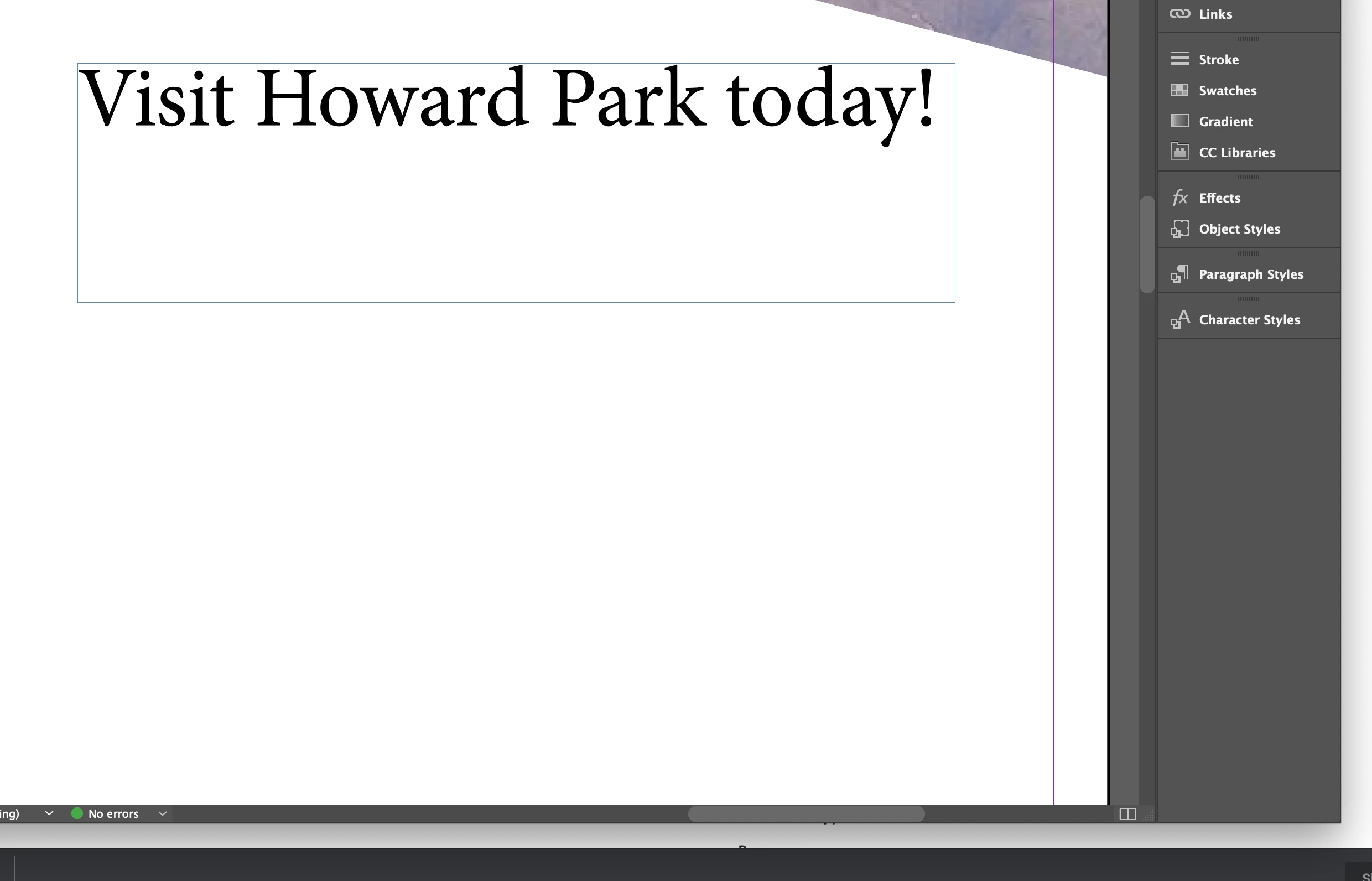
The blue around the text boxes is the edge of the frame, and that is normal. You can turn it off by choosing View > Extras > Hide Frame Edges.

2 replies

Conrad_C
Community Expert
Community Expert
April 14, 2021

If the frame edges weren't visible before and you have no idea how they became visible, it’s possible you accidentally pressed the three-key shortcut shown next to the command on the menu.

barbara_a7746676
Community Expert
barbara_a7746676Community ExpertCorrect answer
Community Expert
April 14, 2021

The blue around the text boxes is the edge of the frame, and that is normal. You can turn it off by choosing View > Extras > Hide Frame Edges.

Participant
November 8, 2022

Hi there, I aslo have this issue but don't have the settings you detail View > Extras > Hide Frame Edges.

How do I action this if I don't have the available settings above?


Conrad_C
Community Expert
Community Expert
November 9, 2022
quote

Hi there, I aslo have this issue but don't have the settings you detail View > Extras > Hide Frame Edges.

How do I action this if I don't have the available settings above?

By @Aaron26945869iy0u


Are you sure you don’t have the command, and, are you sure you are in Adobe InDesign? The Hide/Show Frame Edges command has been part of InDesign for many versions.


If you are in InDesign and the command is missing, check these possible reasons:

  • If the frame edges are already hidden, the command will appear as Show Frame Edges instead of Hide Frame Edges. 
  • Choose Edit > Menus and see if the current Set is InDesign Defaults. If it isn’t, then a custom menu Set may be in use, and in that custom set, Hide/Show Frame Edges might have been disabled. To fix that, switch to a menu Set where Hide/Show Frame Edges is enabled, such as InDesign Defaults.