


Participant
May 14, 2020
Answered

Can I have multiple h1 paragraph styles but with different attributes?

  • May 14, 2020
  • 3 replies
  • 4983 views

I am setting up my first "accessible" document in InDesign; I understand that before I can start Export Tagging, I must first assign a hierarchy (h1, h2, body text, etc) in Paragraph Styles. However, my document contains headings which vary somewhat depending on context: one will contain paragraph spacing after a previous paragraph, some are part of a numbered list, and so on.


How do I assign them all as h1 for assistive technology without InDesign making them all the same (either all with a numbered list when I don't want it, or with different spacing assigned to it)?


I feel I'm missing a very basic bit of information, yet I can't seem to locate it anywhere in the Support Community. Thank you for any assistance you can provide!
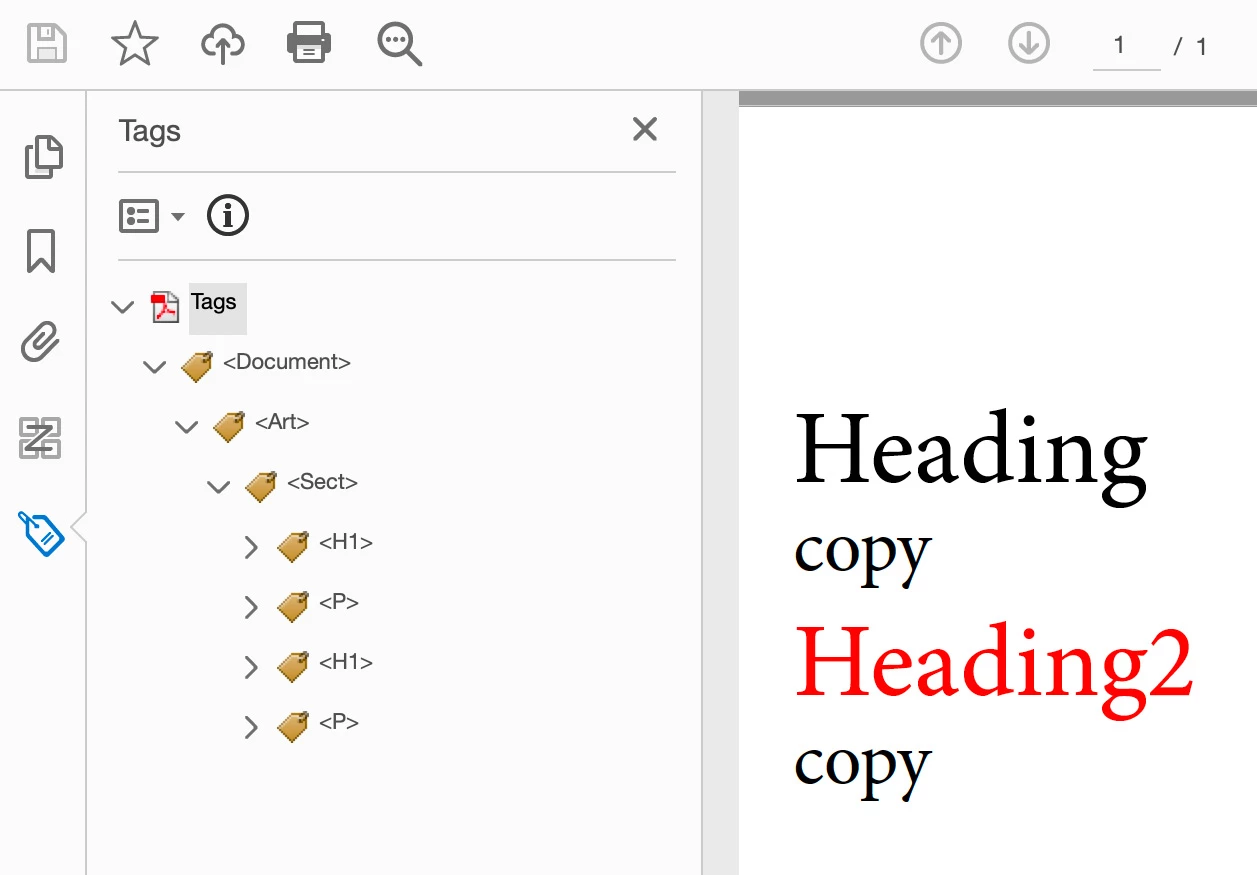
Correct answer Jeffrey_Smith

And the result in Acrobat

3 replies

Bevi Chagnon - PubCom.com
Legend
May 14, 2020

Yes, Frans, PDF 2.0 does have the <Title> tag.


But PDF is not PDF/UA.


PDF 2.0 is the master "umbrella" PDF standard for all kinds of PDFs, including PDF/A (archival), PDF/E (engineering), PDF/X (print & graphic arts), PDF/UA (universal accessibility) and more subsets.  These subsets define how to use PDF for different purposes and uses.


Our future PDF/UA -2 subset standard will most likely define how to use the new <Title> tag, but that's not a given until the new standard is released and approved by the ISO.


Until it does, PDF/UA-1 is still the version that is in force today; therefore using the <Title> tag is not compliant with the current standard, and it won't do anyone any good because AT (assistive technologies) haven't been developed to recognize and process the <Title> tag, or anything else with PDF/UA-2.


Don't jump the gun on standards. If it's not in the current standard, don't use it. See https://www.iso.org/standard/64599.html about the ISO's statement re: review, "This standard was last reviewed and confirmed in 2020. Therefore this version remains current."


|&nbsp;&nbsp;&nbsp;&nbsp;Bevi Chagnon &nbsp;&nbsp;|&nbsp;&nbsp;Designer, Trainer, &amp; Technologist for Accessible Documents ||&nbsp;&nbsp;&nbsp;&nbsp;PubCom |&nbsp;&nbsp;&nbsp;&nbsp;Classes &amp; Books for Accessible InDesign, PDFs &amp; MS Office |
Frans v.d. Geest
Community Expert
Community Expert
May 15, 2020

Yes Bevi, I know all that.

Bevi Chagnon - PubCom.com
Legend
May 15, 2020

Yep, I know you know that, Frans!

Was written for the original poster and others who read this thread who might not understand accessibility tags as well as you do.


<Heart> to Frans!


|&nbsp;&nbsp;&nbsp;&nbsp;Bevi Chagnon &nbsp;&nbsp;|&nbsp;&nbsp;Designer, Trainer, &amp; Technologist for Accessible Documents ||&nbsp;&nbsp;&nbsp;&nbsp;PubCom |&nbsp;&nbsp;&nbsp;&nbsp;Classes &amp; Books for Accessible InDesign, PDFs &amp; MS Office |
Bevi Chagnon - PubCom.com
Legend
May 14, 2020

As @Jeffrey_Smith shows, you can have different formatting styles mapped to the same tag in the PDF.


For example, in my classes I show students that they might have a "regular" <H2> for subheads in the main story, but also might want the heading for a sidebar to have an <H2> in the PDF as well. They make 2 different formatting styles in InDesign, but map both of them to  <H2>.


I'm more concerned about how you're drawing your conclusions:

  1. Headings in accessible documents denote the logical hierarchy of the document. Sometimes that jives with the visual appearance of the headings (example, bigger bolder with more white space is a higher level heading; smaller less bold with less white space is a lower level heading). But sometimes it doesn't. Nothing in the PDF/UA-1 standard says that heading levels must jive with their visual appearance.
  2. Why are you designing the document with mutliple <H1> tags? The general interpretation of the PDF/UA-1 standard indicates that <H1> is the top-most level of heading...in other words, the Title of the document itself (or in large publications, the title of a major section, like a chapter of a book. Quoting the standard: "— If any heading tags are used, H1 shall be the first."


I'll be the first to admit that the PDF/UA-1 standard doesn't give clear enough direction on how to use heading tags or deal with the document's title. After all, there isn't a <Title> tag in the standard, so we can't use it in our PDFs. That leaves us with using <H1> for the title, which coordinates with traditional, pre-digital publishing standards (says this former hot-metal typesetter).


At this time  -- as PDF/UA-1 is the current standard  -- we recommend reserving <H1> for the document's title, and subsequent descending headings as <H2> through <H6> in a logical order. And PDF/UA-1 does not allow the skipping of heading levels: can't go from <H1> to <H3>, for example.


Remember, this is all interpretation of a murky part of the standard, so YMMV (your mileage may vary). All of us experts come up with our unique interpretations.


In a future version of the standard, PDF/UA-2, there might be some clarifications on titles and headings, but that version of the standard is in development and won't be available for a few more years.


—Bevi

(Delegate to the ISO committee for PDF/UA standards)


|&nbsp;&nbsp;&nbsp;&nbsp;Bevi Chagnon &nbsp;&nbsp;|&nbsp;&nbsp;Designer, Trainer, &amp; Technologist for Accessible Documents ||&nbsp;&nbsp;&nbsp;&nbsp;PubCom |&nbsp;&nbsp;&nbsp;&nbsp;Classes &amp; Books for Accessible InDesign, PDFs &amp; MS Office |
Frans v.d. Geest
Community Expert
Community Expert
May 14, 2020

As I understand it, PDF 2.0 will have the 'Title' attribute.

That said, I do use a few variations in style that share the H3 tag. But anyway, make sure you always have a logical structure: so H1, H2, H3 etc. Do not 'skip', so going from H1 to H3 without having a H2 in between is not allowed. You can 'repeat' however, like H1, H2, H2, H3 etc. and then 'restart' with H1.

Note that some readers (VIP Reader, HTML rendering in a reader etc.) use the H tags to render text differently to make the structure more clear to readers.

Community Expert
May 14, 2020

From the paragraph styles panel, select each style and export tagging, and map to H1

Jeffrey_SmithCommunity ExpertCorrect answer
Community Expert
May 14, 2020

And the result in Acrobat