


Inspiring
September 29, 2018
Answered

can i make word-wrap lines line up?

  • September 29, 2018
  • 3 replies
  • 1418 views

Is there a style or something that would allow me to make word-wrap lines line up? I imported 40 pages of endnotes from a WORD table and had to convert it to text due to all the mess. And so I lost all the italics in book titles. sigh...

Now I am hoping there is an easy way to avoid manually dealing with the following:

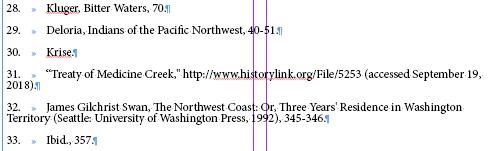
Here is what it looks like now and I want the word wrapped text to line up beneath the text above it.:
This topic has been closed for replies.
Correct answer hammer0909

Yeah that does look ugly. That's out of your control unfortunately. I'm curious though… Try selecting the table using the Type tool and choosing Table > Convert Table to Text. This normally will remove the table and covert it to raw text. My only concern is that there's a tab within the text of the table. Give it a shot though. It might be a quick solution to get rid of that table.

3 replies

sivey@pdxAuthor
Inspiring
September 29, 2018

1. As a quick fix I was able to get the outdent to work with: Ctrl + \  on my pc in conjunction with using the tab key and a soft return: Shift-Enter. Hurray!

2. Regarding the article you kindly provided: I had already tried: File > Place on my pc but I cannot seem to figure out how to access the "Show import options" because when I do File > Place the cursor loads and there seems to be no way to get to the InDesign import options.

3. About the suggestion from Jane-e: I do not see the option within InDesign for outdent but I went on my pc to Window > Type/Table > Paragraph > Left Indent, but I do not know what to do from there. The field does not accept negative numbers. I am such a novice that I just don't get it.

sivey@pdxAuthor
Inspiring
September 29, 2018

Oh I finally saw "show import options" at the bottom of the file screen, right above where I type in the file name. This will only be an option for me if I can turn OFF the table while retaining the ITALICS. This is because the document I am importing has table formatting that is bewildering me. The first problem follows. There seems to be no way to get that WORD table selected so that it can be narrowed to fit the page.

sivey@pdxAuthor
Inspiring
October 1, 2018

Yeah that does look ugly. That's out of your control unfortunately. I'm curious though… Try selecting the table using the Type tool and choosing Table > Convert Table to Text. This normally will remove the table and covert it to raw text. My only concern is that there's a tab within the text of the table. Give it a shot though. It might be a quick solution to get rid of that table.


The table cannot be selected and so I just imported the plain text and did the hard job of reformatting.

hammer0909
Community Expert
September 29, 2018

Your dealing with a multitude of issues and I think you're just looking for a quick answer. To learn more about retaining formatting from word check out this article. Although it applies to InCopy, it works the same in InDesign.

Jane's recommendation is the way to go but if you're looking for a quick way to address your problem, place your cursor after the tab where you want the second line to indent and press cmd + \ (backslash) or ctrl + \ (Windows). This will insert an indent to here character and should achieve the result you're looking for. Again this is not my generally recommended solution, but it will fix your issue short term.

jane-e
Community Expert
September 29, 2018

Do you mean, for example, that you want the “T” in Territory lined up with the “J” in James?

If yes, you need what is sometimes called an outdent. The left indent for the paragraph, as an example, might be 1p0 and the first line indent would be -1p0.

You can set this in the Paragraph panel, Control panel, or Tabs panel. Then update your style for Endnotes so it applies to all.

Please ask again if you meant something else.