New Participant
May 8, 2019
Answered

Can you lock text color for specific text boxes within a thread?

  • May 8, 2019
  • 3 replies
  • 2409 views

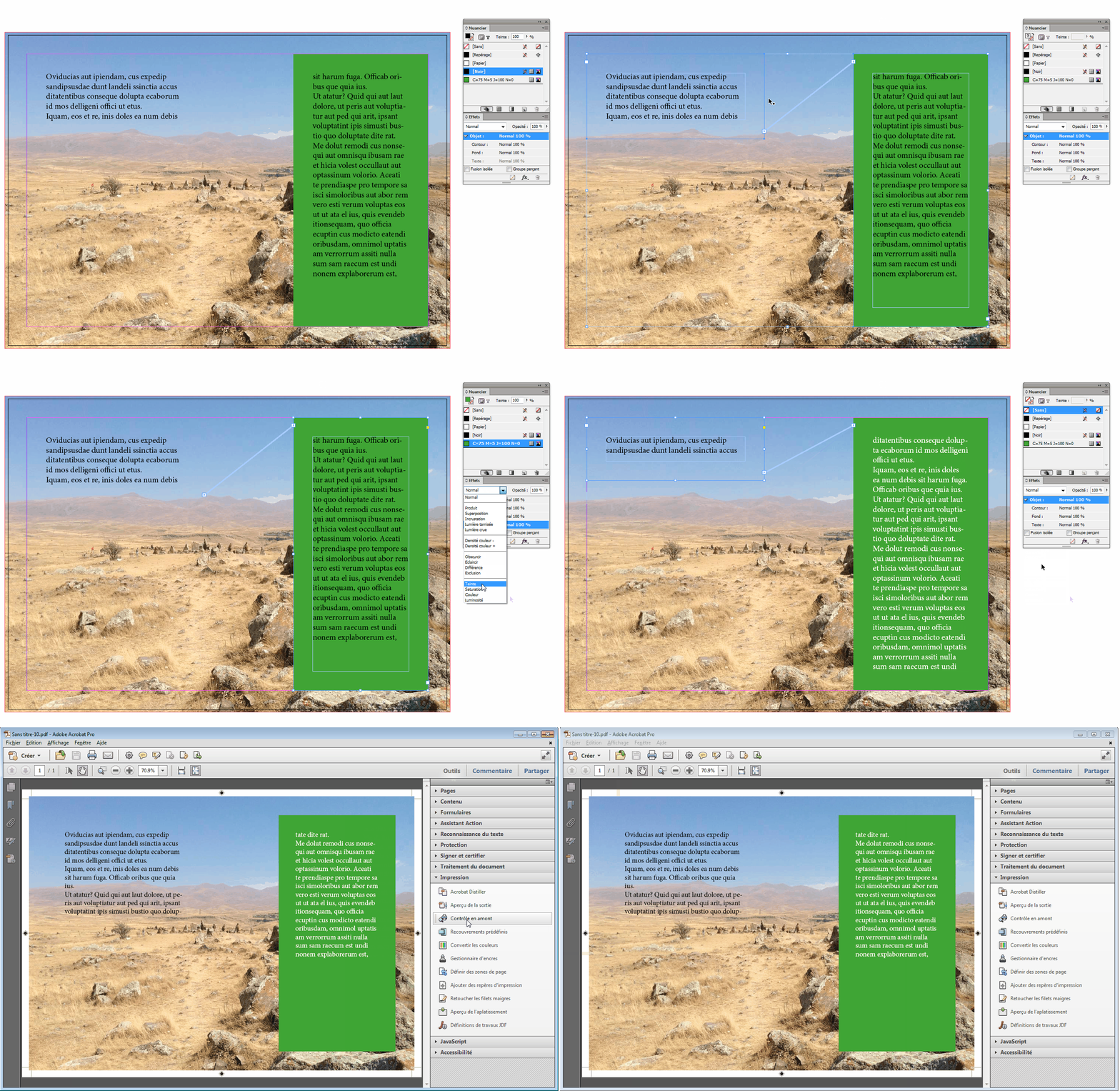
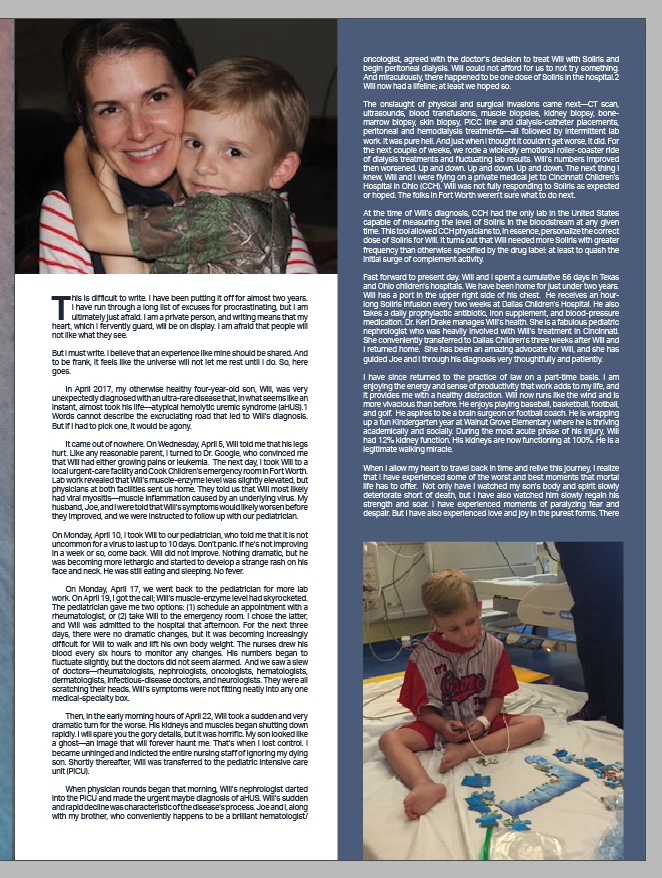
Generally new to Indesign and not sure how to figure this out. I'm working on a document that has multiple threads of text. Below is an example of two text boxes I have that are threaded together (left to right) but I have a problem. I'm trying to find a way to make it so the text in the box on the right side is always white. Is there a way that I can make it so whenever text is entered, or pushed, or added to the right side text box it will automatically turn white? And vise versa the text on the left always stays black?

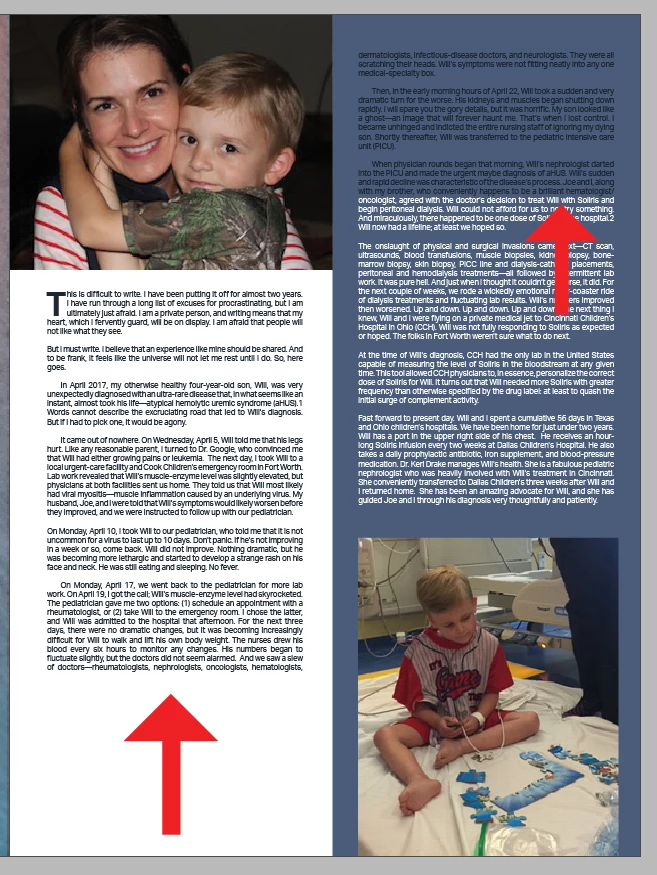
I ask this because I'm a finicky designer and shift the assets around a lot. If (for example) I were to shorten the length of the text box on the left, it will in response push the excluded text to the box on the right, which will mean even if I just manually change the specific text in the right text box to white I'll need to manually fix every length of text's color if I decide to shift assets around (second example below shows the result of shortening the left text box).
This topic has been closed for replies.
Correct answer vinny38

If this were for offset print where you can’t allow 4-color black text, a script would be helpful. But, the OP’s PDF will not be printed so the black text can be RGB—transparency effects will automatically handle text reflows.


Well, yes... sorry Michel, but it's also what I think.

I could rephrase your sentence as "Do you really think we need to use such a way script here?"

However, I'm not even sure you need a script for a Print-Intent document.

If it is supposed to be send to press, I suppose it also could be achieved, using transparency effects.

Set the text to [black], as usual and set a "Lighten" FX to text in colored frame. Check isolate blending for text and you should be OK.

EDIT : Ah I forgot to say that there should be NO black in the green. Otherwise white will turn grey ^^

3 replies

Scott Falkner
Community Expert
May 9, 2019

You can apply an effect to the text frame. In the example below I used an inner glow using 100% normal opacity and a white colour. The scope of the effect is the text, so it only affects the text within the text frame.

The text doesn’t look great in InDesign but it looks fine in the PDF. Unfortunately the text has been outlined, so it may print a bit heavier because it lacks hinting. It also cannot be searched or copied.

vinny38
Brainiac
May 9, 2019

To illustrate Rob's suggestion, here's a technique using transparency effects, that should achieve what you want.

Please note that it will work only for a digital document. Not to be send to offset press.

You need to put a [paper] background behind everything.

Then set your text color as [paper].

Select left text frame and set transparency "Difference".

White text over whiter background will then turn RGB black.

Of course, it can't work with 2 columns text frame. So you'll need two threaded frames.

Hope that helps

Vinny

rob day
Community Expert
May 9, 2019

Also, to add to Vinny's post the Swatches and Transparency Blend Space should be RGB—set the Intent to Web in the document setup and that should convert the document colors and blend space to RGB.

You should be able to simplify Vinny‘s technique a bit. I don‘t think you necessarily need an extra background frame filled with white. You can also set the text frames' fill to white, and set the Text to Difference in the Effects panel:

vinny38
Brainiac
May 9, 2019

Good point Rob!

No need for the extra background frame, fill color does the job indeed!

Although it makes more sense to set document Intent to Web for a digital document, I'm not sure changing the Transparency Blend Space makes a difference really. Made a few tests and can't see any difference...

rob day
Community Expert
May 8, 2019

How will this be printed? It is possible using transparency effects, but the black text has to be set as RGB and would print as 4-color CMYK on an offset press, which wouldn’t work.

New Participant
May 9, 2019

This will actually be used in a digital magazine so there's no intention of printing it.