



Cancel the double column that happens when placing my spreadsheet into InDesign?
I did something in my InDesign CS6 document tonight by mistake and I don’t know how I did it or how to undo it or cancel the option.
I have always used InDesign to insert my excel spreadsheets into.
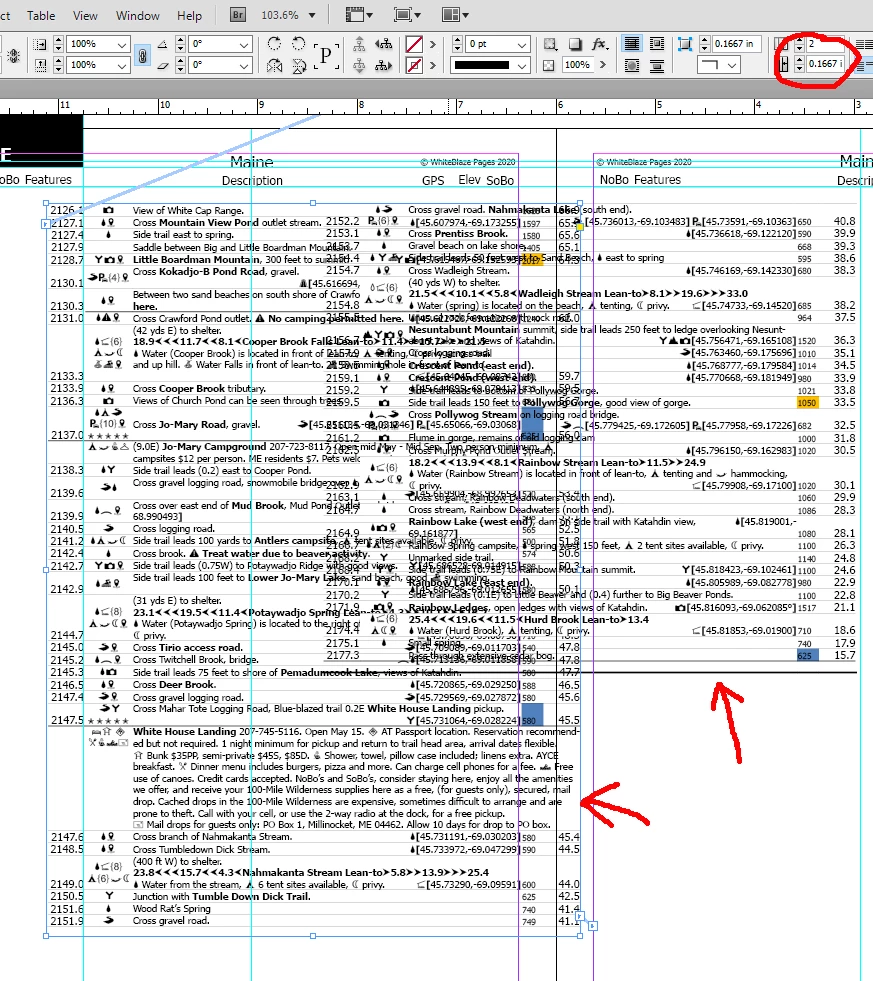
When I put my page flow curser where I want my spreadsheet to be placed and left click, it places my spreadsheet into my document but it puts it in as a two columns. I have to go to the top tool bar and manually change it from two columns to one column. I have to do this on every page I carry the spreadsheet over onto.
I never had to do this before. I have not change any of my document setting that I know of, unless I did something by mistake.
I know it is a setting in this document that I am working in. Because if I open an older version of this same document, I don’t have this problem. That tells me that something got changed while I was working in the document tonight. I just don’t know what it was. Can someone please help me?
I have attached a screenshot so you can see what I am talking about.
 AdChoices