


Answered
Changing number of columns
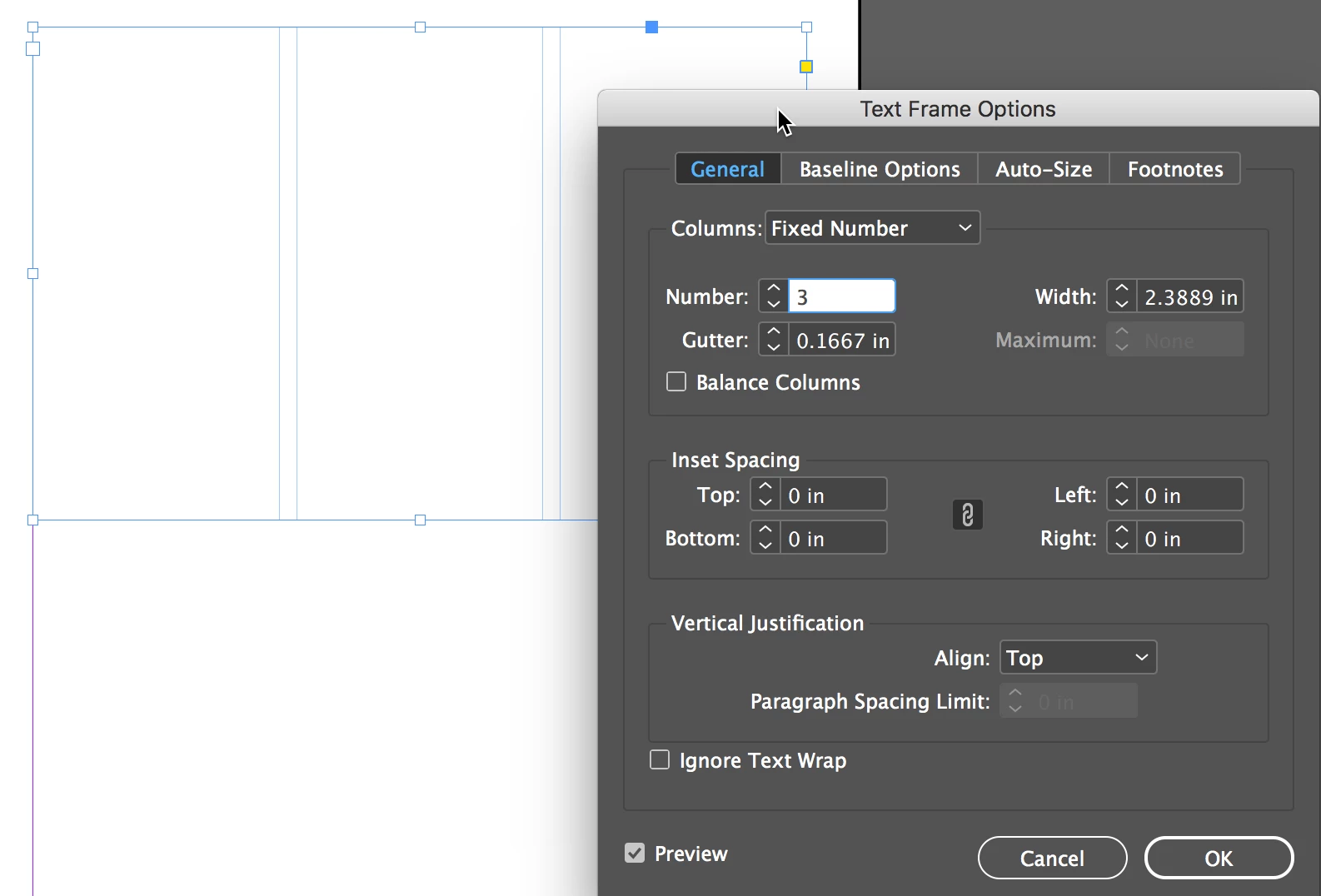
I set up a template some time ago with 4 columns to a page. It works great. However, I forgot how I did it, and now I am unable to change it. I want to try 5 columns.
Under Document Setup, Primary Textframe is off.
I am using facing pages, and on my Master Pages, when I open the Margins and Columns panel, it shows this:
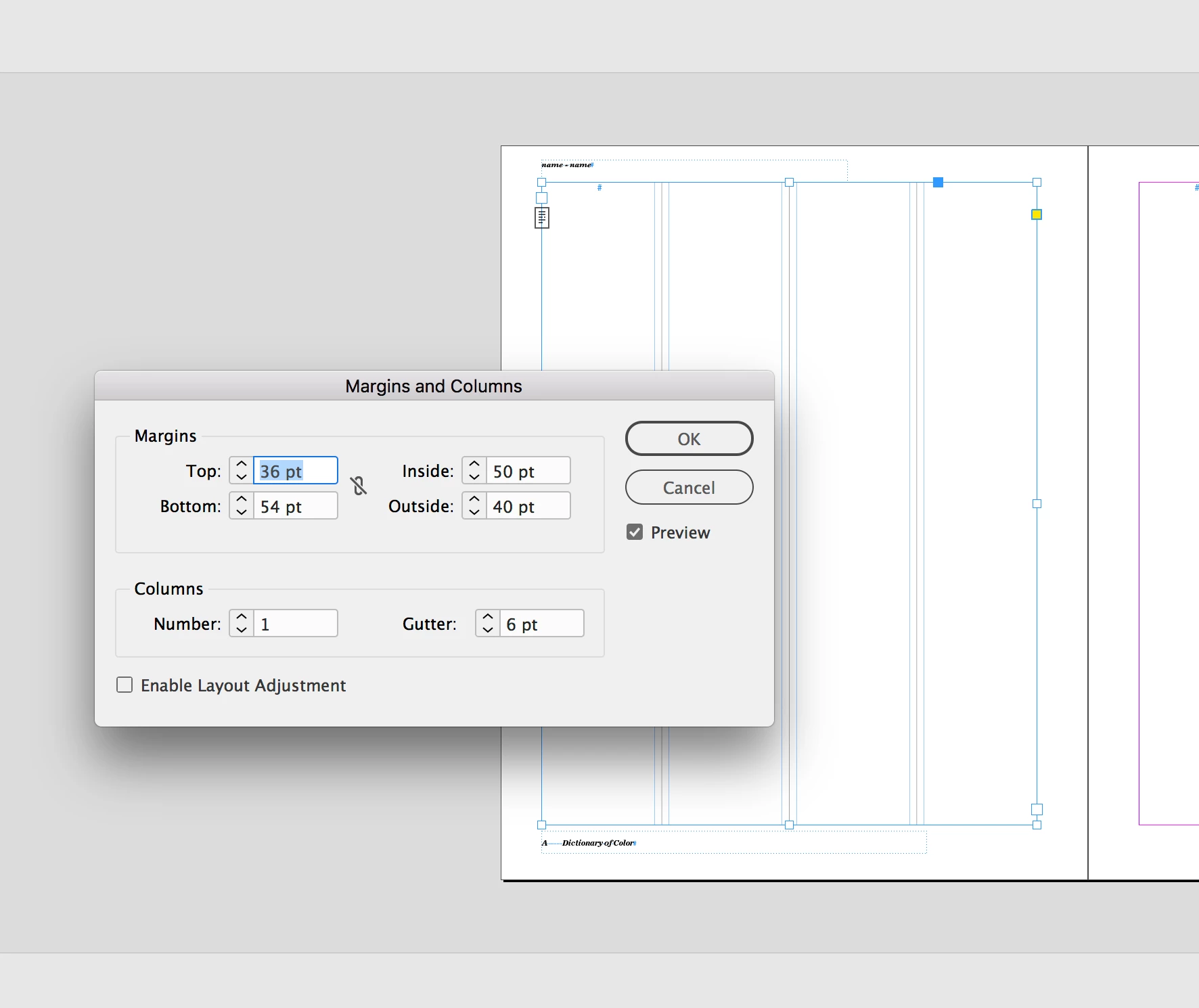
Why 1 column and not 4? I don't know (even though I created this document!) The live pages show the same thing. Like I said, it works great, but how to I change it to add an additional column but keep the same page margins?
In case it matters: the three vertical rules you see between the columns are actual lines that I placed on the master page.
 AdChoices