

karenl16404791
Participant
June 24, 2019
Answered

Clear letters but with a higher opacity than background?

  • June 24, 2019
  • 3 replies
  • 401 views

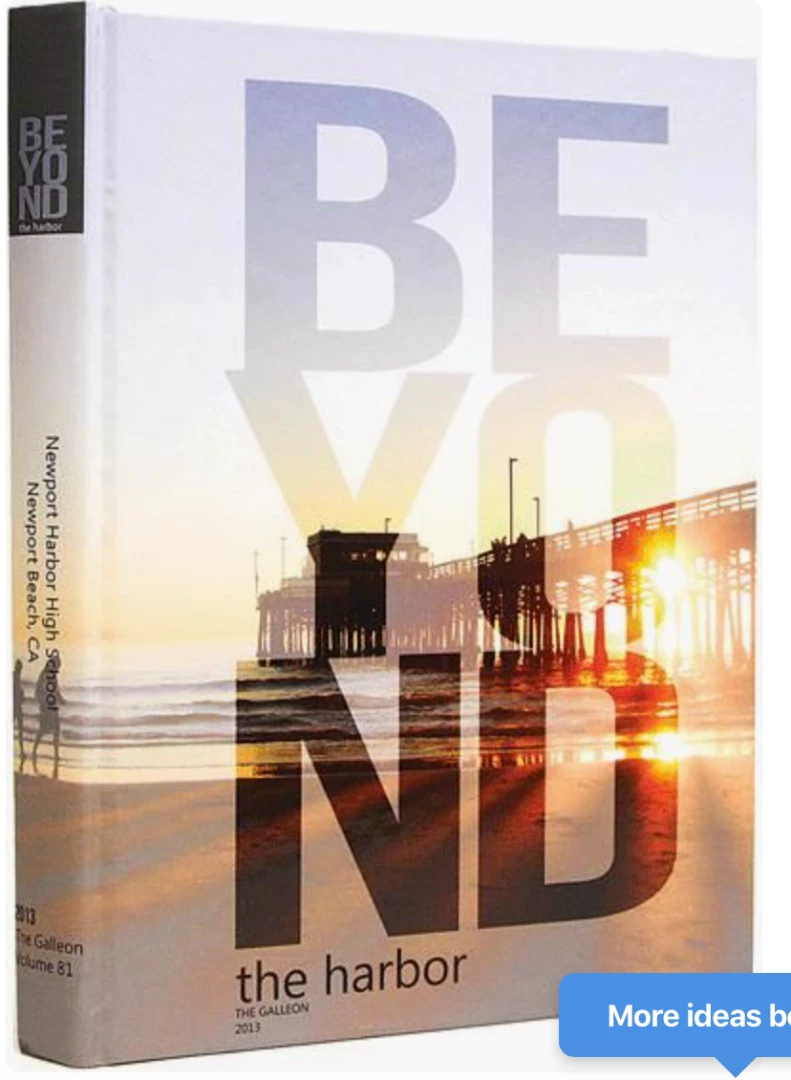
How do I make letters like this, with a different opacity than the background?
    This topic has been closed for replies.
    Correct answer Jeffrey_Smith

    This can be done with a few methods, but I am going to describe the method that (I feel) will produce the closest result to your example.

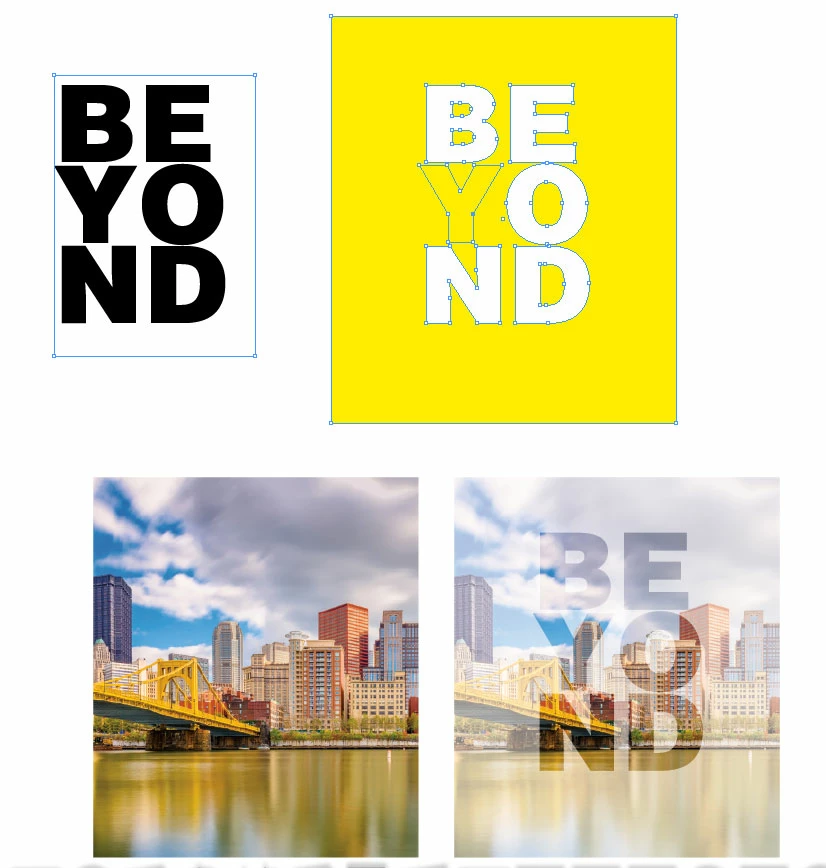
    The image is placed without any effect. On top of image will be a compound frame. This will be created by setting the text, outline the text, place a frame over the outlined text, and make a compound. One note, the compound may not be created correctly at first. But if you select a point of the element and reverse the path, this will normally fix the compound. Colorize the compound white, and place over image. Adjust the transparency of compound.
    3 replies

    Community Expert
    June 24, 2019

    Ideally? In Photoshop, using layer effects and interactions/effects between your background and type layers. InDesign has powerful tools for manipulating color and type, but it doesn't have the most granular controls for adjusting and fine-tuning these effects to the extent you can adjust them within Photoshop. This is my subjective call here; you may find that for what you desire you can make it happen just as easily directly within InDesign. However, InDesign does have the ability to apply effects to discrete elements, and lets you use these effects on the same layer to create faux type masking effects.

    But let's say, for the sake of example, that you want to do this entirely within InDesign. You'd want to place your photographic image, then set your type and position it above the image you placed in your layout it the stacking order.

    Then you would get your Window>Effects panel from the pull-down menu, or if it's placed in the Side Dock on your InDesign workspace, open it from there. Opening that would let you adjust/juggle settings for transparency/blending mode for the element to get the result you're looking for.

    From there, you can experiment to your heart's content to hopefully get the result you're looking for.

    Hope this helps,

    Randy

    Jeffrey_SmithCommunity ExpertCorrect answer
    Community Expert
    June 24, 2019

    This can be done with a few methods, but I am going to describe the method that (I feel) will produce the closest result to your example.

    The image is placed without any effect. On top of image will be a compound frame. This will be created by setting the text, outline the text, place a frame over the outlined text, and make a compound. One note, the compound may not be created correctly at first. But if you select a point of the element and reverse the path, this will normally fix the compound. Colorize the compound white, and place over image. Adjust the transparency of compound.

    karenl16404791
    Participant
    June 25, 2019

    Thanks!  It took me a long time but I finally got it!!

    John Mensinger
    Community Expert
    Community Expert
    June 24, 2019

    Experiment with blend modes.
