



Jeremy AB
Known Participant
March 24, 2022
Question

Collapsed panels glitch with UI scaling

  • March 24, 2022
  • 4 replies
  • 1521 views

I applied the 17.2 update today and it finally fixed UI scaling so now there are 5 proper scaling settings. However, now there is a new problem when you collapse a panel down to just it's icon. It is not a problem when UI scaling is on the lowest setting. When I move scaling to the second notch and restart the app, collapsed panels don't pop up in the right place when you click on them.
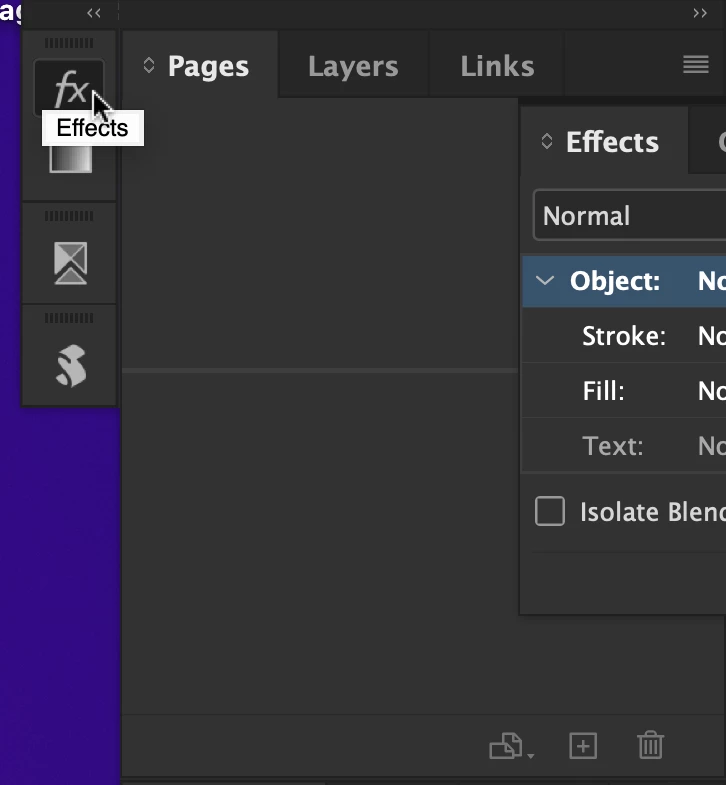
The problem gets worse when you choose the next size setting and restart again. The panels now don't even show up on the screen at all!
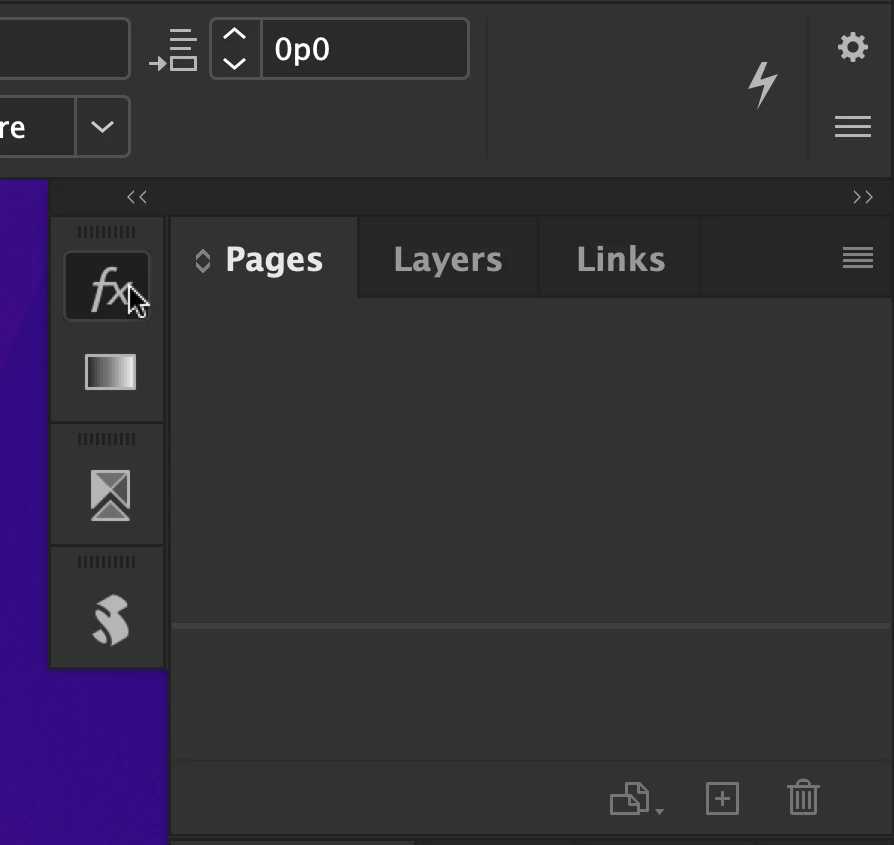
I saw a similar issue with Illustrator, however in that app I simply restarted it and it was fixed. Not so with InDesign.

macOS Monterey 12.3

This topic has been closed for replies.

4 replies

Community Expert
March 24, 2022

Hi AuroraPenticton,

thanks for the link to Jeremy's bug report.

Everyone who is facing the issue should log in to InDesign UserVoice and vote for fixing the bug.


Regards,
Uwe Laubender

( ACP )


Community Expert
March 24, 2022

Hi Jeremy,

thanks for the video!


Now I think you should do a bug report at InDesign UserVoice, category UI perhaps:

https://indesign.uservoice.com/forums/601180-adobe-indesign-bugs?category_id=208420


When done please post the link of the report here in this thread.


Thanks,
Uwe Laubender

( ACP )

AuroraPenticton
Inspiring
March 24, 2022

Wow, I'm seeing a bunch of other UI glitches with the main window when I increase the UI size. These screenshots are just after starting anew blank document:


Clicking the Zoom button for that window repositions it into a slightly better position, but every new window goes back to the previous position. And the larger the UI size, the more the main window is out of position.


Also, how come bigger UI sizes also increase how large my document is displayed in the window? I thought the setting affect the UI only? For example, a Letter-sized document at 100% fits completely in the main window on the lowest UI setting, but at any larger UI setting, the same document no longer fits in the window unless I zoom to fit.

AuroraPenticton
Inspiring
March 24, 2022

For some reason, the captions on my screenshots above are gone and I can't edit my post:

1. the toolbars slightly overlap the main window, buttons and ruler

2. there is a gap on the right between the main window and panels

3. white bar at the bottom of the main window

AuroraPenticton
Inspiring
March 24, 2022

Same thing happens here.

Community Expert
March 24, 2022

Hi Jeremy,

could be a new bug with that enhanced feature. Cannot test this, I'm on Windows 10 and see no issues with that.

The first thing I would try is to reset the current workspace. Could be also a workspace issue when you migrated preferences from 17.1 to 17.2 with all your custom workspaces.


Regards,
Uwe Laubender

( ACP )

Jeremy AB
Jeremy ABAuthor
Known Participant
March 24, 2022

@Laubender wrote:

The first thing I would try is to reset the current workspace. Could be also a workspace issue when you migrated preferences from 17.1 to 17.2 with all your custom workspaces.


Resetting didn't fix it. Also tried picking one of the other built-in workspaces and then collapsed some panels to icons - same result. If I drag the panel wider so it's the icon and the name (but still collapsed) then the panel pops up right next to that, but slowly decrease the width and the panel moves farther and farther away. See the screen recording below.