


Participant
January 17, 2018
Answered

Connect two radio buttons in a group? (interactive pdf)

  • January 17, 2018
  • 3 replies
  • 7375 views

I want to connect two radio buttons in a group so that they are always checked and unchecked together.

Like this:

"Radio button 1"

Name: Group1

"Radio button 2"

Name: Group1

"Radio button 3"

Name: Group1

"Radio button 4"

Name: Group1

Radio button 1 and 3 should be pre selected but if radio button 2 is chosen instead both 1 and 3 should be deselected.

If radio button 3 is selected again then button 1 also should be selected automatically.

So, I want two radio buttons to always have the same value in a group of radio buttons, is that possible?
This topic has been closed for replies.
Correct answer vladan saveljic

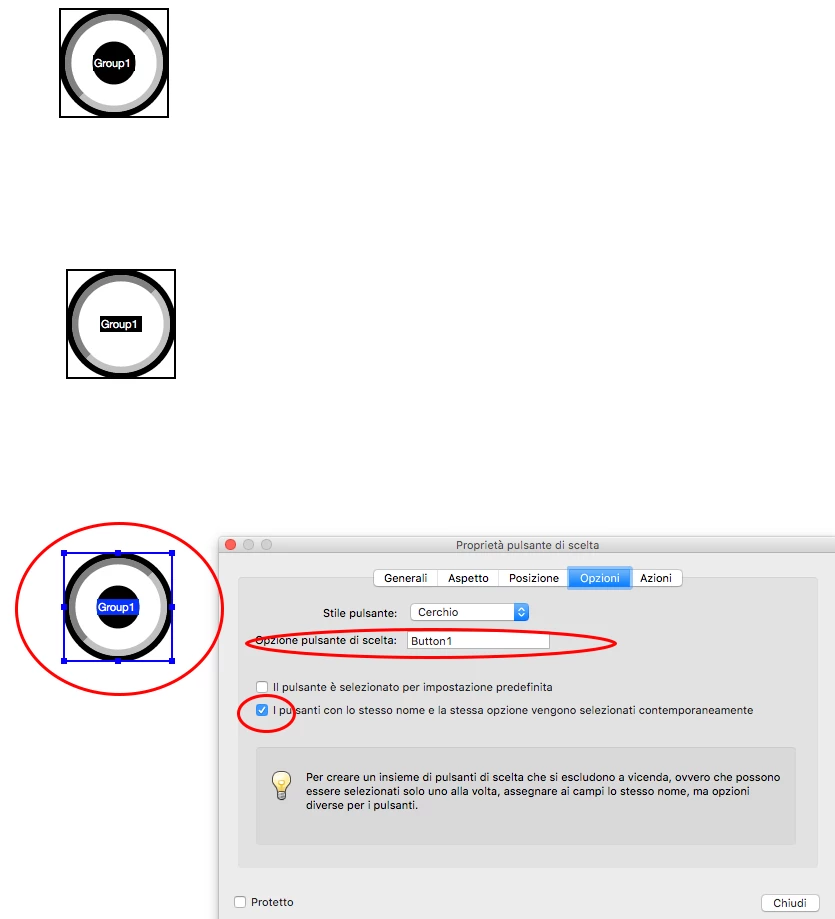
give the same name to the bottom's option 3 and 1 and tick the option as in my screenshot

(and tick both options if you want to have 1 and 3 pre selected)

3 replies

Participant
January 17, 2018

Thanks both of you, a combination did the trick!

Converted the radio buttons to check boxes and in CC2018 it looked a bit different then the above images but when using these options it worked like a charm:

Box 1

Name: Group1

Selected by default: Yes

Button Value: link

Box 2

Name: Group1

Selected by default: No

Button Value: unique1

Box 3

Name: Group1

Selected by default: Yes

Button Value: link

Box 4

Name: Group1

Selected by default: No

Button Value: unique2

Thanks a lot for setting me on the right track, much appreciated!

Community Expert
January 17, 2018

A radio button (by definition) can only have one button within it's group "on", with all other buttons "off". Buttons named the same within a group will still have unique "on" and "off" properties once viewed in Acrobat/Reader.

You can use check boxes. However to accomplish button 1 + 3 to turn "on" and "off" as a group, this will require Acrobat, entering a script in the button's property.

vladan saveljic
vladan saveljicCorrect answer
Inspiring
January 17, 2018

give the same name to the bottom's option 3 and 1 and tick the option as in my screenshot

(and tick both options if you want to have 1 and 3 pre selected)

vladan saveljic
Inspiring
January 18, 2018

Just for clarify (for other users), my indications and the screenshot was from adobe acrobat, not from indesign.