


Known Participant
March 29, 2017
Question

Equal line leading with different font sizes in each line

  • March 29, 2017
  • 4 replies
  • 7467 views

Hi all,

I'm having trouble finding out a quick and easiest way to evenly distribute lines that contain text of different font sizes. I was trying with styles alone but failed. The closest I got is the example below where I set text frame auto-size in created object style, and distribute the chosen lines by Align function:
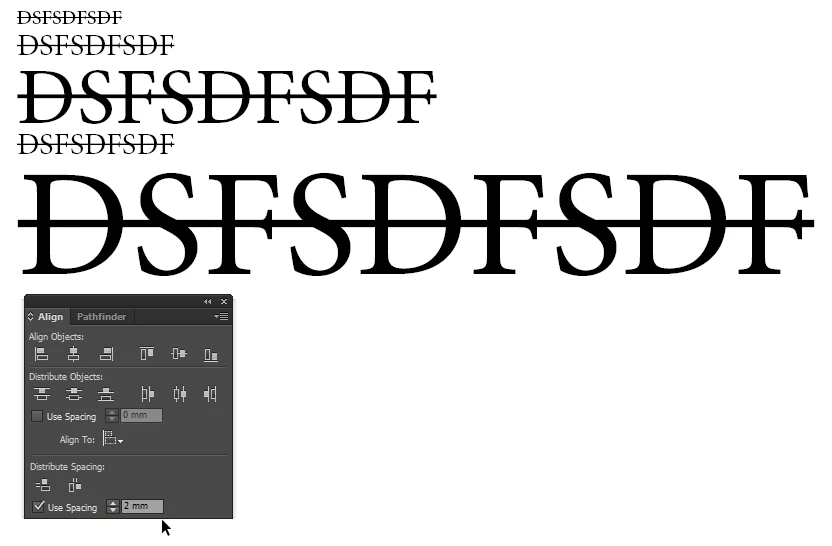
But even this doesn't give me the perfect result due to this "phantom" space above font in every text frame:
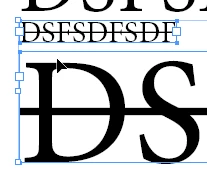
Any help appreciated!

    This topic has been closed for replies.

    4 replies

    Known Participant
    March 30, 2017

    Hi again,

    I found premio_oscar post the most useful. The cap height setting solved the uneven frames problem, and then vertical distributing does the job by equal frame spacing.

    Although the former method seems more intuitive, Laubender method also works, only problem with this one is I don't get how the order of these lines gets settled when using this set up. When I move one line over the other and align to top, then they get rearranged differently. So I don't have control over the order.

    @rob day, Hi, the point was to avoid setting up leading manually to each line one by one.

    I guess there is no method that allows to do this fast in one frame.

    Thank You all!

    Community Expert
    March 30, 2017

    Hi,

    for stacking order with my sample see the screenshot where the Layers panel is open.
    It's from right to left if you see the not aligned row of text frames:
    On top of the stack is the frame to the right, then down the stack follows the centered one, finally the left one.

    Regards,
    Uwe

    Known Participant
    March 30, 2017

    Ah, get it now. Works

    rob day
    Community Expert
    Community Expert
    March 30, 2017

    I'm having trouble finding out a quick and easiest way to evenly distribute lines that contain text of different font sizes.

    You don't have to cut the text into different frames to adjust the leading on individual lines of text. In Preferences uncheck Apply Leading to Entire Paragraphs:

    Now I can select line 2 (triple-click) and adjust its leading relative to line 1 without affecting the other lines.

    Willi Adelberger
    Community Expert
    Community Expert
    March 30, 2017

    If each text is only a single line, it is simple, specify in the used paragraph styles (never work without!) space before and after and make them equal.

    If the text is multiple line, the space between these lines is defined by the leading in character properties.

    Community Expert
    March 30, 2017

    Hi Willi,

    if we can deduce from the second screenshot of the OP all lines of text are in different text frames.
    The distance from the bottom ( baseline ) to the top of the next line ( maybe the cap height? ) should be equal after redistributing the text frames.

    I think, permio_oscar has it right.
    For all text frames that have formatted text with capitals (uppercase letters).
    And where the fitting options for vertical fitting are made.

    If all the lines would be in one single text frame this would be a different matter.
    Then no automatic or semi-automatic solution would be thinkable. That would require a scripting solution that would calculate distances and change the leading accordingly. Based on some factors we should discuss with the OP.

    There is a different solution without using the distribution of text frames:

    1. All text frames are stacked and aligned on top.

    2. All text frames have a text wrap.

    3. All text frames have an inset at the bottom that would dictate the distance from each other.

    See this for stacking order and text wrap:

    EDIT: Forgot to mention

    4. All text frames fitting options are set to top vertical alignment.

    5. I used cap height as Oscar suggested.

    Regards,
    Uwe

    vladan saveljic
    Inspiring
    March 30, 2017

    you could try yhis:

    text frame options > baseline options and choose  Cap Height