



DavidSweeneyBear
Inspiring
December 24, 2020
Answered

exported pdf hyperlinks to endnotes not working

  • December 24, 2020
  • 4 replies
  • 1478 views

Having a problem with exported hyperlinks to endnotes in pdf format. The endnotes show in the the pdf but are not hyperlinked. The same endnotes work fine in Epub export.


Here are my settings:
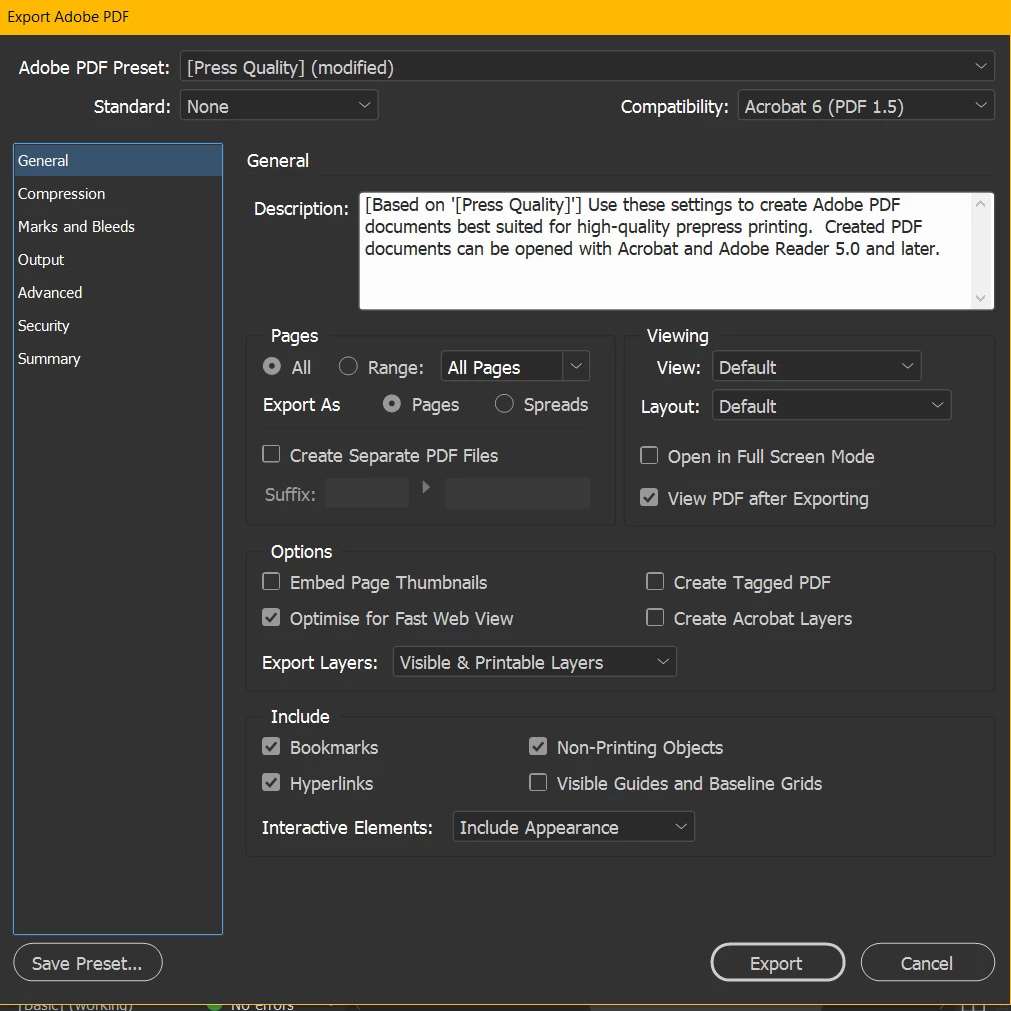
Have tried various other permutations too but nothing seems to work.

Correct answer Bevi Chagnon - PubCom.com

Making hyperlinks is a 2-step process: first, make a destination anchor, and then hyperlink to the destination.

  1. Open the Hyperlinks Panel.
  2. From it's Options menu (the little square "hamburger" in the upper right corner of the panel), select New Hyperlink Destination.
  3. Name the destination anchor. Be careful, there are rules to these names so that they work across all technologies:
    • Don't begin it with a number.
    • Don't put spaces in it.
    • Don't use an underscore character _. Use a hyphen instead  -.
    • They are case sensitive, so good practice is to choose and keep them either ALL CAPS or all lower case. Don't mix the cases because it will create a greater likelihood that you and the hyperlinks will mess up things.
  4. Then create the hyperlink to the desgination anchor.
    • From the panel's hamburger menu, select New Hyperlink.
    • Follow the instructions from there.


4 replies

Braniac
December 28, 2020

Hi David,

for the endnotes problem not backlinking with PDF Export I discovered some reasons. A serious bug, I think.


All the details here at InDesign UserVoice:

https://indesign.uservoice.com/forums/601180-adobe-indesign-bugs/suggestions/42062446-text-formatting-can-break-backlinking-endnote-text


Please stop by and vote for fixing the issue.


Thanks,
Uwe Laubender

( ACP )

Bevi Chagnon - PubCom.com
Braniac
December 24, 2020

<< there is no back-link to the endnote in the text... is this to be expected in pdf format? >>


Adobe's PDF export utilities do not make "round trip" hyperlinks, that is, containing both the initial hyperlink and its matching back-link to the original spot in the body text.


But that's an excellent feature to request to the Adobe Powers-That-Be at www.InDesign.UserVoice.com  and also at www.Acrobat.UserVoice.com


|&nbsp;&nbsp;&nbsp;&nbsp;Bevi Chagnon &nbsp;&nbsp;|&nbsp;&nbsp;Designer, Trainer, &amp; Technologist for Accessible Documents ||&nbsp;&nbsp;&nbsp;&nbsp;PubCom |&nbsp;&nbsp;&nbsp;&nbsp;Classes &amp; Books for Accessible InDesign, PDFs &amp; MS Office |
DavidSweeneyBear
Inspiring
December 24, 2020

I will definitely request that as a feature... thanks!


Right now I'm looking at manually back-linking the endnotes via a text anchor and hyperlink, but I have a major problem in actually defining a text anchor... the hyperlink panel gives the option to hyperlink to existing anchors, but I have no clue how to create one in the first place.

Maybe this would be a subject for a separate post... 


&lt;br&gt;~ David Sweeney-Bear ~
Bevi Chagnon - PubCom.com
Braniac
December 24, 2020

Making hyperlinks is a 2-step process: first, make a destination anchor, and then hyperlink to the destination.

  1. Open the Hyperlinks Panel.
  2. From it's Options menu (the little square "hamburger" in the upper right corner of the panel), select New Hyperlink Destination.
  3. Name the destination anchor. Be careful, there are rules to these names so that they work across all technologies:
    • Don't begin it with a number.
    • Don't put spaces in it.
    • Don't use an underscore character _. Use a hyphen instead  -.
    • They are case sensitive, so good practice is to choose and keep them either ALL CAPS or all lower case. Don't mix the cases because it will create a greater likelihood that you and the hyperlinks will mess up things.
  4. Then create the hyperlink to the desgination anchor.
    • From the panel's hamburger menu, select New Hyperlink.
    • Follow the instructions from there.


|&nbsp;&nbsp;&nbsp;&nbsp;Bevi Chagnon &nbsp;&nbsp;|&nbsp;&nbsp;Designer, Trainer, &amp; Technologist for Accessible Documents ||&nbsp;&nbsp;&nbsp;&nbsp;PubCom |&nbsp;&nbsp;&nbsp;&nbsp;Classes &amp; Books for Accessible InDesign, PDFs &amp; MS Office |
Bevi Chagnon - PubCom.com
Braniac
December 24, 2020

Question:

If you want active hyperlinks in the PDF, why are you exporting the PDF to a PRESS QUALITY standard? Interactivity (such as hyperlinks) are not in any of our print/press PDF standards.


What's preventing you from exporting to Interactive PDF?


|&nbsp;&nbsp;&nbsp;&nbsp;Bevi Chagnon &nbsp;&nbsp;|&nbsp;&nbsp;Designer, Trainer, &amp; Technologist for Accessible Documents ||&nbsp;&nbsp;&nbsp;&nbsp;PubCom |&nbsp;&nbsp;&nbsp;&nbsp;Classes &amp; Books for Accessible InDesign, PDFs &amp; MS Office |
DavidSweeneyBear
Inspiring
December 24, 2020

Excellent point... at first I did use "interactive pdf" but that didn't seem to work. Then, when I tried "pdf print" export instead, I noticed it had the option for including hyperlinks and thought that was my problem, since that option doesn't show in the interactive pdf export panel.

Mystery solved: the important factor is the "create tagged pdf" option, which appears in both the interactive and print export panels.

So, my interactive pdf export panel looks like this:


&lt;br&gt;~ David Sweeney-Bear ~
Bevi Chagnon - PubCom.com
Braniac
December 24, 2020

But Tagged PDF is something else, a part of "interactive PDF" but with specific requirements for accessibility (required by law in most countries for certain documents).


The Interactive export settings do several things behind the scenes, including automatically making hyperlinks, buttons, and audio/video. It also encodes the PDF a bit differently from a Print PDF, which helps maintain the interactivity.


If you don't need your PDF to be accessible, then UNcheck the Create Tagged PDF option. It's only adding bulk to your PDF file, and just because it's tagged doesn't mean it's truly accessible. Accessibility requires a helluva lot more than just clicking that option!


|&nbsp;&nbsp;&nbsp;&nbsp;Bevi Chagnon &nbsp;&nbsp;|&nbsp;&nbsp;Designer, Trainer, &amp; Technologist for Accessible Documents ||&nbsp;&nbsp;&nbsp;&nbsp;PubCom |&nbsp;&nbsp;&nbsp;&nbsp;Classes &amp; Books for Accessible InDesign, PDFs &amp; MS Office |
DavidSweeneyBear
Inspiring
December 24, 2020

Update... I changed the "export layers" to "all layers" - and now the hyperlinks work.


Another issue though... when I go to the endnote, there is no back-link to the endnote in the text... is this to be expected in pdf format? 

&lt;br&gt;~ David Sweeney-Bear ~
DavidSweeneyBear
Inspiring
December 24, 2020

OK, so here's what worked for me (highlighted the settings that seem to be essential):


&lt;br&gt;~ David Sweeney-Bear ~