



RimRisse
New Participant
November 5, 2024
Question

Find and Replace Function Not Working in InDesign 2025

  • November 5, 2024
  • 5 replies
  • 4487 views

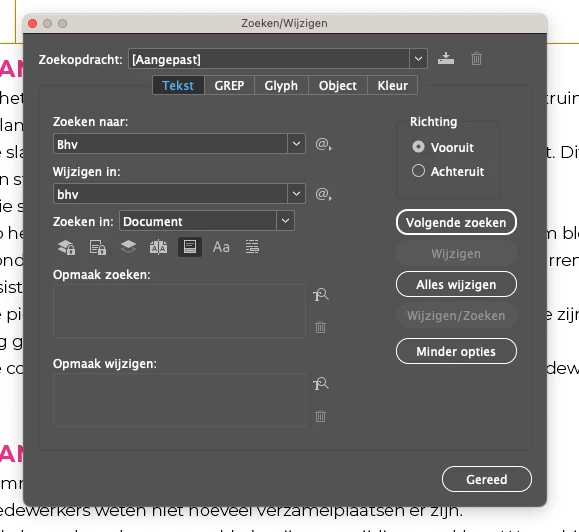
Since I use indesign 2025 I can no longer replace a word (Find and Replace - Zoeken/wijzigen) with a new word across the entire document. Is there an update coming that will work properly?


<Title renamed by MOD>

5 replies

Peter Spier
Community Expert
December 5, 2024

From your screen shot it looks to me like you are just trying to change the capitalization. Try clicking the Aa button to turn on case sensitivity.

Community Expert
December 5, 2024

Hi @RimRisse ,

all of the FEFF special characters are remnants of your data merge process.

You can get rid of it with a TEXT Find/Change action.

You will NOT get rid of them with GREP Find/Change.


When in TEXT Find search with this pattern:

<FEFF>

Leave the Change field empty to remove all FEFF special characters in the document.


See my screenshot from my German InDesign 2025 where 372 special characters were removed:


Regards,
Uwe Laubender
( Adobe Community Expert )

Mike Witherell
Community Expert
November 21, 2024

Did you patch up to v20.0.1 ?

Mike Witherell
Participating Frequently
November 21, 2024

Yes. My 2016 macbook pro is running Monterey 12.7.6 though, and I wonder if that is the issue. Stopped updating (too old, I think) a little while back.

Bill Silbert
Community Expert
November 5, 2024

If when you updated the program you used the option to import previous settings and preferences then it probably would be a good idea to reset your preferences. Many times using old preferences after an update will lead to lack of full function for the program. Resetting preferences will restore the progrsm to its defaults and, hopefully, fix this issue.

To reset preferences:

For Macintosh Users: The User Library folder in which InDesign’s preferences are stored is hidden by default on most Macintoshes. To access it make sure that InDesign is closed and click on the desktop to launch a Finder Window (Command-N). With this window in column view follow the path User>Home folder (it’s the folder with an icon that looks like a house—it may have the user’s name rather than “Home”) and click on the Home folder. With the Option Key pressed choose Library from the Finder Go Menu. “Library” will now appear within the Home folder. Within the Library folder find the folder called Preferences and within it find the folder called “Adobe InDesign” and the file called “com.adobe.InDesign.plist” and delete both that folder and that file. When InDesign is next launched it will create new preference files and the program will be restored to its defaults.

For Windows Users: You can try the quick way of resetting on a PC which is to hold down Ctrl + Alt + Shift when launching InDesign and respond affirmatively when asked if you want to reset. There have been some recent reports that the window asking if you want to reset is not popping up but that the prefs are being reset anyway. If this works great but if it doesn’t you may have to manually delete them.

To do so: On Windows 7 and above the preference files are hidden. To find them go to the Control Panel and open Folder Options and then click the View tab. Then select “Show hidden files and folders” or “Show hidden files, folders or drive options” in Advanced Settings. Then delete (or rename) the folder at the end of this path: C:\Users\<USER>\AppData\Roaming\Adobe\InDesign\<Version #>\<Language>. Make sure that InDesign is closed when you do this. When you relaunch the program it will create new preference files and the program will be at its default settings.

The advantage of manually deleting preference files is that after you’ve reset up the program (make sure that no document window is open) to your liking, you can create copies of your personalized “mint” preference files (make sure that you quit the program before copying them—that finalizes your customization) and use them in the future to replace any corrupt versions you may need to delete.

Participating Frequently
November 21, 2024

I deleted the preference folder and still search/replace is not functioning correctly (and now I have to rebuild/save my workspace). I have a large project on a tight deadline and to be denied this tool is an additional serving of stress.


I did a data merge and am working in the file with the merged records. I want to delete categories that have no content. You can see in the screen grab that I cut/paste 2 lines, then want to replace those with just the bottom line if the top one has no content after the category.

This is not the parent page. I've tried GREP and Text. I've selected the option to include locked pages/layers and want the entire document search.

If anyone could help me break through this issue, I'd be very grateful.

Robert at ID-Tasker
Brainiac
November 28, 2024

Okay, maybe this is staircase wit (staircase regex?) but I'm more confident that it'd actually be this:

Fruit:.+?\nVeg:


quote

Okay, maybe this is staircase wit (staircase regex?) but I'm more confident that it'd actually be this:

Fruit:.+?\nVeg:


By @Joel Cherney


Yes, I tried that, but it returns every combination, longer versions as well - 1st screenshot in my reply.


kglad
Community Expert
November 5, 2024

in the future, to find the best place to post your message, use the list here, https://community.adobe.com/

p.s. i don't think the adobe website, and forums in particular, are easy to navigate, so don't spend a lot of time searching that forum list. do your best and we'll move the post (like this one has already been moved) if it helps you get responses.


<"moved from cc desktop">