



Document Geek
Community Expert
Community Expert
November 7, 2017
Answered

First character of story editor and Notes panel displays incorrectly

  • November 7, 2017
  • 7 replies
  • 6559 views

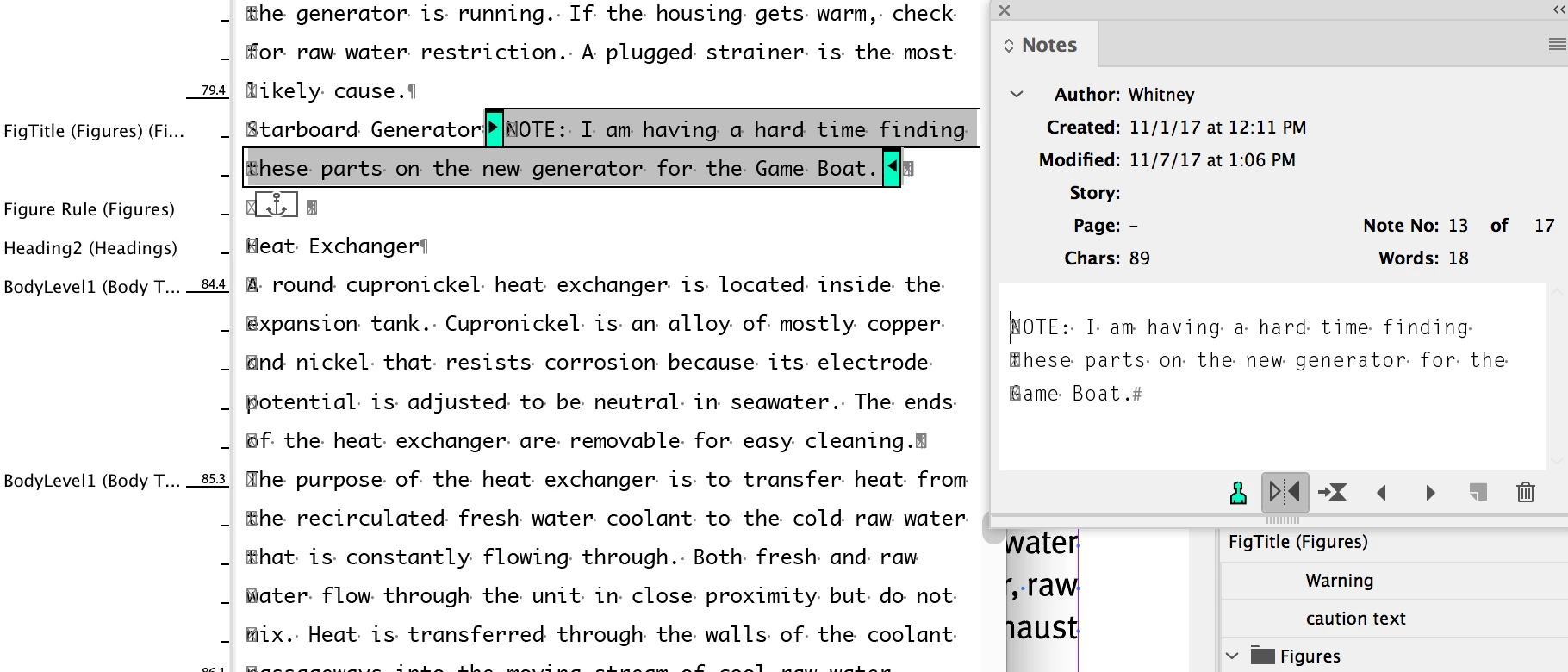
In both the Story Editor and the Notes panel, the first character displays incorrectly. It doesn't matter what font I choose. It has been this way for along time, but I don't see this in other people's screenshots of their Story Editor panels. Any ideas?
This topic has been closed for replies.
Correct answer Jongware

Yeah that screams "bug! bug!" There are no characters that move along with a resizing text window.

Updated to 2018 recently?

7 replies

Community Expert
September 18, 2020

Seems to be entirely a bug on Mac OS X…


Because in the linked bug report below on InDesign UserVoice all comments are closed:

https://indesign.uservoice.com/forums/601180-adobe-indesign-bugs/suggestions/31365199-story-editor


I would do a new report at:

https://indesign.uservoice.com/forums/601180-adobe-indesign-bugs


Regards,
Uwe Laubender

( ACP )

tlmurray23
Inspiring
November 22, 2020

I reported this to the forum back in version 13 and as a beta test in 12. A couple of workarounds for notes and the Story Editor (the title of my thread that contains these workarounds is "First character of story editor and Notes panel displays incorrectly").


I paste my note/story into a text editor (I use BBEdit), copy it, then *immediately* after I open the notes/story window, I paste it. And "immediately" is key, as I found if I wait more than a couple of seconds, the bad character came back.


The other is that I found that in completely new document did not have the bad character, it does not arise again for while. Then when it returns, if I paste the old content into the new document (after setting up styles, masters, and all that), the bad character stays away . . . for a while. 


That said, I have not been willing to pay for the suite since November of 2018, and whatever version was current at that time had the bug. When I get a gig that needs InDesign, I will start it back up again.

Community Expert
September 16, 2020

Hi RArmbrust,

I cannot see this bug with my German Windows 10 version of InDesign 15.1.2:


What's your exact version of InDesign on what operating system?


Thanks,
Uwe Laubender

( ACP )

Participant
September 16, 2020

Hi Uwe,

I'm working with InDesign 15.1.2 on macOS 10.14.6.


Kind regards

Participant
September 16, 2020

This bug is still present in InDesign 2020. As soon as i insert a new table, the icons appear in story view. 

tlmurray23
Inspiring
October 27, 2018

Still a bug in 2019 InDesign. Sheesh.

tlmurray23
Inspiring
June 6, 2018

Using InDesign 13.1, macOS 10.13.4. My files began life as new documents in 13.1, but I had been using InDesign for some years.

When I tried to make a new note, the little Notes dialog came up for a split second with a missing-glyph X as the first character, then the typing area turned white and I could not type into it at all. I could create a new note only by loading the clipboard and pasting into a new note the instant after it popped up.

The trashing of prefs and caches -- whether when starting InDesign or manually in Finder -- partly did the trick for new files, but the missing glyph problem remained in old. But I found I could start a new document, then copy the entire old content and paste in the new, and for now *part* of the problem is fixed: While the missing glyph is visibly there, at least now the Notes dialog is stable and I can type in it.

And something that didn't work was saving as an IDML and opening that.

Community Expert
June 7, 2018

Hi,

just tested this with my Windows version of CC 2018.1 13.1.0.76: Found no problems doing a new note.

And also the special character is not showing up. The problem with the special character must be a Mac OS X problem.

Will test later with my Mac OS X version of inDesign CC 2018.1 on OS X 10.11.6.

In the meanwhile you could do a new note with the script below. It's written in ExtendScript ( JavaScript ).

Simply select an insertion point and run the script:

( function()

{

    // Do nothing, if:

    if( app.documents.length == 0 ){ return };

    if( app.selection.length != 1 ){ return };

    if( app.selection[0].constructor.name != "InsertionPoint" ){ return };


    var text = prompt( "Add text of your Note here:" , "Text for note.",  "Type or paste text for your Note here:" );

    if( text == null ){ return };


    var note = app.selection[0].notes.add();

    note.texts[0].contents = text;

}() )

Regards,
Uwe

Jeremy bowmangraphics
Inspiring
April 11, 2018

This has been driving me nuts for a week. Windows is fine, it only appears on a Mac. I'm running InDesign 13.1 on OS 10.13.4.

As far as I can tell, freshly-created documents are OK; the weird grey symbols only appear when I insert a table, and immediately appear when I do. The following screenshots are taken from from new document created just after trashing preferences:

I insert a table and Bingo! — there they are again:

After resizing the Story Editor window, the symbols stay on the left:

Jeremy

Community Expert
April 11, 2018

Hi Jeremy,
just to be clear on this: In the moment you are adding a table that strange character is back?
Or was this table pasted from a legacy version document opened with CC 2018.1 ?

Regards,
Uwe

Jeremy bowmangraphics
Inspiring
April 11, 2018

Hi Uwe,

Yes we are aware of a scenrio wherein InDesign migrates preferences on upgrade even when asked to not do so... when updating via Creative Cloud application.

@Jeremy:Please help us reproduce this issue with some concrete steps/videos.

-Aman


Hi Aman,

Here's what I just did:

I cleared the cache, trashed preferences, and then uninstalled InDesign.

Then I deleted any files I could find whose filename mentioned "InDesign" in my Users>myname>Library>Caches folder, in my Users>myname>Library>Preferences folder, and in my Users>myname>Library>Preferences>Adobe folder.

Then I did a restart of my Mac.

Then I re-installed InDesign. Then opened it for the first time. I chose "Create new...", "Letter" size by default, then in the new document used the text tool to drag a new text frame, and wrote a line of text, followed by a paragraph return.

I opened the Story Editor by pressing cmd+Y, made hidden characters visible with alt+cmd+I, and all seemed well up to that point.

Then from the menu at the top I chose Table>Insert Table..., accepted defaults, and: there are those weird symbols again!

If I get time tomorrow, I'll try this after a clean install of Mac High Sierra (I do this quite often, so it's no big deal to me).

Best wishes — Jeremy

Jongware
Community Expert
Community Expert
November 7, 2017

It's overlaid with the Not In This Font! character. I see several other occurrences as well, not just at the start of each line. Could there be an invisible character in front in your regular text? You might see the text cursor stutter if you move over it.

Document Geek
Community Expert
Community Expert
November 7, 2017

Nope, there are no invisible characters. What's so weird is that it is dependent upon the width of the story editor window, not where the text sits in the text frame.

Jongware
Community Expert
JongwareCommunity ExpertCorrect answer
Community Expert
November 7, 2017

Yeah that screams "bug! bug!" There are no characters that move along with a resizing text window.

Updated to 2018 recently?