Participating Frequently
April 7, 2017
Answered

High Quality display performance not working (Locked)

  • April 7, 2017
  • 9 replies
  • 43240 views

Whenever I select high-quality display performance it makes my image super pixelated. The image is high res and the settings under display performance are set to high res and high quality. I also have preserve object-object level display settings and enable anti-aliasing checked. Nothing is making sense.
Correct answer Barb Binder

These commands are confusing in any version because they appear in three different places.

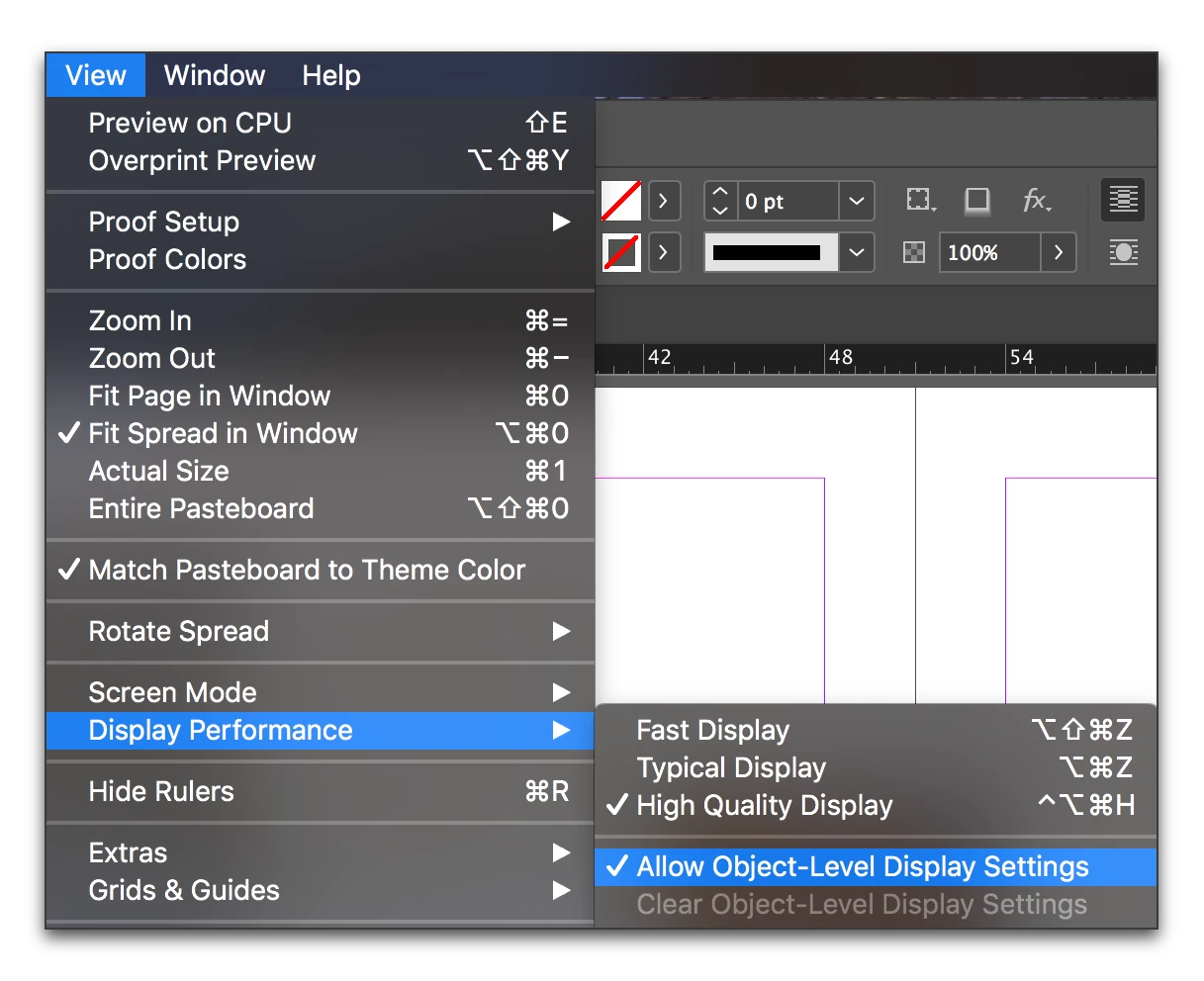
My suggestion is that you start in the view menu:

Then If you were in the object menu, select each image, go back to the Object menu and set the display performance to Use View setting (the setting from the view menu).

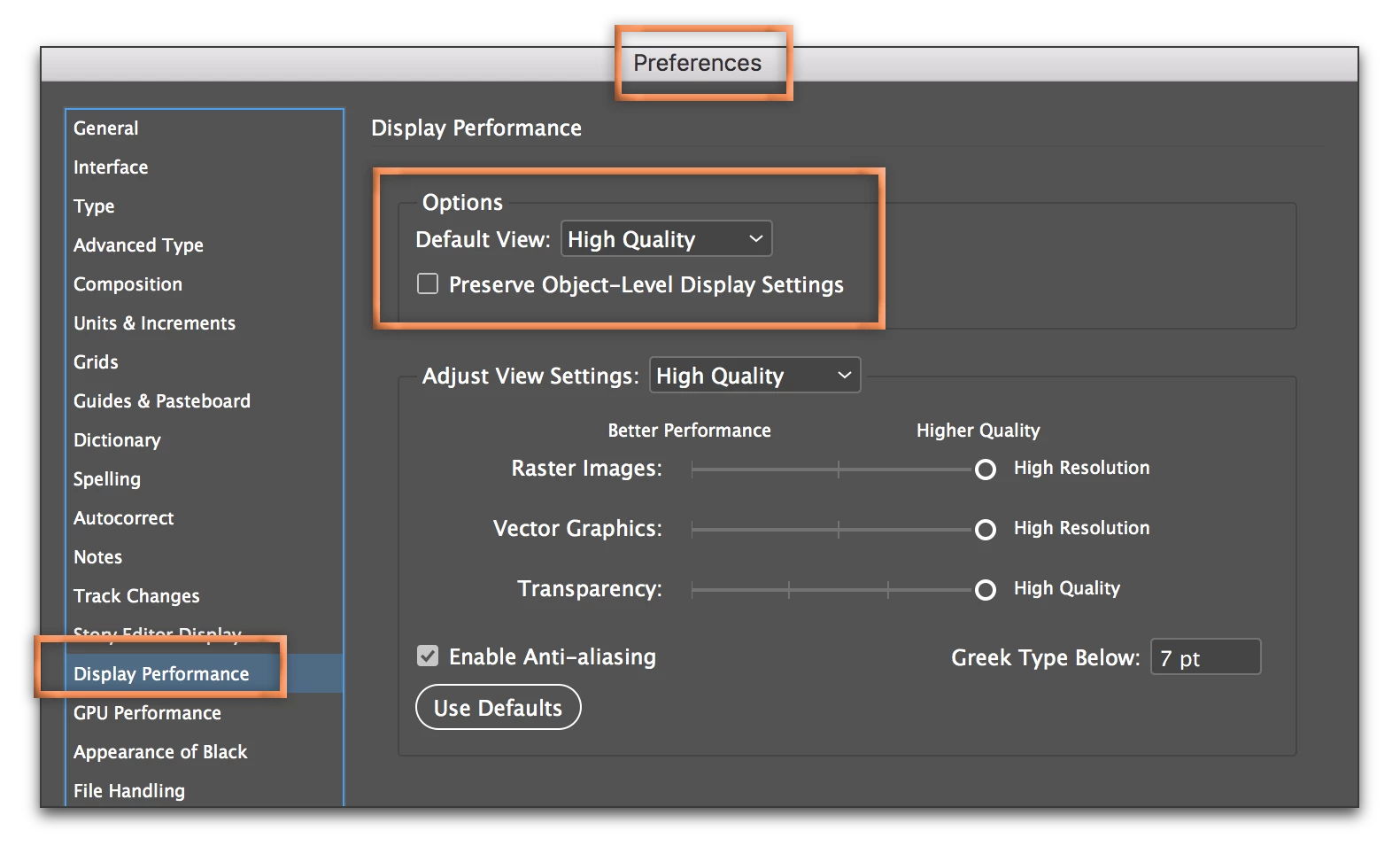
Still not there? Then check Preferences:

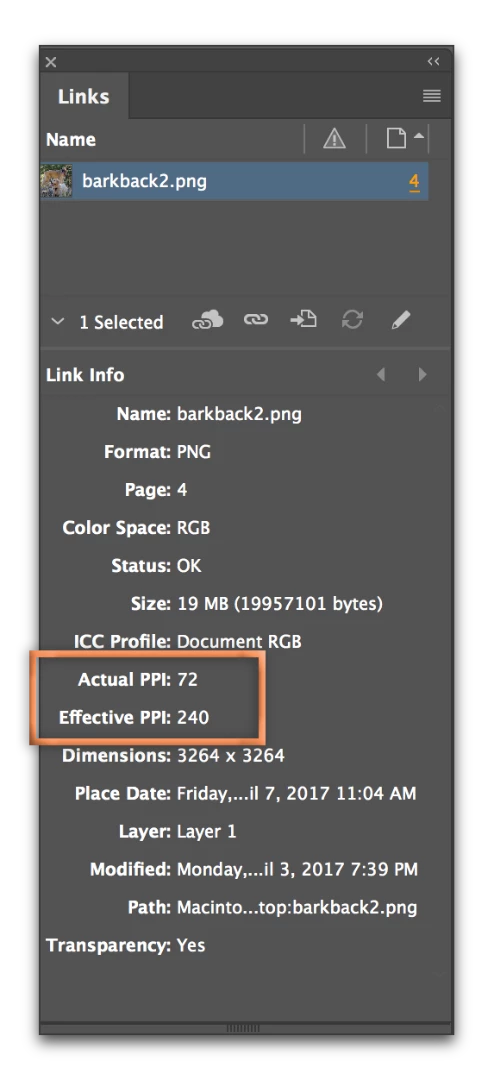
If this doesn't take care of it, the next step is to examine the Effective PPI for the pixelated images in Window > Links. What is the Effective PPI value?

9 replies

lbsurfergirl13
Participating Frequently
June 27, 2025

All my settings are on high quality display performance, images are linked but only show up not glitchy when I zoom in and out on it. Any Ideas? It's making it very dificult and ruining my work flow. 

Community Manager
June 27, 2025

Hello @lbsurfergirl13,

I'm sorry to hear about your experience. Could you share more details, like the version of the OS/InDesign installed, if InDesign behaves this way with all files and the system report (macOS/ Windows), so I can better assist you?

Looking forward to hearing from you.
Anubhav

New Participant
December 23, 2022

isn't there a fix for this yet?

it's mind boggling @ADOBE should help!!!


i've followed the instructions in this post and nothing worked..

I need to seee my images in high res, it doesn't make any sense

Barb Binder
Community Expert
December 23, 2022

Hi Fernanda:


This feature hasn't changed since it was asked about in 2017 and I have not personally experienced any bugs with it. If InDesign is buggy—which it often is after a major upgrade—the correct approach is to rebuild the cache and preferences files.


Otherwise, it comes down to not understanding how to use this feature, which I acknowledged is confusing in my original answer. If you want to provide us with additional information, we are happy to try to help you work through it.


~Barb

~Barb at Rocky Mountain Training
New Participant
March 15, 2022

I'm getting this too. Selecting High Quality Display does nothing. So many bugs in InDesign these days it is so annoying pick up your game Adobe.

New Participant
May 22, 2020

Hello, 

I have done all the steps but nothing happens any recommendation please


hutcherson.
New Participant
June 24, 2020

My images are fine when I place them, but when I close and then reopen the page some of them loose their hi-res preview. I get the preview to sharpen back up by using cmd-x (cut) and cmd-opt-shft-v (paste in place). The issue started when we upgraded to version 2019. Hopefully it will be fixed back to how it was when the next upgrade rolls through. 

Participating Frequently
July 29, 2019

I followed Barb's steps and it still didn't work - InDesign 14.0.2 on a Mac with OS 10.13.6 (High Sierra) - GPU/CPU preview, any number of High Quality Display checks - Effective PPI was plenty; the only thing that solved it was checking Overprint Preview on in the View menu. It's not whip-snapping quick now, but when you're annotating screen grabs in an instruction manual, it's really your only choice.

I'm using a '17 5K iMac, which MAY have something to do with it - some of the other Adobe apps aren't always besties with the 8Gb Radeon graphics card in here.

Anyway, thought you'd like to maybe get one more option on how to fix it. I'm sure I'm not the only one.

Cheers
Matt

Kyasanku
New Participant
June 20, 2018

Make sure that the location of the images you are using has not been changed. Indesign indexes to these images for this to work.

animonkey13
New Participant
December 10, 2018

Hi, I recently upgraded to Indesign CC2019 running Mac OS Mojave 10.14.1. I am having the same issue (images won't display in high quality within Indesign. I am experienced designer with thorough knowledge of INDD. Images are correctly linked at between 300-400 effective PPI. Does anyone have this issue or know of a solution?

Community Expert
December 13, 2018

Hi animonkey13 ,

did you read into Barb's reply 2 and followed the steps there?

Regards,
Uwe

cinziamarotta
Participating Frequently
April 7, 2017

Hi Jone,

If you followed the Barb Binder instructions and the problem persists, I suppose that the original image file has a very high resolution and small dimension. In this case, InDesign could show a preview super pixelated.

Barb Binder
Barb BinderCorrect answer
Community Expert
April 7, 2017

These commands are confusing in any version because they appear in three different places.

My suggestion is that you start in the view menu:

Then If you were in the object menu, select each image, go back to the Object menu and set the display performance to Use View setting (the setting from the view menu).

Still not there? Then check Preferences:

If this doesn't take care of it, the next step is to examine the Effective PPI for the pixelated images in Window > Links. What is the Effective PPI value?

~Barb at Rocky Mountain Training
jon_mAuthor
Participating Frequently
April 7, 2017

So I check all of that and nothing changed. The effective PPI Is a little low (Actual DPI 300 / Effective DPI 112) because i'm printing the image at a large scale. I printed the file and everything is as crisp as it needs to be. This is the quality it's showing at high res:

Indesign:

Photoshop file:

Barb Binder
Community Expert
April 7, 2017

The effective PPI Is a little low (Actual DPI 300 / Effective DPI 112)

That's why. The effective PPI at 112 isn't a little low, it's low. InDesign is showing you a preview of the file, not the file itself like Photoshop. You will see a difference in the Display Performance for high-res files.

~Barb at Rocky Mountain Training
Derek Cross
Community Expert
April 7, 2017

Which version of InDesign and OS?

jon_mAuthor
Participating Frequently
April 7, 2017

Its CC2017, sorry I thought I had put that in there.