Copier le lien dans le Presse-papiers
Copié
Whenever I select high-quality display performance it makes my image super pixelated. The image is high res and the settings under display performance are set to high res and high quality. I also have preserve object-object level display settings and enable anti-aliasing checked. Nothing is making sense.
These commands are confusing in any version because they appear in three different places.
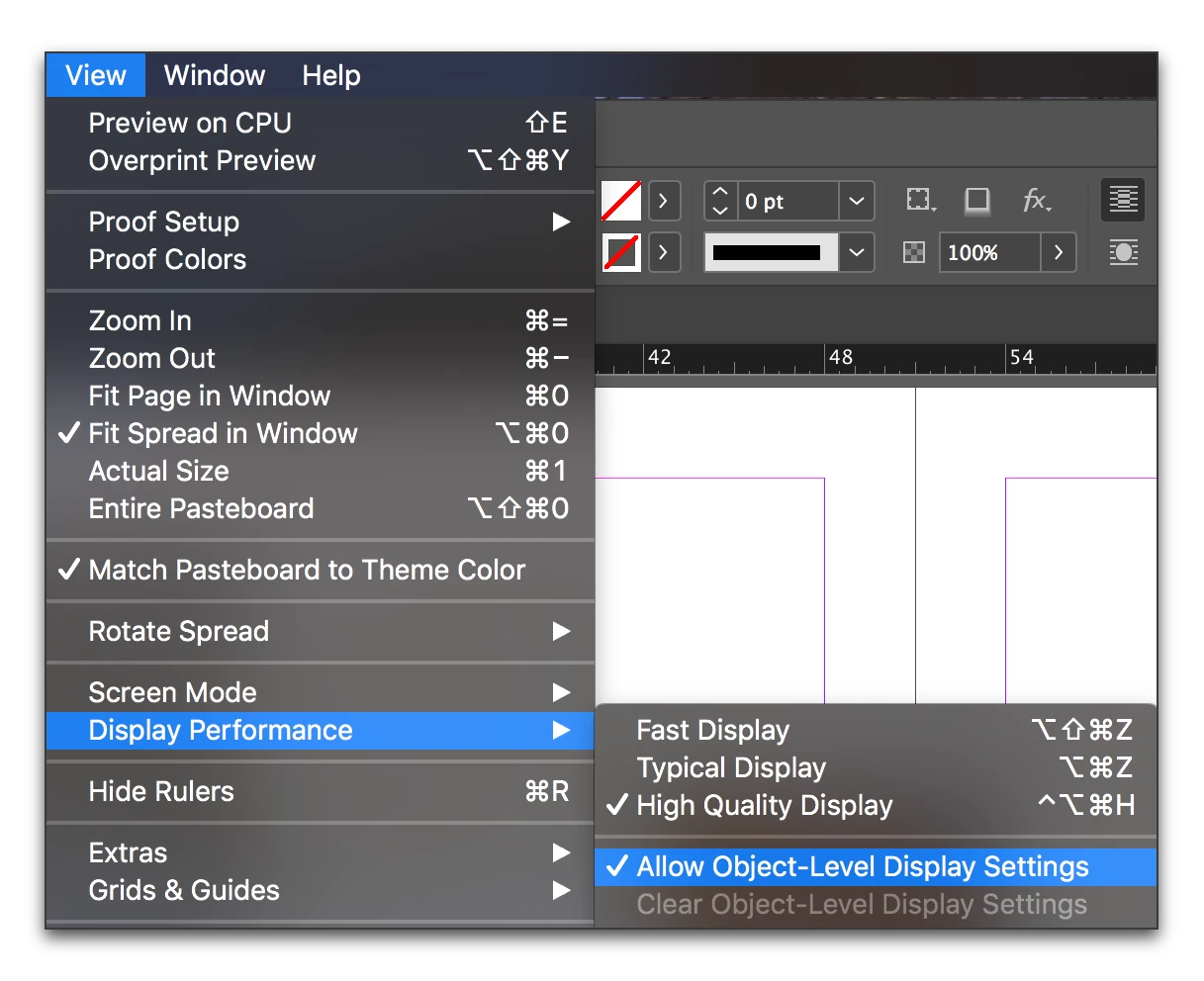
My suggestion is that you start in the view menu:

Then If you were in the object menu, select each image, go back to the Object menu and set the display performance to Use View setting (the setting from the view menu).

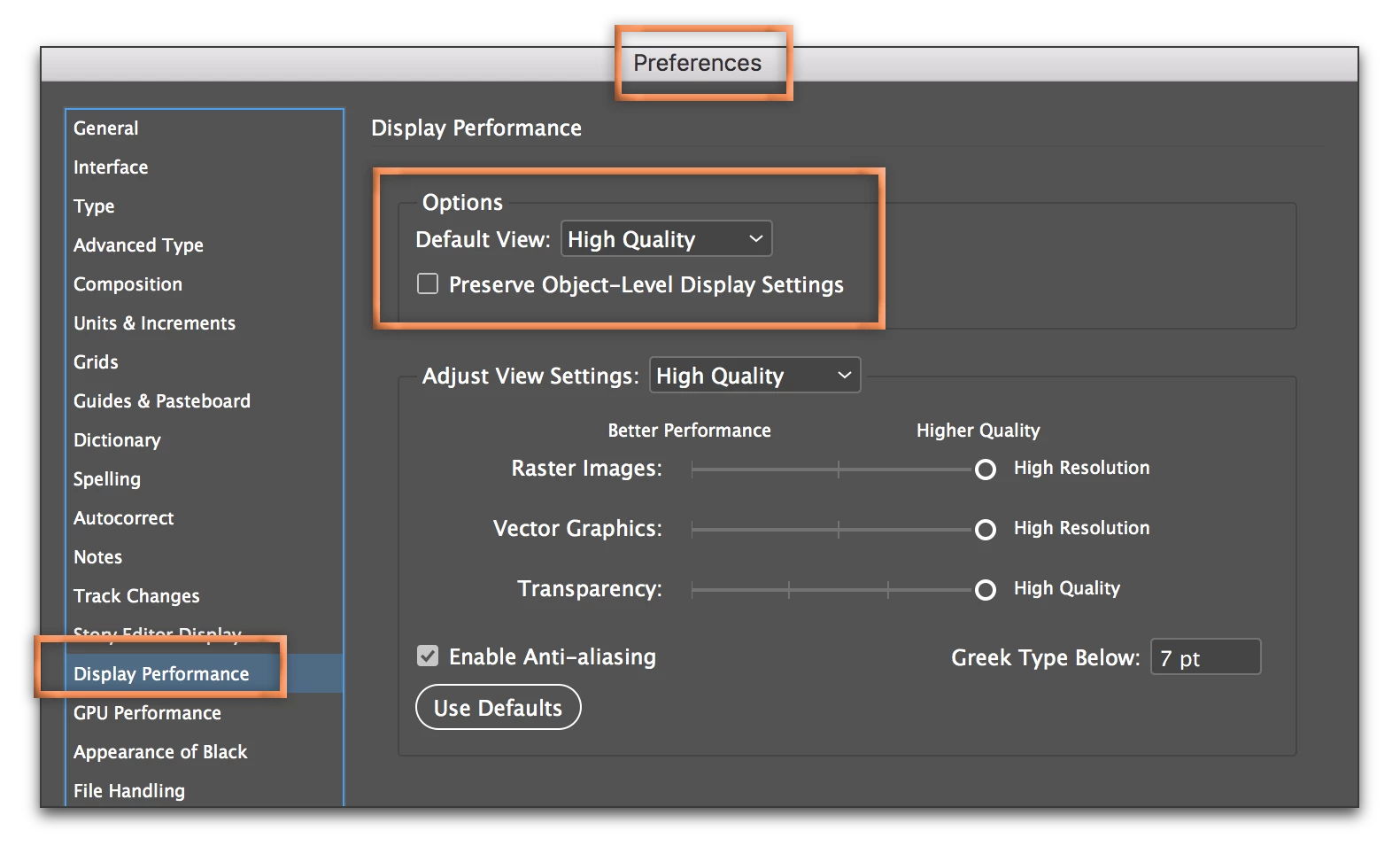
Still not there? Then check Preferences:

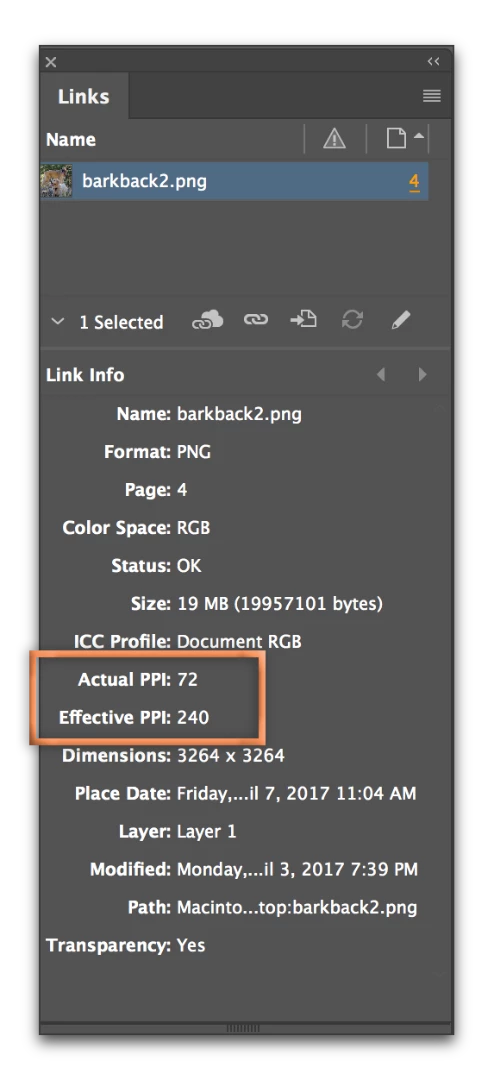
If this doesn't take care of it, the next step is to examine the Effective PPI for the pixelated images in Window > Links. What is the Effective PPI valu
...Copier le lien dans le Presse-papiers
Copié
Which version of InDesign and OS?
Copier le lien dans le Presse-papiers
Copié
Its CC2017, sorry I thought I had put that in there.
Copier le lien dans le Presse-papiers
Copié
These commands are confusing in any version because they appear in three different places.
My suggestion is that you start in the view menu:

Then If you were in the object menu, select each image, go back to the Object menu and set the display performance to Use View setting (the setting from the view menu).

Still not there? Then check Preferences:

If this doesn't take care of it, the next step is to examine the Effective PPI for the pixelated images in Window > Links. What is the Effective PPI value?

Copier le lien dans le Presse-papiers
Copié
So I check all of that and nothing changed. The effective PPI Is a little low (Actual DPI 300 / Effective DPI 112) because i'm printing the image at a large scale. I printed the file and everything is as crisp as it needs to be. This is the quality it's showing at high res:
Indesign:

Photoshop file:

Copier le lien dans le Presse-papiers
Copié
The effective PPI Is a little low (Actual DPI 300 / Effective DPI 112)
That's why. The effective PPI at 112 isn't a little low, it's low. InDesign is showing you a preview of the file, not the file itself like Photoshop. You will see a difference in the Display Performance for high-res files.
Copier le lien dans le Presse-papiers
Copié
I know that this image may be pretty low but it is going to be a poster so I will look good from 4 ft away but it's not just happening to this image its every image. Even with 300dpi as well like the last photo I attached. So the problem isn't just related to one file but all files. Do you know why that might be? Also, thank you for the detailed response above!
Copier le lien dans le Presse-papiers
Copié
You are welcome.
Here are the variables that I can think of that come into play:
Copier le lien dans le Presse-papiers
Copié
I'm not sure what happened but it's fixed haha I was double checking all the setting and everything and didn't change anything but when I closed out of the preferences menu it loaded the image to high quality.
Thank you so much for your help!
Copier le lien dans le Presse-papiers
Copié
Always happy to help! ![]()
Copier le lien dans le Presse-papiers
Copié
To add to Barb's response, as she states the resolution is too low for say a book or magazine (you can enlarge the image in Photoshop to improve the resolution, though the image will be rather soft through interpolation), though if it's for a poster that is viewed from some feet away it many be acceptable.
Copier le lien dans le Presse-papiers
Copié
Yes, this image is for a poster that's why it's as low as it is. And I printed out the image and its crisp but the preview in indd is very low, way lower than it should be for high-res photos and it's not just this image it's all images across multiple projects or images in all sizes. Here is an image in high res preview at 305dpi bit actual and effictive:

Copier le lien dans le Presse-papiers
Copié
Curious, presumably you've followed Barb's excellent guide to setting (in InDesign) High Quality Display.
Copier le lien dans le Presse-papiers
Copié
Yes, absolutely it was very informative but nothing really changed. Also, it's not just happening to the first image I attached its every image even with 300dpi as well like the last photo I attached. So the problem isn't just related to one file but all files.
Copier le lien dans le Presse-papiers
Copié
I have a similar, but perhaps different issue. I've been having this with All versions of InDesign CC on multiple computers. Display performance is set to high, but all graphics—even all vectors including linked CC Library items—and text will randomly seem pixelated/aliased.
It does this in any document, but the only fix I know of is to close the document and reopen. Is there some obscure shortcut key that might do something like this? It's very possible that I accidentally hit some shortcut that does it. My workflow relies heavily on shortcuts, so I've always thought this might be a possibility.
Copier le lien dans le Presse-papiers
Copié
Hi Jone,
If you followed the Barb Binder instructions and the problem persists, I suppose that the original image file has a very high resolution and small dimension. In this case, InDesign could show a preview super pixelated.

Copier le lien dans le Presse-papiers
Copié
Make sure that the location of the images you are using has not been changed. Indesign indexes to these images for this to work.
Copier le lien dans le Presse-papiers
Copié
Hi, I recently upgraded to Indesign CC2019 running Mac OS Mojave 10.14.1. I am having the same issue (images won't display in high quality within Indesign. I am experienced designer with thorough knowledge of INDD. Images are correctly linked at between 300-400 effective PPI. Does anyone have this issue or know of a solution?
Copier le lien dans le Presse-papiers
Copié
Copier le lien dans le Presse-papiers
Copié
THAT'S IT! Thanks!
Copier le lien dans le Presse-papiers
Copié
I followed Barb's steps and it still didn't work - InDesign 14.0.2 on a Mac with OS 10.13.6 (High Sierra) - GPU/CPU preview, any number of High Quality Display checks - Effective PPI was plenty; the only thing that solved it was checking Overprint Preview on in the View menu. It's not whip-snapping quick now, but when you're annotating screen grabs in an instruction manual, it's really your only choice.
I'm using a '17 5K iMac, which MAY have something to do with it - some of the other Adobe apps aren't always besties with the 8Gb Radeon graphics card in here.
Anyway, thought you'd like to maybe get one more option on how to fix it. I'm sure I'm not the only one.
Cheers
Matt
Copier le lien dans le Presse-papiers
Copié
Hello,
I have done all the steps but nothing happens any recommendation please
Copier le lien dans le Presse-papiers
Copié
My images are fine when I place them, but when I close and then reopen the page some of them loose their hi-res preview. I get the preview to sharpen back up by using cmd-x (cut) and cmd-opt-shft-v (paste in place). The issue started when we upgraded to version 2019. Hopefully it will be fixed back to how it was when the next upgrade rolls through.
Copier le lien dans le Presse-papiers
Copié
I'm getting this too. Selecting High Quality Display does nothing. So many bugs in InDesign these days it is so annoying pick up your game Adobe.
Copier le lien dans le Presse-papiers
Copié
isn't there a fix for this yet?
it's mind boggling @ADOBE should help!!!
i've followed the instructions in this post and nothing worked..
I need to seee my images in high res, it doesn't make any sense
Préparez-vous ! Une expérience Adobe Community améliorée arrive en janvier.
En savoir plus