Participant
June 19, 2019
Answered

How do I lock an image inside of a text frame so it flows with the text?

  • June 19, 2019
  • 3 replies
  • 3253 views

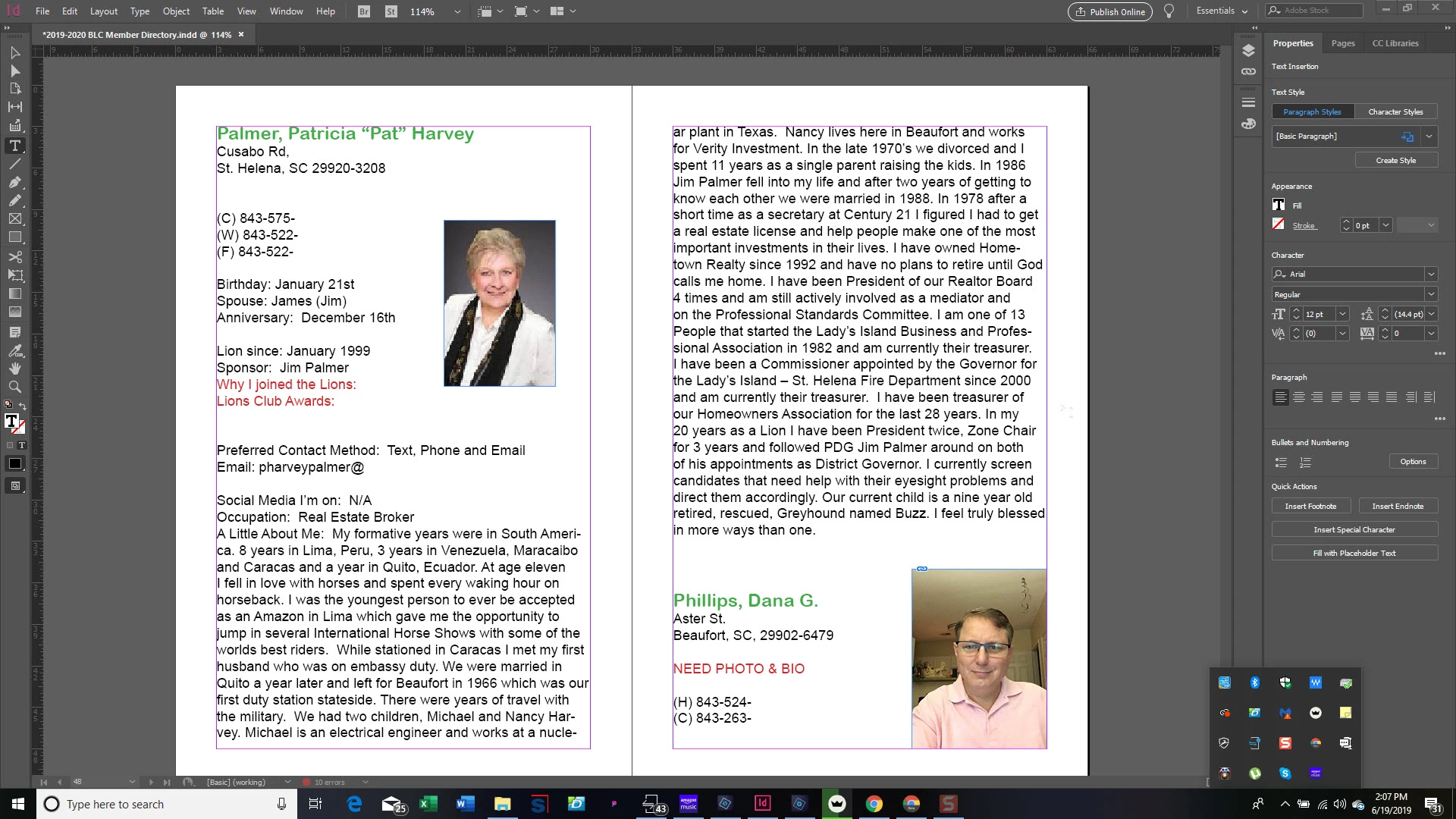
I am trying to create a Member Directory for our local Lions Club, but I am running into a problem with the images. 

I am trying to find a way to place an image inside of a text frame and somehow lock it so that when the text moves, the image moves with it.

Each person will have their own photo besides their entry, but as I add information for each person I need the photo to follow the text of that person if that makes sense.

I have exhausted the tutorials looking for the answer and still don't have one.  LOL

I have attached a screenshot of what I am talking about so you get a better understanding.

Any help would be greatly appreciated!

Thanks,

Dana
This topic has been closed for replies.
Correct answer Derek Cross

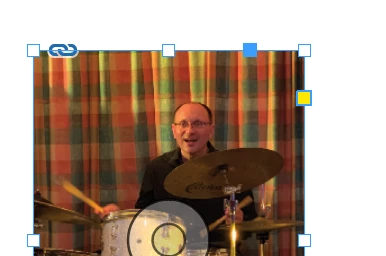
This is called anchoring an image. There are several ways to adjust it, but basically you drag a connection from the small blue square in the frame to where you want it to link to the text. You can have in inline and above the line.

3 replies

Derek Cross
Community Expert
Community Expert
June 19, 2019

For anyone interested in anchoring images in InDesign, there's an in-depth article in InDesign Magazine, issue 117 available from the InDesign Secrets website: https://indesignsecrets.com/issues/issue-117-anchored-objects

Legend
June 19, 2019

One easy way to do with would be to insert a table (one row, two columns) for each set of photo and info.

Put it below the address and put the info from phone number to sponsor in the left column and the image in the right.

Derek Cross
Community Expert
Derek CrossCommunity ExpertCorrect answer
Community Expert
June 19, 2019

This is called anchoring an image. There are several ways to adjust it, but basically you drag a connection from the small blue square in the frame to where you want it to link to the text. You can have in inline and above the line.

Participant
June 19, 2019

Derek,

Thank You, it seemed to work.  I DID see that tutorial, but, as chance would have it, they forgot to mention the little "blue box" and when I tried it, it didn't work.  Now that I know what I can do, I will play around with the settings until I get the desired effect.  At least you got me in the right direction!

MANY THANKS!

Dana