


Inspiring
May 2, 2025
Answered

How do you export a full document as plain text, or text-based markup?

  • May 2, 2025
  • 9 replies
  • 2961 views

I've seen several posts claiming that you can just go to File/Export and choose text. No; this option does not exist.


I have a file that's 20+ pages, all one story. I tried exporting to "InDesign Markup," which is utterly useless because it's not a markup; it's just another binary file format.


Then I tried exporting to XML, which is utterly broken. What I got, for a 27-page document, was one screenful of XML with only 11 elements that contain one line of text... text that doesn't appear in the original document! I have no idea where it came from.


Then I tried HTML, and got nothing but blank pages... albeit with the master pages' headers (which were graphics). The page count at least looked appropriate, unlike the tiny fragment of XML.


At this point I am utterly stumped as to how this tool can be used in any kind of quality-controlled workflow. I need a way to compare the text of two documents and detect where it changed. This is esssential to our work. How are we to accomplish this, when there is no way to get text out of this application?
Correct answer rob day

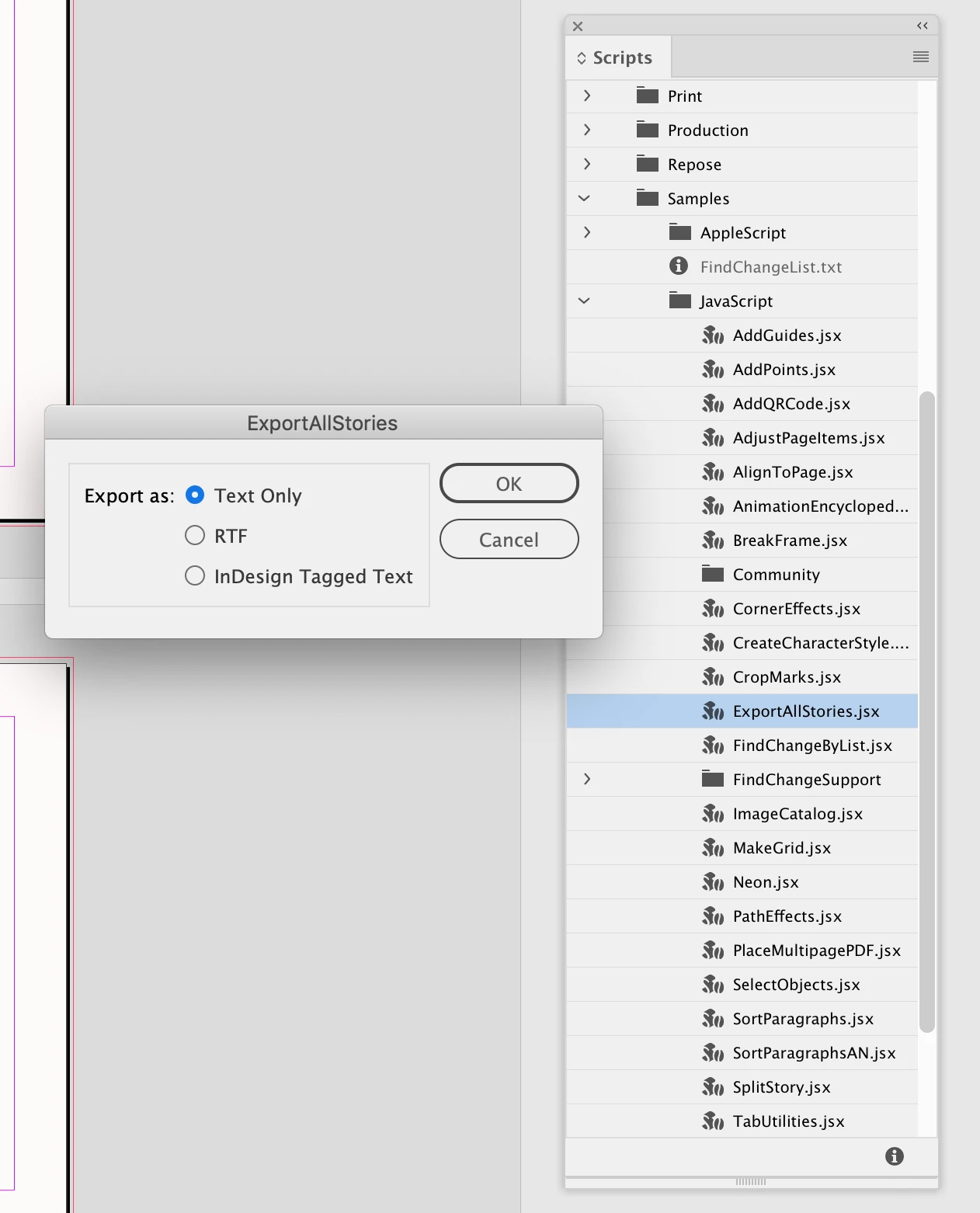
Hi @Thomas_Calvin , Not sure if this helps, but there is also the ExpotAllStories script that will export the document’s stories to .txt files—see the Samples folder in the Scripts panel:


9 replies

Colin Flashman
Community Expert
May 29, 2025

If you need to perform a comparison then I wouldn't try exporting to any other format except a PDF, and then use a tool such as Global Vision or Diffchecker.com - two applications that their only purpose is to compare A to B

If the answer wasn't in my post, perhaps it might be on my blog at colecandoo!
Community Expert
May 29, 2025

Global Vision is ok for pixel comparison but it's expensive isn't it?
Another is TVT but again expensive. 


There was a script a long time ago that you could pick 2 indesign files and it with create a new document and show the differencein overlay. 


I think this is it

http://kasyan.ho.ua/indesign/all/compare_two_documents.html


tonks_the_auror
Community Expert
May 29, 2025

"I need a way to compare the text of two documents and detect where it changed. "

There's something I'm not getting here. Do you mean you need to compare the text of two InDesign documents and detect where it changed? Or are you saying you need to compare the text in the InDesign file with the text in a different format? If you want to compare two InDesign files, you could export them both to PDF and use Acrobat's Compare Files tool. Kinda kluncky, but it does work.

Inspiring
May 29, 2025

We maintain all our document in InDesign (at the moment). So we need to detect changes in the text itself. Doesn't really matter how we do it, as long as it can be made systematic.

TᴀW
Brainiac
May 3, 2025

My Export to Word script will export an entire InDesign file to a single Word (well, really RTF) file. It stiches all the stories together first, so you end up with a single Word file with all text.

At that point, it should be easy to copy/paste the Word document into a text editor, or save as .txt.

https://www.id-extras.com/one-click-export-indesign-to-word/


Inspiring
May 5, 2025

Cool, thanks!

Community Expert
May 3, 2025

in the InDesign scripts folders

Window>Utilities>Scripts

You should find an Exportallstories script. 


Which will export all stories to a text file. 


From here you can combine them into 1 file if you wish. 


Which wouldn't take long - pretty sure you could combine them into a PDF and export it back to a single text file. 


Or with the indesign file make a PDF and then export from PDF to a text file, maybe Word first, then save as plain text from there. 


Where there's a will there's a way. 


(not tested anything - just thinking out loud)

Inspiring
May 28, 2025

Thanks!

rob day
rob dayCorrect answer
Community Expert
May 2, 2025

Hi @Thomas_Calvin , Not sure if this helps, but there is also the ExpotAllStories script that will export the document’s stories to .txt files—see the Samples folder in the Scripts panel:


Inspiring
May 2, 2025

That is helpful, thanks!

Joel Cherney
Community Expert
May 2, 2025

I feel obliged to point out to you that IDML is actually zipped. Rename the extension from .idml to .zip and unpack it, and there you'll find what you might expect from XML export - a directory with all the stories as separate .xml files, among other elements. 


Also, the XML file was empty, I'd imagine, because none of the page elements were tagged. You can see your current XML structure by going to View -> Structure -> Show Structure. The flyout menu from that panel will let you load XML, map styles to tags, et cetera. 


Robert at ID-Tasker
Brainiac
May 2, 2025


quote

[...] 

At this point I am utterly stumped as to how this tool can be used in any kind of quality-controlled workflow. I need a way to compare the text of two documents and detect where it changed. This is esssential to our work. How are we to accomplish this, when there is no way to get text out of this application?


If you work on Windows - my ID-Tasker tool would most likely do everything you need - and way more - but isn't free.

Although, I can let you try full version for free for some time. I'll even help you configure it and add any extra functionality you would need - FoC.


Robert at ID-Tasker
Brainiac
May 2, 2025

@Thomas_Calvin


Put cursor in this Story.

Hit Ctrl+A. 

Hit Ctrl+C. 

Switch to Notepad. 

Hit Ctrl+V.


Inspiring
May 2, 2025

Unfortunately I've inherited very large documents where every page is a separate story (and sometimes more than one).

Joel Cherney
Community Expert
May 2, 2025

You did say in your initial post that your text was all one story, though.


Rob Day's recommendation for the Export All Stories script is a good one, but if you wind up with one of those long documents that has eight hundred stories in it, you might want to use a plug-in like TextStitch from Rorohiko to automatically thread those frames.


Joel Cherney
Community Expert
May 2, 2025

This tool, that we use in all kinds of QCed workflows, is old and large, and the learning curve is steep. You only see raw text as an export option when you have text selected with the Text tool. If your layout is all one threaded story, then you can click into the story, whack Select All, then go to Export, and you'll find that you can export to Plain Text.