Inspiring
January 31, 2024
Question

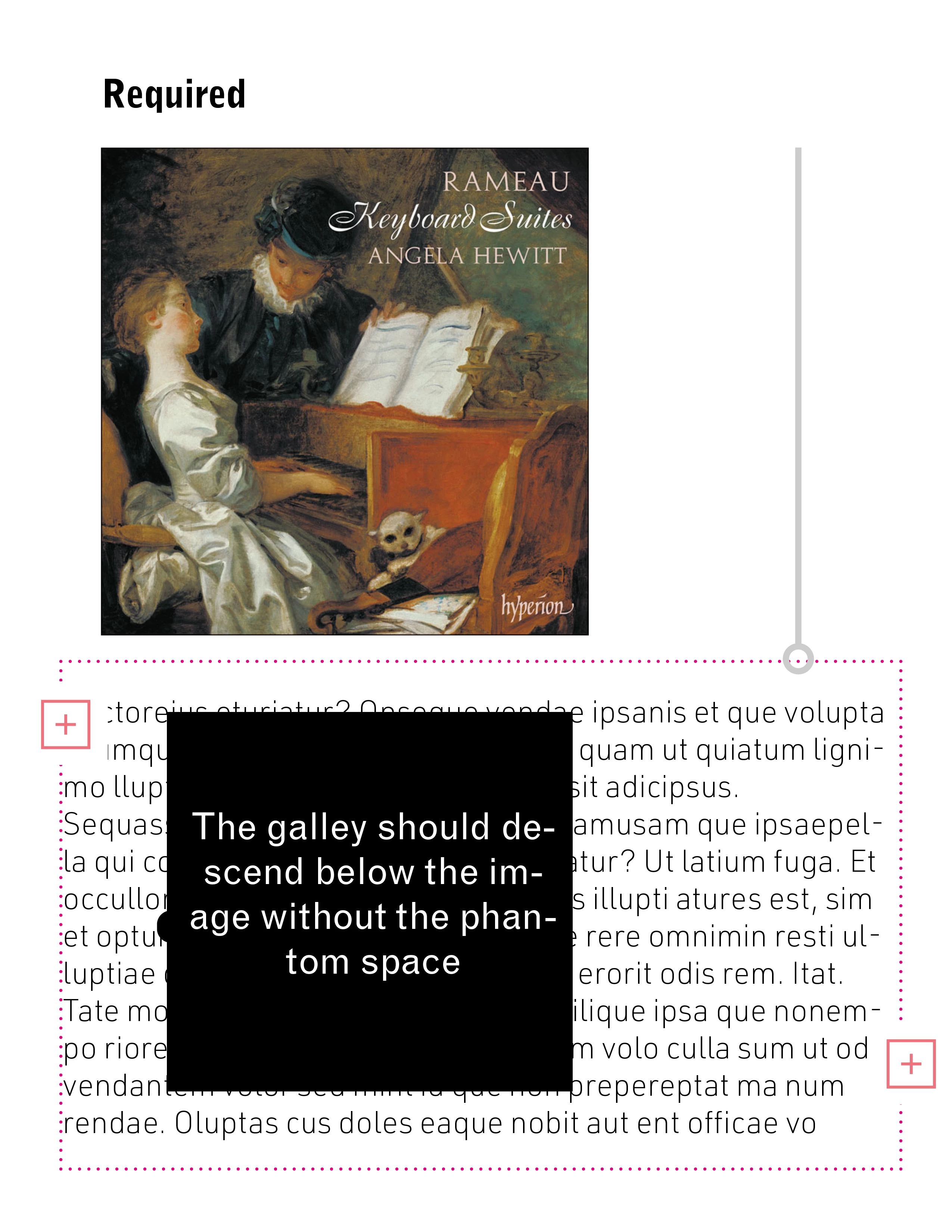
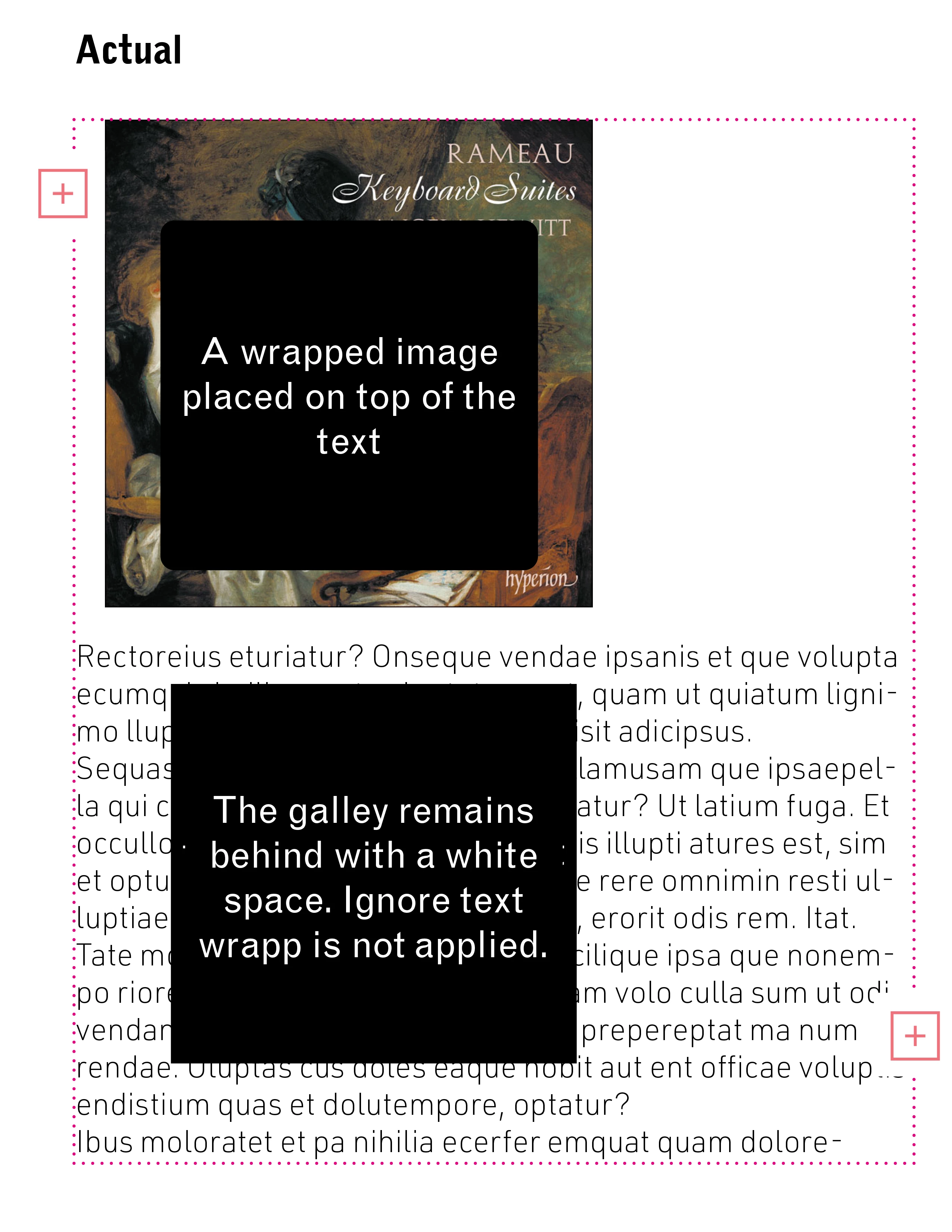
How to adapt a frame text to the page space when a wrapped image is placed.
  • January 31, 2024
  • 3 replies
  • 897 views

When an image is placed on top of a text, one possibility that ID offers is that the referred image has wrap instructions so that the text moves and there is no need to scroll the text vertically or horizontally. This would allow pages to be designed very comfortably. 


However, something curious happens when this idea is executed. The galley remains "behind" the image and shows a white space that is "ghost." 


If the "ignore text crap" menu is used, nothing happens. This generates inconveniences because some incomplete galleries remain on the pp. without real borders and generally what must be done is to move the galley in the necessary direction so that there are no ghost white spaces.


This topic has been closed for replies.

3 replies

Barb Binder
Community Expert
Community Expert
February 1, 2024

But that was exactly the idea behind this post.


Ah, now I understand. You may already know this, but you are reaching other InDesign users on the community forums, and our role is to explain how to use InDesign, which may include pointing to scripts and plug-ins that extend the feature set (like Peter's invaluable scripts).


To submit a feature request, please use this link: https://indesign.uservoice.com/forums/601021-adobe-indesign-feature-requests.


~Barb

~Barb at Rocky Mountain Training
CamiloUAuthor
Inspiring
February 1, 2024

Yes, Barb. Perhaps this is a point. But you defined very well the point here. Best regards.

Please see these images. The text and the image are «confused». You have to state where what is what. As in the PM prehistory.


or...


Joel Cherney
Community Expert
Community Expert
February 1, 2024

I can see why you'd want this behavior from text frames, but there might be other ways to achieve the same effect without a feature request. For example, if I wanted text to flow like this, I might format my document so that that all of my text was in a single frame. That way, if I dropped an image with wrap on top of the story, I could choose whether the text ran around the image - "Wrap to Both Right and Left Sides" in the Text Wrap panel - or was immediately pushed below the placed image, as in your "ideal" examples. In the row of icons showing wrap styles, the fourth from the left is "Jump Object" which I think most closely matches your intent. 


That's the most plausible workaround I can think of in the absence of an "object wrap" tool in InDesign. That's essentially what you are asking for, right? Text Wrap pushes text out of the way, but you want it to push objects out of the way. The text frames in your examples are objects, after all.  That feels like it might be something that Framemaker can do; it's been quite some time since I worked in Frame, but that's what your desired behavior reminds me of.  But in InDesign, I'd say that, to acheive your desired effect, you should not break your text out into separate frames. For example, in your "for the record" example, I'd say that the text in the red frame, that you want to dodge out of the way of Table 4.12, should be in the same frame as Table 4.12. I'm not sure why you have your document set up in this way, but that's how I would resolve this issue, speaking only for myself. 


At any rate, if you want to figure out some way to use InDesign's tools to do this, you're in the right place. If you'd rather make a feature request, Barb has pointed you in the direction of the Uservoice. However, as you note in your postscript about Peter Kahrel's observation regarding dev attention to indices in InDesign, sometimes feature requests don't always receive immediate developer attention. 

Barb Binder
Community Expert
Community Expert
February 1, 2024

I don't see the issue, either. You add the wrap to the image frame and then adjust the spacing. In the demo below, I made the frame partially transparent so that you can see whats happening. If by "phantom space" you're trying to control the space beneath your image, you can do that with the offset below the frame. I show it at the end.


Keep in mind, if your text is snapped to a baseline grid, it's going to jump more than you might want it to. What is not going to happen is what you're showing in your second image. The text frame is not going to resize itself. It's going to stay still. The text will move, the frame will not.


~Barb


~Barb at Rocky Mountain Training
CamiloUAuthor
Inspiring
February 1, 2024

Barb,

yes. The point is as you say:


"What is not going to happen is what you're showing in your second image.".

But that was exactly the idea behind this post.

Our intention and certainty is that after all the text has flowed and then the images placed, the frame texts will be really adjusted not leaving spaces and we will have pages with with easily manageable and detectable elements as it is the protocol. Somehow not having overlapped texts and images. .Perhaps this topic is for making books, not for graphic design. No doubt a script can be a way.

Currently, ID shows two elements on top of each other which makes the layout unmanageable.  We are looking for a more comfortable way of working, even if this seems abnormal for Adobe. With this possibility to assembly a book is greatly simplified (for us).

Thanks and best regards.


Robert at ID-Tasker
Legend
February 1, 2024

@CamiloU


Once again - this is perfectly normal - and has been for the past 20+ years...


I think the problem is somewhere else - are you trying to export your  INDD files as HTML?


Robert at ID-Tasker
Legend
January 31, 2024

That's perfectly normal behaviour. 


When you place object - any object - over / behind TextFrame - you can activate TextWrap that will push text away.

You decide which way and how much. 


https://helpx.adobe.com/uk/indesign/using/text-wrap.html