Kiba_Dustin__Lyeaux_
Participant
January 18, 2017
Answered

How to create a anchor point in the center of a crossing of two paths?

  • January 18, 2017
  • 6 replies
  • 5931 views

---------- English/Englisch ----------

How can I create a new anchor point excatly where two pen tool drawn paths cross?

InDesign doesn't help me to snap the mouse in the center of the cross.
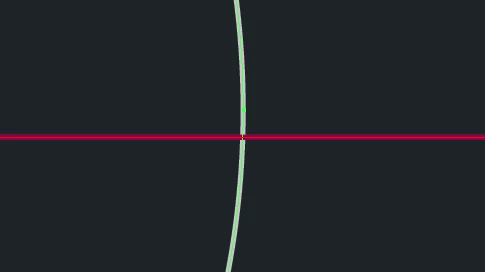
Illustrator has a simple function who helps me by just giving me a help line (intelligent helplines-function). It snaps automaticly exactly in the center of the crossing and InDesign doesn't.

I want to work as accurate as possible and this is very importend to me.

I could do the design with Illustrator, but I like to work only with one source of the printed file. So I must not import and export data. It's better to have just one source file.

I'm happy to hear your suggestions!

---------- German/Deutsch ----------

Wie kann ich einen Ankerpunkt exakt in der Mitte zweier überkreuzender, mit dem Stift-Werkzeug erstellten, Pfade erstellen?

InDesign hilft mir nicht die Maus in dem Zentrum des Kreuzes zu platzieren.
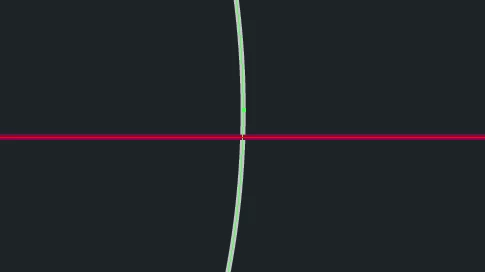
Illustrator hat eine simple Funktion, die mir hilft, indem es mir einfach eine Hilfslinie (intelligente Hilfslinie) gibt. Objekte rasten automatisch an entsprechenden Stellen ein und InDesign tut dies nicht.

Ich möchte so genau wie möglich arbeiten und dies ist mir sehr wichtig!

Ich könnte das Design mit Illustrator erstellen, aber ich möchte mit nur einer Quelldatei arbeiten. So muss ich nicht importieren und exportieren. Es ist besser nur eine Quelldatei zu haben.

Ich freue mich auf eure Antworten!
This topic has been closed for replies.
Correct answer jane-e

Let me confirm that I understand you.

In Illustrator, you can

• draw two lines

• hover over the intersection of the lines with the Add Anchor Point tool

• use Smart Guides to see the Intersection, and

• then click to create a new anchor point at that spot, wherever it is they happen to intersect.

I tested this in both Illustrator and in InDesign. You are correct that you cannot do this in InDesign, if I understand you (unless our resident Jedi knows some script).

This screenshot is from Illustrator:

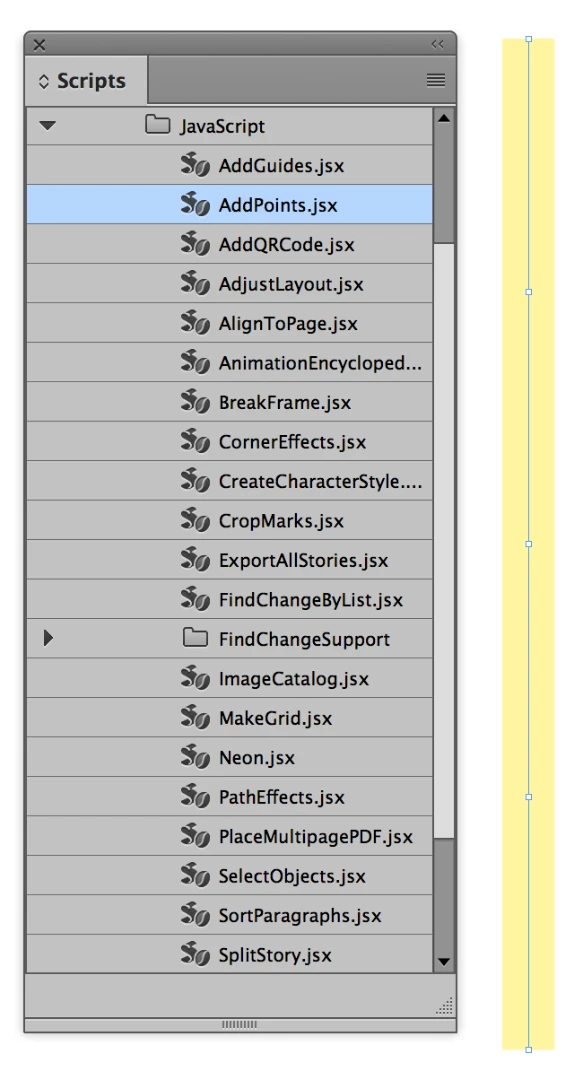
There is an Add Points Script, but that only places evenly spaced points.

For now, it appears that you will have to do this in Illustrator. But it's a great idea, and you can fill out a Wish Form for InDesign here:

http://www.adobe.com/products/wishform.html

,

6 replies

vinny38
Legend
January 19, 2017

Hi

If you want to add your anchor point to the top shape, maybe "Path Operation" script can help you:

See http://indesignsecrets.com/indesign-cad-tool.php

path_context_menu.png

I wanted to test it but couldn't install it, probably cause I use CS6...

If you want to create a new path starting from the exact intersection point (and are reluctant to Illustrator), I don't see any other solution than using guides.

Here's a workaround to create precise guides: select paths, use pathfinder "Exclude overlap" feature. Select direct selection tool to select the newly created path: you'll then see an anchored point was created at the intersection. Create your guides, select them both and copy them. Ctrl-Z back to the step before the pathfinder and finally copy guides.

Pffffffiou, not a one click-solution! I understand very well this is not want you wanted at first. It's just how I would do if I had to do it...

I'd be curious to know if the Path Operation script works fine.

Let us know if you tested it and if it was helpful to you.

Vinny

Barb Binder
Community Expert
Community Expert
January 19, 2017

why this simple function isn't implemented in Adobe InDesign (CC 2014) but in Illustrator (CC 2014)

This is a user-to-user forum—users in the Adobe community helping other users solve layout issues.

How about filing a feature request directly with Adobe if you don't care for the responses from the various Adobe Community Professionals?

InDesign: Wishform - Adobe InDesign

~Barb at Rocky Mountain Training
jane-e
Community Expert
jane-eCommunity ExpertCorrect answer
Community Expert
January 19, 2017

Let me confirm that I understand you.

In Illustrator, you can

• draw two lines

• hover over the intersection of the lines with the Add Anchor Point tool

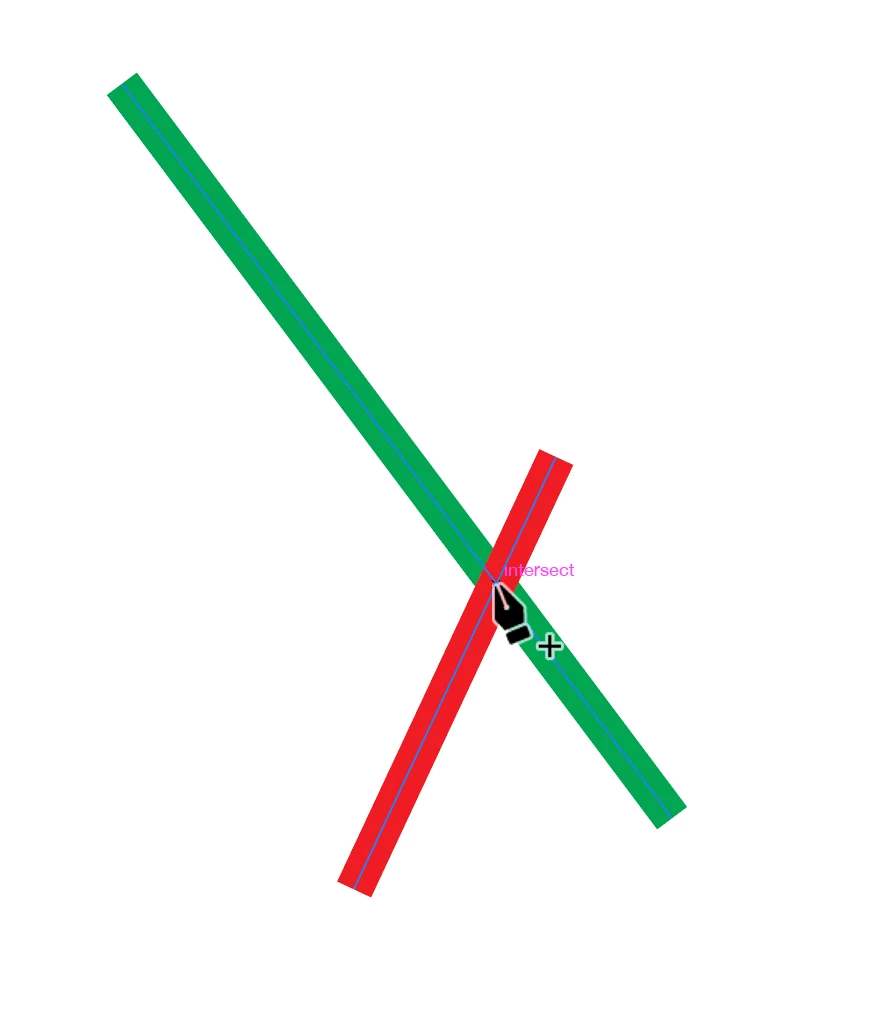
• use Smart Guides to see the Intersection, and

• then click to create a new anchor point at that spot, wherever it is they happen to intersect.

I tested this in both Illustrator and in InDesign. You are correct that you cannot do this in InDesign, if I understand you (unless our resident Jedi knows some script).

This screenshot is from Illustrator:

There is an Add Points Script, but that only places evenly spaced points.

For now, it appears that you will have to do this in Illustrator. But it's a great idea, and you can fill out a Wish Form for InDesign here:

http://www.adobe.com/products/wishform.html

,

Sandee Cohen
Legend
January 19, 2017

You can do it in InDesign but you won’t have any Smart Guides. But you can “wing it” by zooming in and holding the Shift key to create the new point not on either path.

Kiba_Dustin__Lyeaux_
Participant
January 18, 2017

I think, no one understands what I'm saying and what the problem is.

I don't understand it, cause I think my english is not this bad.

I type now a simple step-by-step about what I'm doing and what the problem is (or missing feature, where I think, that it's hillarious that such a simple thing is not implemented!).

Step 1:

Draw a line with the pen tool (two anchor points).

Step 2:

Draw a second line with the pen tool (again two anchor points) which cross the first line from step 1.

Step 3:

Select both lines and select the pen tool.

Step 4 and the problem:

Now try to create a anchor point excatly at the crossing without guessing, where the center of the cross is. You can't cause InDesign doesn't help you with that. It doesn't snap or gives you a helpline.

Legend
January 18, 2017

It can be done with Smart Guides and Snap to Guides.

  1. Select the red line
  2. Snap horizontal and vertical guides to the center point
  3. Select the green line
  4. Zoom in, place the cursor on the center point and drag it to the intersection of the guides, and it will snap
rob day
Community Expert
Community Expert
January 18, 2017

It snaps automaticly exactly in the center of the crossing and InDesign doesn't.

If you turn on View>Grids and Guides>Smart Guides the guide icon will change when you hit the center of an object. It's a subtle change:

The drag arrows turn from black to white

but I like to work only with one source of the printed file. So I must not import and export data. It's better to have just one source file.

If you setup your Clipboard preferences correctly in both apps, you can paste simple vector objects from Illustrator into ID and the vectors will be editable in ID.

If you really don't want to use or maintain linked files you can embed a linked file via the Links panel and the embedded object will travel with the file. Embedding  can make the page layout file size unwieldy, so it would not be a good practice for image heavy documents. Linking is an important ID feature and there's no print or export downside other than organizing the project so the links don't go missing.

The prefs for copying vectors

joet082964
Inspiring
January 18, 2017

Why not use guides?

Kiba_Dustin__Lyeaux_
Participant
January 18, 2017

There is no guide or a solution for my problem or a statement, why this simple function isn't implemented in Adobe InDesign (CC 2014) but in Illustrator (CC 2014), Joet082964.

I searched everywhere. On the official Adobe Website, Google and on YouTube. The problem is so simple, but a big problem and hard to find a answer.

Your reaction about: ,,Why not use guides?", tells me, that you think my problem is a joke and this doesn't derserve a post in the forum. But when the answer is so simple, you can easily tell me a solution, can't you?

I bet you don't have a solution for this InDesign-Problem. You showed me a fix with helplines draged out from the ruler (i guess?), but those helplines doesn't snap to the center of the crossing.

This means: It's again eye measure and not technical precision!

Thank you for your reply.

Legend
January 18, 2017

InDesign is made for page layout, and not for the very tight technical precision that you need.

That's why the different programs exist, with different sets of features and strengths. Standard practice for what you are doing would be to do the technically precise drawings in Illustrator, and photos in Photoshop, and to place them into the InDesign document. 

I realize that you want everything to originate in on document, but in the end I think you will find it a better workflow to use each program for its intended purpose, and then use Package to keep everything together.  

In any case, you can send a PDF for printing, so it will all be together in your final output file.