


New Participant
August 24, 2024
Answered

How to Create a Rounded Corner Background for Text in InDesign

  • August 24, 2024
  • 1 reply
  • 1053 views

I cannot find a forum post with this topic.


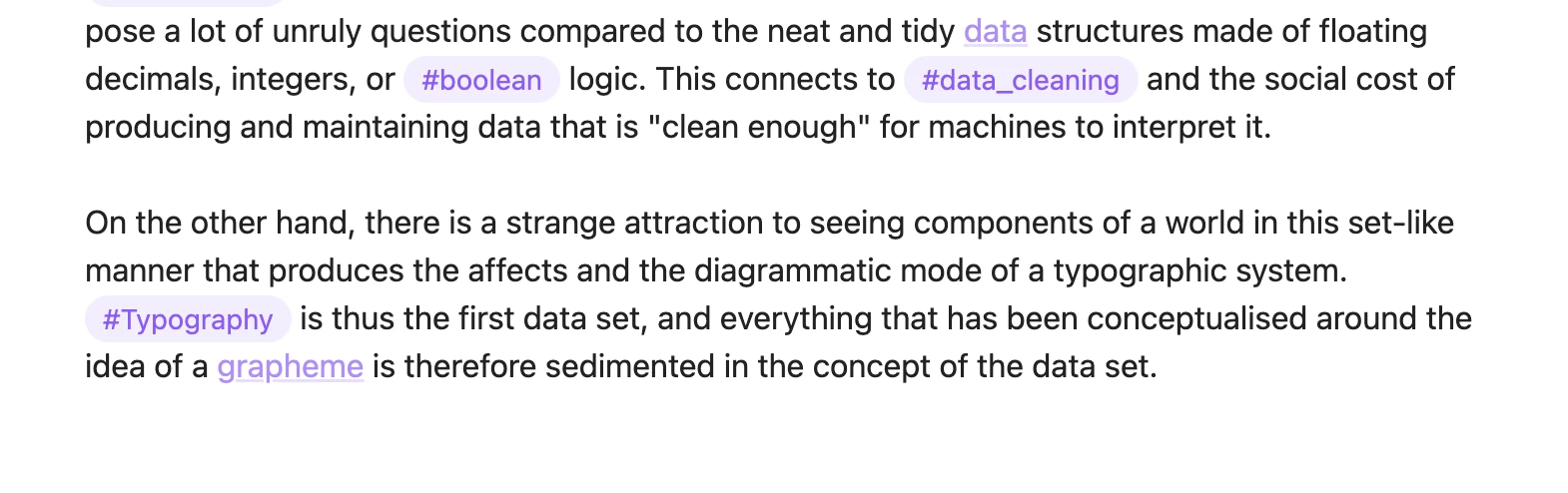
This is the PDF output of markdown from Obsidian note-taking software showing the default styling for hashtags that link search terms or notes together accross notes.


Is there anyway to make a style for this in indesign? Character style underline/strikethrough does not have a rounded corner option, and paragraph rules go accross the whole paragraph.


-------------------------------


<Title renamed by MOD>

This topic has been closed for replies.
Correct answer Robert at ID-Tasker
quote

Hi @Louise00 ,

you say:

3) Fudge for horizontal padding

Add a space either side of your desired word and apply character style (can't find any programmatic way to add horizontal space before/after words at this point.


That's the crucial point for making it fully automatic with a GREP Style.

Well, I have no solution for this…


By @Laubender


In this case - I think there is a solution: 


Find what: 


(.+)

with CharStyle selected 


Change to:


[space]$0[space]


Of course [space] should be replaced with a desired kind of space. 


1 reply

Louise00Author
New Participant
August 24, 2024

I have sort of answered my own question, hopefully helpful for someone else:


1) Make a new stroke style with rounded corners

- Go to Stroke menu then Stroke Styles from the drop down menu

- Press New.. and choose the type "dash"

- Adjust the stroke so there is essentially no gap in the dash (fake solid line)

- Apply rounded corners and give style a memorable name. Press Add then ok.


2) Add the stroke to the character style

-Go to Character Styles, Underline Options, and choose the type to be the style you just made in the stroke style preference.

-Use Weight and Offset with preview checkbox checked, in order to position and size the vertical height of the stroke.


3) Fudge for horizontal padding

Add a space either side of your desired word and apply character style (can't find any programmatic way to add horizontal space before/after words at this point.


Hope it helps someone else!


Braniac
August 26, 2024

Hi @Louise00 ,

you say:

3) Fudge for horizontal padding

Add a space either side of your desired word and apply character style (can't find any programmatic way to add horizontal space before/after words at this point.


That's the crucial point for making it fully automatic with a GREP Style.

Well, I have no solution for this…


Regards,
Uwe Laubender
( Adobe Community Expert )

Robert at ID-Tasker
Robert at ID-TaskerCorrect answer
Braniac
August 26, 2024
quote

Hi @Louise00 ,

you say:

3) Fudge for horizontal padding

Add a space either side of your desired word and apply character style (can't find any programmatic way to add horizontal space before/after words at this point.


That's the crucial point for making it fully automatic with a GREP Style.

Well, I have no solution for this…


By @Laubender


In this case - I think there is a solution: 


Find what: 


(.+)

with CharStyle selected 


Change to:


[space]$0[space]


Of course [space] should be replaced with a desired kind of space.