Participant
September 29, 2022
Answered

How to display a 2 page view in PDF

  • September 29, 2022
  • 3 replies
  • 74191 views

I've created a book in InDesign that shows best in a 2 page view when converted to a PDF. The problem I'm having is how to get the file to default to a "2 page view" rather than a "single page view" when opened in Adobe Acrobat. I've googled this a handful of times and can't find a solution. Perhaps I'm overlooking it, but I just haven't found an answer.


Thanks

Correct answer Bevi Chagnon - PubCom.com

After the PDF is exported, open it in Acrobat DC Pro and set the following:

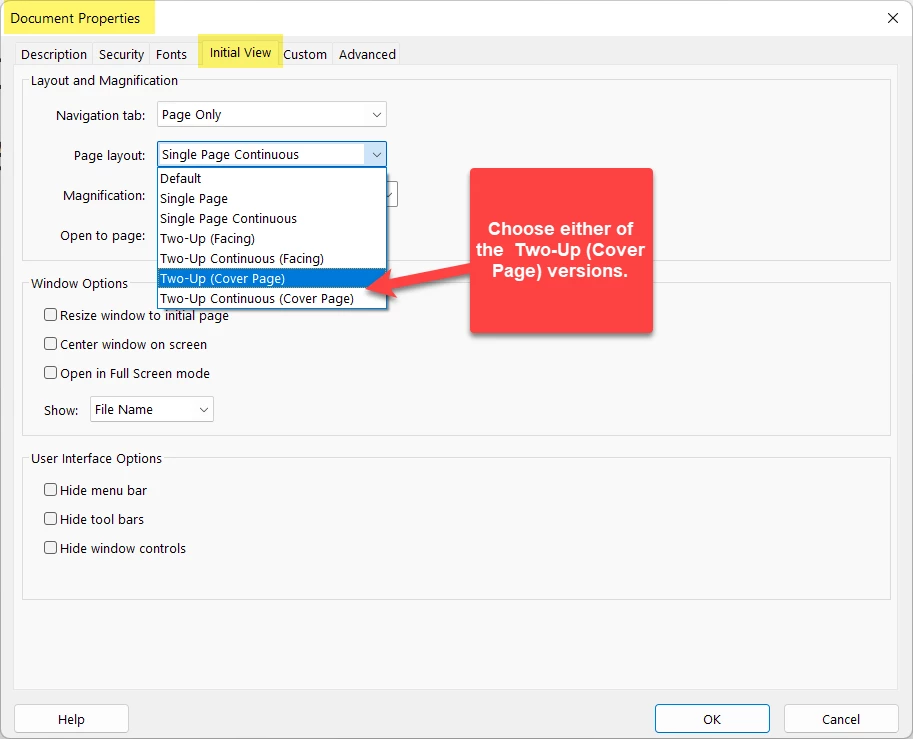
  1. File / Properties
  2. Click the Initial View tab at the top.
  3. From the drop down list for Page Layout, select Two-Up (Cover Page) or Two-Up Continuous (Cover Page). The difference between the two is how the PDF will scroll for the user: will it "hop" from one page/spread to the next, or will it be a smooth continuous scroll from spread to spread. Your choice.
  4. Exit out of the dialogue box.
  5. Save and close the PDF. This is important to cement the setting in the PDF.
  6. Re-open the PDF to check that it opens as you intended.
 

If you're making the PDF from Adobe InDesign, you can set this in the Export dialogue settings and then avoid this step in Acrobat.

  1. File / Export / Interactive PDF.
  2. From the Layout menu, select either Two-Up (Cover Page) or Two-Up Continuous (Cover Page).
  3. Complete the export, and the PDF will open as planned in Acrobat.
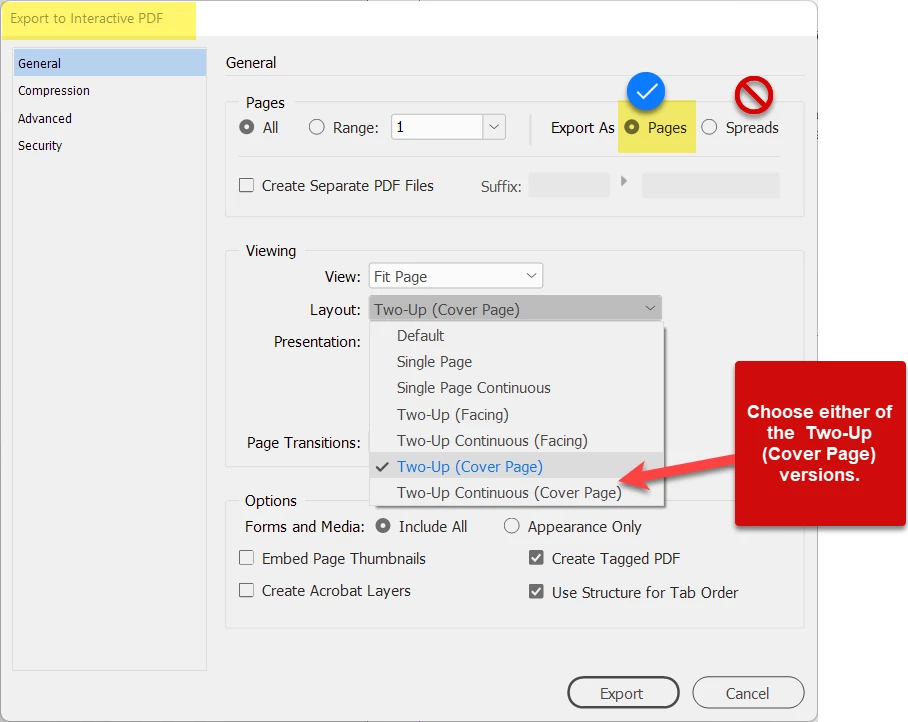
 

NOTE: Do not select the "spreads" option in the upper right. It welds the 2 pages together and prevents many users from viewing the PDF easily. Keep them as separate pages and instead have them viewed side-by-side. Makes everyone happy.


Not difficult to do, but it is not well-documented. Hopefully, this will help.

 

3 replies

Peter Spier
Community Expert
Community Expert
September 30, 2022

Keep in mind, though, that this is only the way the file will display whgen it is opened in Acrobat. All bets are off with other viewers, and the reader has full control to change the view on their end regardless of waht you might set.

Community Expert
September 30, 2022

I have not seen any PDF viewer, other than Acrobat, honor 2-up spread.

Community Expert
September 29, 2022

When you export, select layout for various 2 up options.

Bevi Chagnon - PubCom.com
Legend
September 29, 2022

After the PDF is exported, open it in Acrobat DC Pro and set the following:

  1. File / Properties
  2. Click the Initial View tab at the top.
  3. From the drop down list for Page Layout, select Two-Up (Cover Page) or Two-Up Continuous (Cover Page). The difference between the two is how the PDF will scroll for the user: will it "hop" from one page/spread to the next, or will it be a smooth continuous scroll from spread to spread. Your choice.
  4. Exit out of the dialogue box.
  5. Save and close the PDF. This is important to cement the setting in the PDF.
  6. Re-open the PDF to check that it opens as you intended.


If you're making the PDF from Adobe InDesign, you can set this in the Export dialogue settings and then avoid this step in Acrobat.

  1. File / Export / Interactive PDF.
  2. From the Layout menu, select either Two-Up (Cover Page) or Two-Up Continuous (Cover Page).
  3. Complete the export, and the PDF will open as planned in Acrobat.


NOTE: Do not select the "spreads" option in the upper right. It welds the 2 pages together and prevents many users from viewing the PDF easily. Keep them as separate pages and instead have them viewed side-by-side. Makes everyone happy.


Not difficult to do, but it is not well-documented. Hopefully, this will help.

 

|    Bevi Chagnon   |  Designer, Trainer, & Technologist for Accessible Documents ||    PubCom |    Classes & Books for Accessible InDesign, PDFs & MS Office |
James Gifford—NitroPress
Legend
September 29, 2022

There is one option available in Acrobat that is not (always) available in the ID export. Can't remember which one; I had a document for which the choice was grayed out and I had to export, then open in Acrobat Pro to set the right initial view.
