Inspiring
November 2, 2017
Answered

How to edit page size to the trim size? ie Save a book to PDF in InDesign

  • November 2, 2017
  • 4 replies
  • 4085 views

Hi All,


Sorry, noob question.  I've been given this file, and never used InDesign before.  I'm hoping some kind soul can please help me.

This InDesign file was for a book that was printed.  We want to change it to a PDF, to read on a phone or computer.

But in book format, saved as PDF, there's too much space around the text, and the pages are offset as you scroll down the PDF.

(see images attached).


Then I found the "page trim" layer and thought if I could make all the pages match this page trim area somehow, then save as PDF, it should look good.

Can anyone please advise me how I would do that?


I tried moving the outer extents on the Master to line up with the Page Trim, but they go right back to their original size.

And even when I do (temporarily) reduce the page's size, it reduces the size of the text area as well (ie the "padding" stays the same).


Thanks

    This topic has been closed for replies.
    Correct answer rob day

    Unless there's any other thoughts?

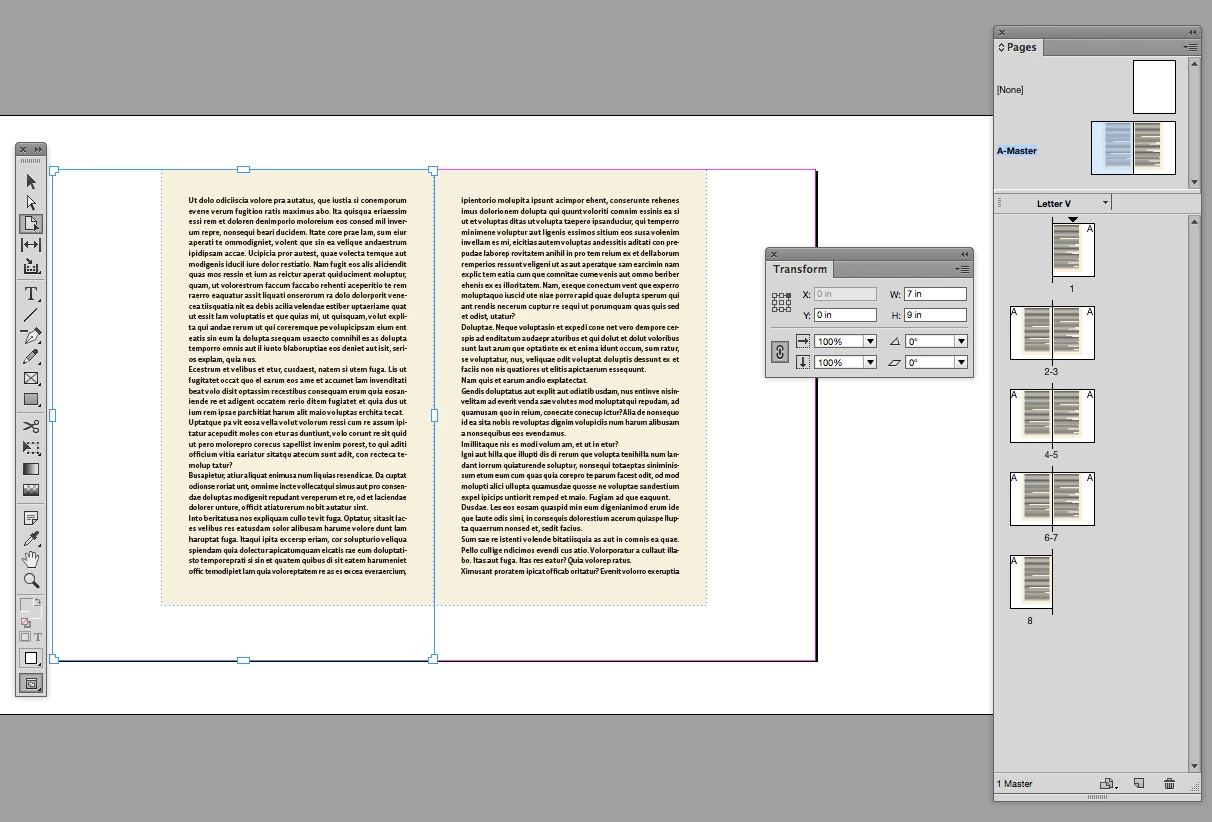
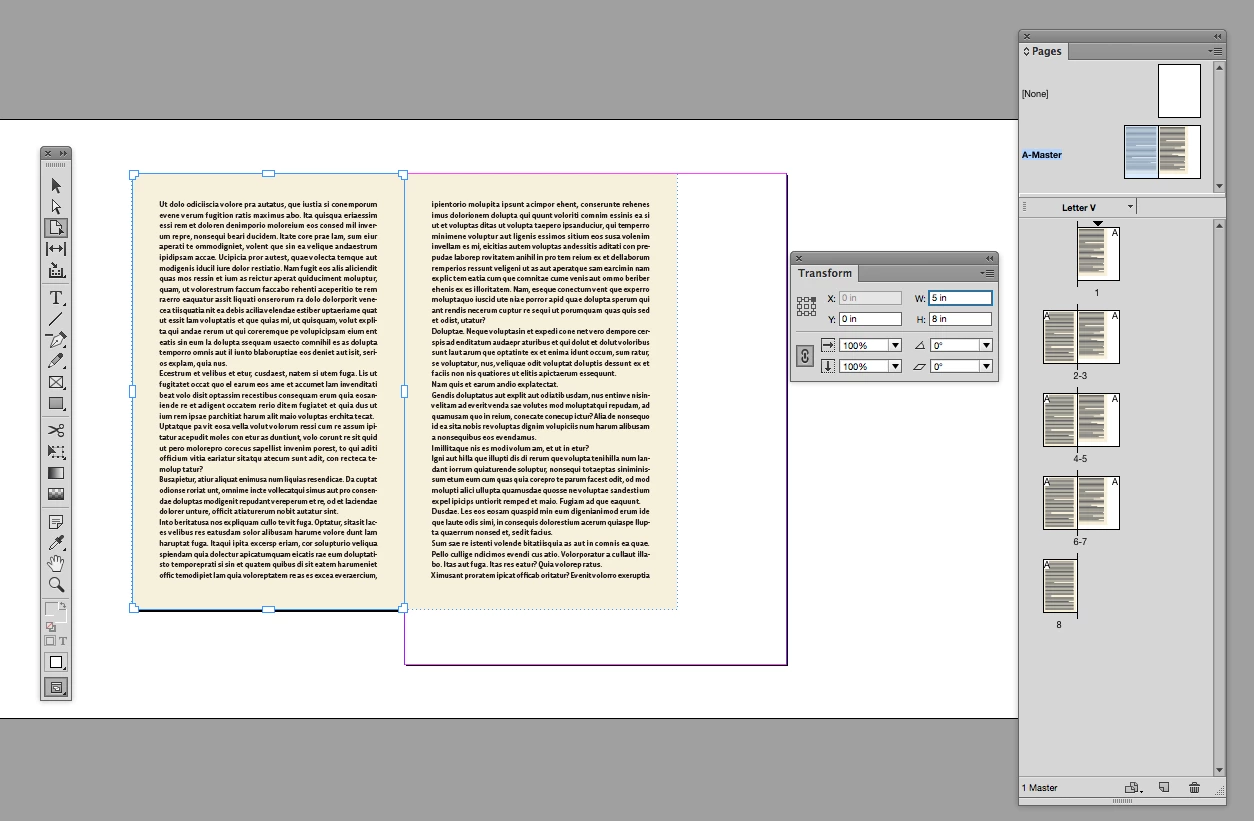
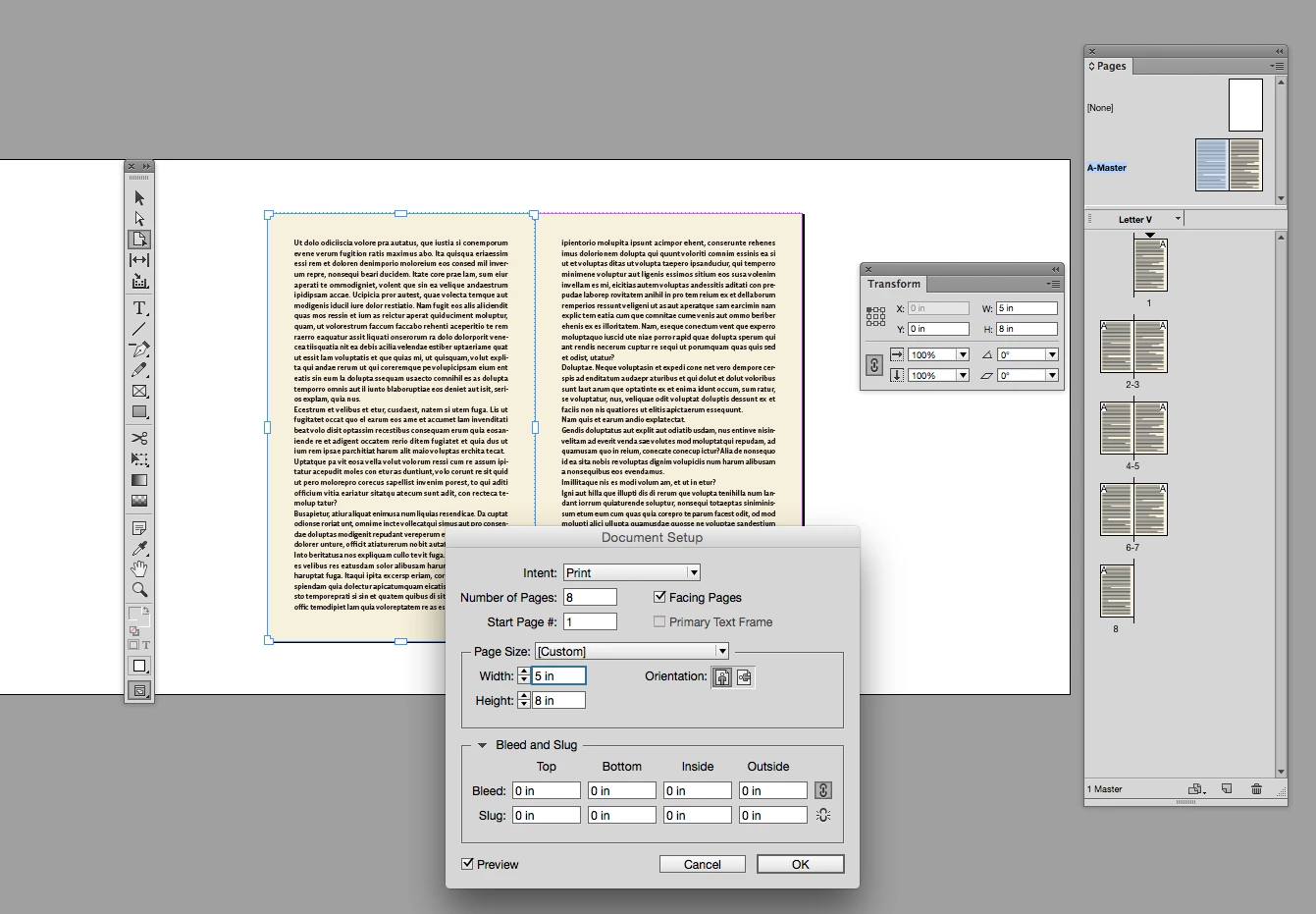
    You should be able to do it by transforming the master pages using the Transform panel and the Pages tool:

    Select the left master page in the Pages panel, and with the Page tool selected, set the Transform panel's anchor to the upper right

    Change the page width and height in the Transform panel

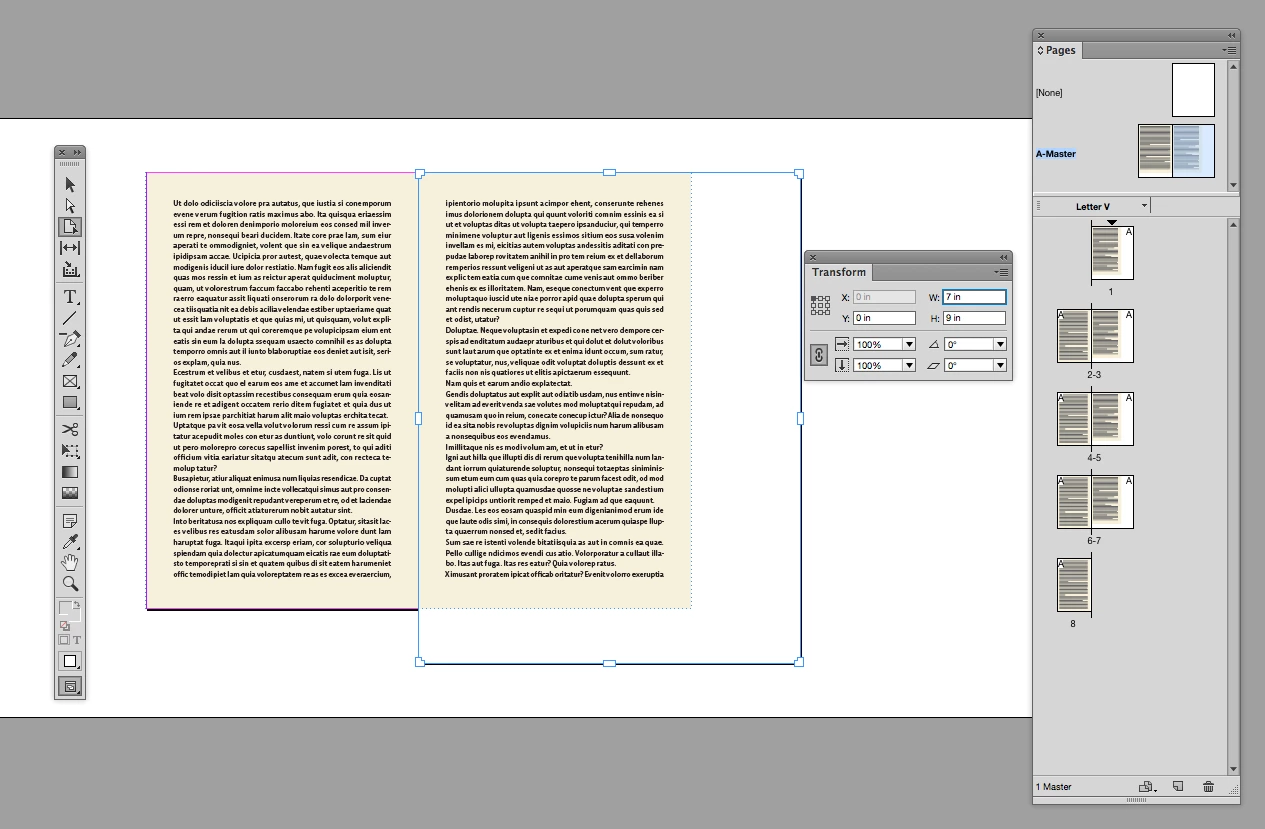
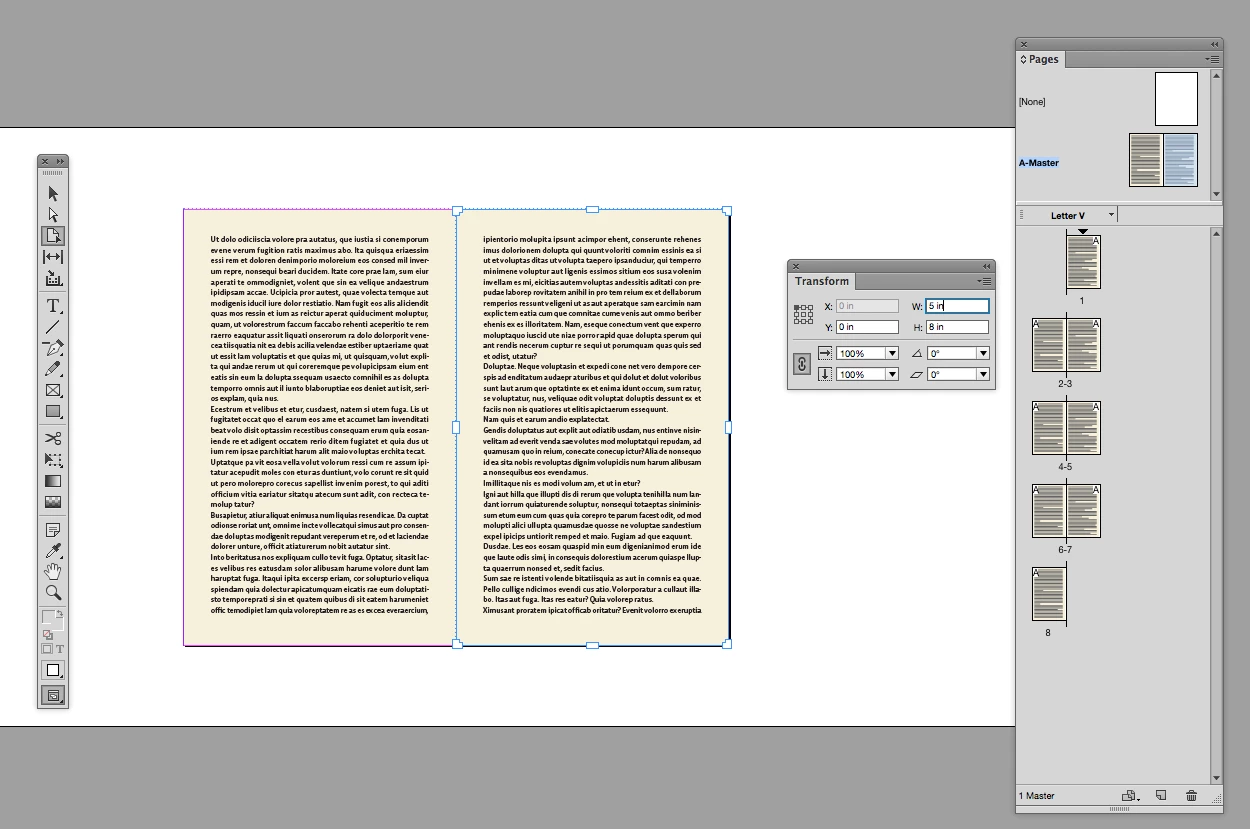
    Select the right page and repeat with the Transform anchor set to upper left

    Change the Document Setup to the new trim size

    4 replies

    rob day
    Community Expert
    Community Expert
    November 6, 2017


    I tried moving the outer extents on the Master to line up with the Page Trim, but they go right back to their original size.

    And even when I do (temporarily) reduce the page's size, it reduces the size of the text area as well (ie the "padding" stays the same).


    Thanks
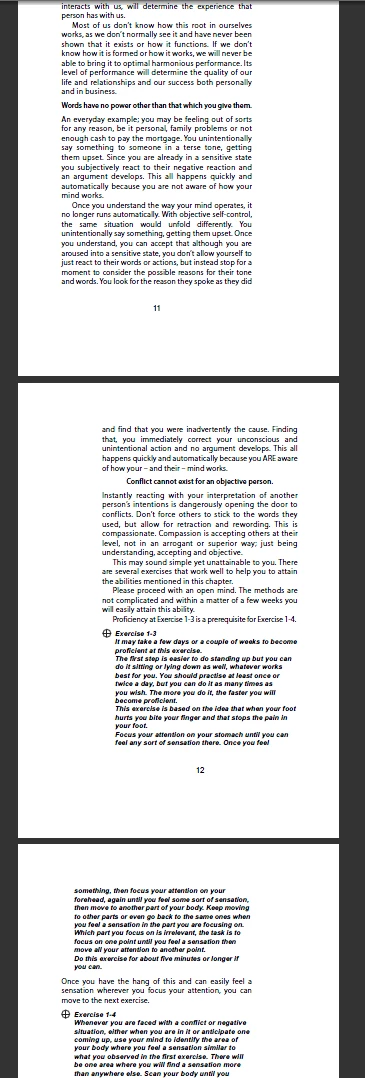
    Looks to me like you've made the page size smaller than the keyline representation you are showing in your first post.

    CBecksAuthor
    Inspiring
    November 6, 2017

    Actually, you helped me solve the original problem.  And helped me finish my first project in InDesign. 

    The PDF looks great.


    Thank you!

    CBecksAuthor
    Inspiring
    November 3, 2017

    Wow.  Thank you all for even taking the time to reply, let alone writing such thorough answers.  I'm truly grateful and humbled by the level of support.

    I will take what you've shared and work to finish this project, and let you know once I succeed.  Thank you!

    rob day
    Community Expert
    Community Expert
    November 3, 2017

    And even when I do (temporarily) reduce the page's size, it reduces the size of the text area as well (ie the "padding" stays the same).

    Make sure you have your Liquid layout rule set to Off before you transform the page:

    davidblatner
    Community Expert
    Community Expert
    November 2, 2017

    It's actually a bit harder than you'd expect in InDesign.

    First of all, the Page Trim layer you see is not part of InDesign… it was probably created by whomever made the document.

    To change the size of the document, you probably want to use File > Document Setup.

    But then you'll probably have to select all the pages in the Pages panel (or just the master page at the top of the Pages panel, if there is just one) and then choose Layout > Margins and Columns, and change the margins to something smaller… and turn on Layout Adjustment to ensure it changes the text frames on those pages.

    Another (possibly easier) option would be to simply trim the PDF in Acrobat instead!

    CBecksAuthor
    Inspiring
    November 3, 2017

    Thanks for replying.  You're absolutely right.  It's considerably harder than I expected.

    But, I've learned a lot and I'm getting closer, following your post. 

    It looks like my best option might be to create  a new InDesign document to the size I want, and then copy and paste the text from each page of the old document to new document one by one.  There's 202 pages.  A bit clumsy, but hopefully can get there in the end.

    Unless there's any other thoughts?


    Thanks

    rob day
    Community Expert
    rob dayCommunity ExpertCorrect answer
    Community Expert
    November 3, 2017

    Unless there's any other thoughts?

    You should be able to do it by transforming the master pages using the Transform panel and the Pages tool:

    Select the left master page in the Pages panel, and with the Page tool selected, set the Transform panel's anchor to the upper right

    Change the page width and height in the Transform panel

    Select the right page and repeat with the Transform anchor set to upper left

    Change the Document Setup to the new trim size