

Known Participant
July 13, 2017
Answered

How to export workspace settings

  • July 13, 2017
  • 3 replies
  • 49037 views

How do I export Workspace settings in Mac InDesign 2017.1 so I can make them the same on laptop/desktop?

    Correct answer MatejKriz

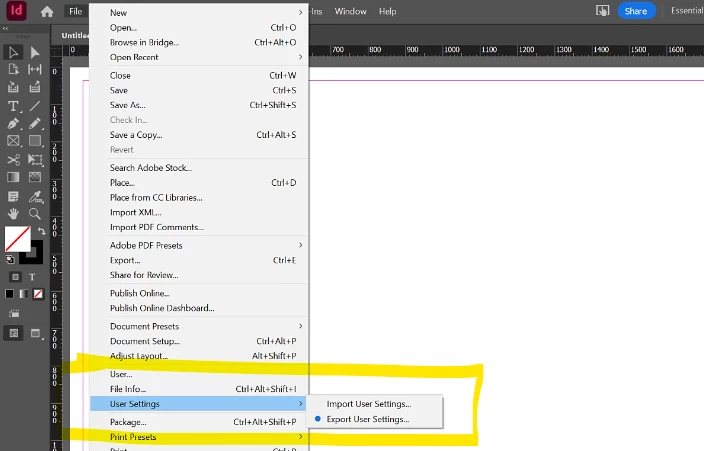
    In 2024/04: Go to FileUser Settings > Export User Settings.

    "Export and Import User Settings" a new InDesign feature (already in version 19.4) that was introduced a few days ago.

    You can now export or import these user settings: Preferences, Workspaces, Menu Sets, Keyboard Shortcuts, Glyph Sets


    More info (source): https://helpx.adobe.com/in/indesign/using/export-import-user-settings-indesign.html


    3 replies

    MatejKrizCorrect answer
    Inspiring
    April 29, 2024

    In 2024/04: Go to FileUser Settings > Export User Settings.

    "Export and Import User Settings" a new InDesign feature (already in version 19.4) that was introduced a few days ago.

    You can now export or import these user settings: Preferences, Workspaces, Menu Sets, Keyboard Shortcuts, Glyph Sets


    More info (source): https://helpx.adobe.com/in/indesign/using/export-import-user-settings-indesign.html


    Feelgood56
    Inspiring
    October 30, 2025

    @MatejKriz I have just tried this with the latest update to Indesign 2026 and I get the following error message when I try to import the saved settings:

    Any ideas?

    Feelgood56
    Inspiring
    October 30, 2025

    Hi @Feelgood56,


    Thanks for sharing this, and sorry to hear about the error while importing your saved settings. Could you please confirm your macOS version and if the exported settings were created using the same language version of InDesign? This error appear if the locale (language or regional setting) of the source and target installations doesn't match.

    Please go through these similar community posts to see if any of the solutions mentioned there help resolve the issue:
    https://adobe.ly/4oGbcAt
    https://adobe.ly/4qCe3MO
    https://adobe.ly/4oGbd7v

    Additionally, you can refer to this HelpX article for detailed steps on using the Export/Import User Settings feature:
    https://adobe.ly/4oDA8sy


    let me know how it goes. 

    Abhishek


    Hi @Abhishek Rao,

    Thanks for your reply.

    I am running the English/Arabic version of Indesign on macOS 15.5 and I have just updated from Indesign 2025 (20.5) to Indesign 2026 (21.0).

    Your comment regarding checking what language version of Indesign I am exporting from and to prompted me to check the 2026 version and this is also the English/Arabic version.

    The exported settings generate a file called IDSettings_20_5_enGB_Mac_2025_10_30.

    If I export settings from the newer version of Indesign the file generated is called IDSettings_21_0_enAE_Mac_2025_10_30 so it looks to me like the older version is not registering that it is the English/Arabic version?

    Known Participant
    July 13, 2017

    Excellent! Thank you.  I was looking in the right place almost...

    amaarora
    Community Manager
    Community Manager
    July 13, 2017

    Hi,

    You need to migrate your preferences.

    1. Go to: ~/Library/Preferences/Adobe/Adobe InDesign

    2. Navigate to Version X.0/en_us/Workspaces and you'll find your workspace files

    Copy and place the workspace files in the exact same location on the new Macintosh and launch InDesign -- you should see them in the menu.

    Let us know if the issue was resolved.

    -Aman

    Inspiring
    February 19, 2018

    Could anyone tell me how to do this on a PC running windows 10?

    BobLevine
    Community Expert
    Community Expert
    February 19, 2018

    You can find them here:

    drive:\Users\username\AppData\Roaming\Adobe\InDesign\Version 13.0\language\Workspaces