


Deaf_Guy
Inspiring
October 10, 2018
Answered

How to figure out button destination list in InDesign file

  • October 10, 2018
  • 1 reply
  • 9501 views

I have an InDesign file that has buttons on the top of the page.  When you export it as a PDF interactive, the buttons allow you to navigate throughout the document. I know how to update the buttons so a button goes to a different page within the document.  But when I select Destination and the drop down comes on it lists names of various headers on the page.  FYI - I did not design this document as it was given to me by the designer and now we're left to updating it ourselves.

The pages in the document are numbered as they usually are in the pages panel (e.g., 1,2,3 etc.)

But this new page that was added in (page #18) id not actually showing up in the destination drop down of the buttons panel. I'm guessing here but perhaps there's some kind anchor on each page that was named for each page so perhaps that's what the destination drop down list is displaying vs the page numbers - obviously it'd make it much easier if the destination was showing the page numbers and I'd easily select the one to go to.

I'm sorry I can't give more info here and I'm hoping that this makes sense to someone and would help me figure this out. Below is what the destination panel in buttons looks like.
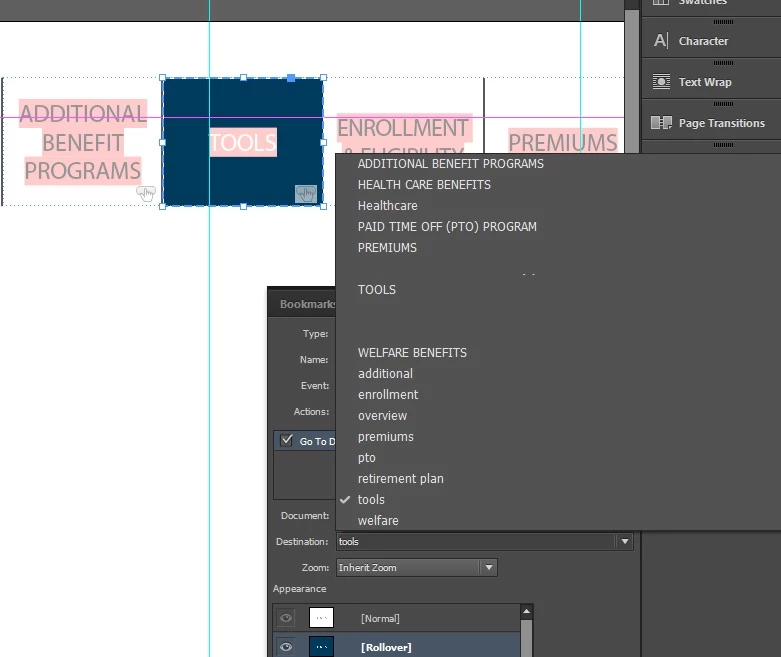
Any help is appreciated.  Thanks.

    This topic has been closed for replies.
    Correct answer Jeffrey_Smith

    Either the destination has not been created, or the link is not accurately named to it's actual destination.

    In the event the link is not accurately named:

    1. Go to Window > Interactive > Hyperlinks to open the Hyperlinks panel.

    2. From this panel, select the flyout > New Hyperlink Destination Options.

    3. Select each Destination and compare name with location, edit if necessary.

    Note, in the "Go to Destination" menu (your screenshot), this will show only predefined destinations.

    In the event the destination has not been created:

    1. Go to Window > Interactive > Hyperlinks to open the Hyperlinks panel.

    2. From this panel, select the flyout > New Hyperlink Destination.

    3. Select "Page" as the type, Set a "Name", and select the actual page number. Note, the name can be different than the actual page number.

    1 reply

    Jeffrey_SmithCommunity ExpertCorrect answer
    Community Expert
    October 10, 2018

    Either the destination has not been created, or the link is not accurately named to it's actual destination.

    In the event the link is not accurately named:

    1. Go to Window > Interactive > Hyperlinks to open the Hyperlinks panel.

    2. From this panel, select the flyout > New Hyperlink Destination Options.

    3. Select each Destination and compare name with location, edit if necessary.

    Note, in the "Go to Destination" menu (your screenshot), this will show only predefined destinations.

    In the event the destination has not been created:

    1. Go to Window > Interactive > Hyperlinks to open the Hyperlinks panel.

    2. From this panel, select the flyout > New Hyperlink Destination.

    3. Select "Page" as the type, Set a "Name", and select the actual page number. Note, the name can be different than the actual page number.

    Deaf_Guy
    Deaf_GuyAuthor
    Inspiring
    October 10, 2018

    OMG amazing - I had just figured this out about 15 minutes before I read your reply and it's spot on.

    Thanks so much for the help.