


Inspiring
August 15, 2022
Answered

How to get the same line amount on facing pages

  • August 15, 2022
  • 6 replies
  • 1955 views

Dear Forum Readers,


I just saw two books which both are 200+ pages. 

Two novels to be exact. 


What cached my eye is that both novels had all their facing pages the same amount of lines. 

I mean: all except the first and last pages of each chapter.


This is a photo from a "regular" novel typesetting. (I blur the lines because of copyright)
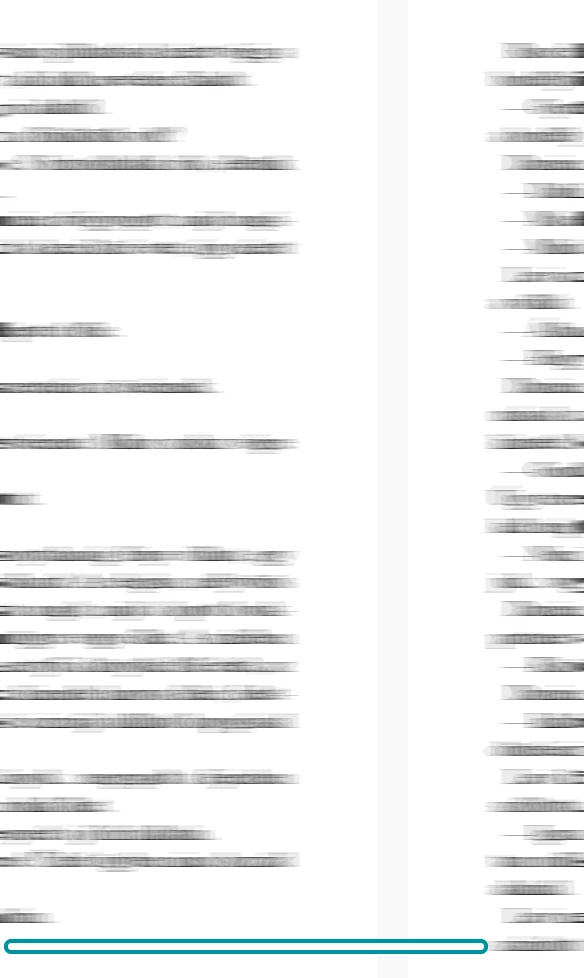
The teal mark shows the one line difference.


And here is an example of the "same line amount on facing pages". (Most facing pages had 29 lines. A few had less or more)
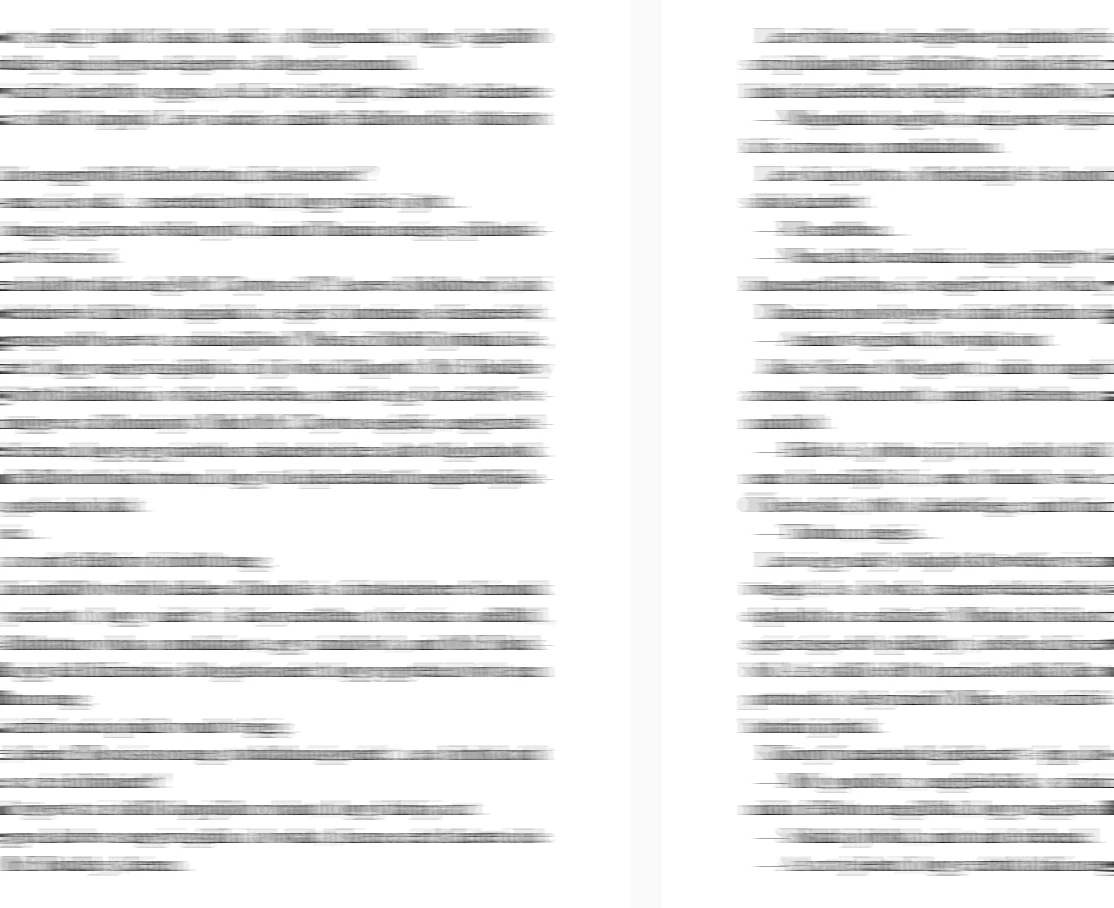
 

Can someone tell me how to make each facing pages to have the same amount of lines?

That's not a problem if not all pages has the same amount of lines. That is fine. I care about the facing pages.


Of course one can do it manualy. But does anyone has an idea how to do it by using paragraph styles, layout settings, baseline grid magic, heretic mathematical equations or whatever solution which can do this with hundreds of pages?


I would apriciate an answer. 


If there are more ways to do it, I'm all in to hear about them. 


Best,

ittvangergo


This topic has been closed for replies.
Correct answer Peter Spier

In the past when setting up similar books I've used keep options to control widows and orphans, and paragraph spacing based on body text leading and a badesline grid as described above, but this alone does not guarantee that both pages in a spread will fill the same number of lines.

I've always found it is necessary to go through each chapter looking for places that need adjustment. In some cases it is possible to make very small changes to word spacing or tracking in a paragraph which will cause it to either add a line (when the paragraph's last line is already near full width of the column) or lose a line (when the last line is very short). This works best with long paragraphs so small changes can add up.

Often this doesn't work, however, and it becomes necessary to adjust the height of the text frames on a spread, adding or removing one line. In general this is not noticeable to the reader since it applied to both pages in the spread.

In either case, you ust start at the beginning of the text and work to the end because each change you make causes reflow of the text beyond and may trigger new cases that need adjustment. Best to leeave this until editing is complete.

6 replies

Peter Spier
Community Expert
August 15, 2022

See also my first response in https://community.adobe.com/t5/indesign-discussions/unexpected-rivers-only-on-the-few-top-lines/td-p/13135841 for keyboard shorcuts to kern just the spaces...

Dave Creamer of IDEAS
Community Expert
August 15, 2022

While you could (should) use software settings, they can only get you so far.


Sometimes you can adjust paragraphs with a little positive or negative tracking to expand or contract the number of lines as @Peter Spier mentioned.


Other times, it may come down to editing. This is best done by an actual editor, not the author. 


David Creamer: Community Expert (ACI and ACE 1995-2023)
Inspiring
August 15, 2022

That's right.


I had a friend who had a few excel grids with amazing mathematical equations which resulted in the best margin, font size, etc settings and already gave you an almost perfect starting point. (Meaning the lines aligned well, were very optimal and almost no hyphens were needed.)


But I am not in contact with this person anymore. I hoped someone will have a similar solution here. 

Peter Spier
Peter SpierCorrect answer
Community Expert
August 15, 2022

In the past when setting up similar books I've used keep options to control widows and orphans, and paragraph spacing based on body text leading and a badesline grid as described above, but this alone does not guarantee that both pages in a spread will fill the same number of lines.

I've always found it is necessary to go through each chapter looking for places that need adjustment. In some cases it is possible to make very small changes to word spacing or tracking in a paragraph which will cause it to either add a line (when the paragraph's last line is already near full width of the column) or lose a line (when the last line is very short). This works best with long paragraphs so small changes can add up.

Often this doesn't work, however, and it becomes necessary to adjust the height of the text frames on a spread, adding or removing one line. In general this is not noticeable to the reader since it applied to both pages in the spread.

In either case, you ust start at the beginning of the text and work to the end because each change you make causes reflow of the text beyond and may trigger new cases that need adjustment. Best to leeave this until editing is complete.

hammer0909
Community Expert
August 15, 2022

You're getting good advice from Steve and Brad. But another thing to consider is to set all of your values (space before/after) to an increment of your leading value. This will help you to have all ofyour lines aligned across pages.


Inspiring
August 15, 2022

Yes. I got great tips. But it seems I can't do what I want without making my hands dirty. (Meaning: doing a lot of this manually)

Brad @ Roaring Mouse
Community Expert
August 15, 2022

There's a good chance you have widow/orphan control turned on, which prevents single lines of paragraphs at the bottom or top of a page. This is under Paragraph Styles > Keep Options > Keep Lines Together > At Start/End of Paragraphs. InDesign's default is set at 2 lines, so in the case of your example, it's preventing a single line of the paragraph at the top of the right page from appearing at the bottom of the left page, causing your issue.

This is actually desireable typographic behaviour and is a norm in the industry. You could turn it off [uncheck Keep Lines Together], but you will get these single lines (called widows or orphans depending on who you talk to. for me, personally to me, a widow is a single line at the bottom of a column and an orphan is a single line, sometimes even a single word, at the top of the next column 🙂 ); this may not look very good depending on how things fall.

Alternatively, you can change your text boxes to Vertical Justify which will spread the copy from top to bottom so that the gap is absorbed on the bottom left, at the detriment of consistent line spacing. Any choice you make may entail a compromise of sorts. Good luck!

Dave Creamer of IDEAS
Community Expert
August 15, 2022

>>>personally to me, a widow is a single line at the bottom of a column and an orphan is a single line, sometimes even a single word, at the top of the next column


Slightly off topic...

The funny thing about widows & orphans is that if you ask 10 people what they are, you will get 12 different answers! 😁

I learned that widows are single lines at the top of a column (last line of a multi-line paragraph) and orphans are single lines at the bottom of a column (first line of a multi-line paragraph). 

A couple of ways to remember this:

Widows are usually "taller" than orphans. 

A slighly more morbid phrase: A widow has no future, a orphan has no past. (This refers to the rest of the paragraph.)


As an aside, paragraphs with short last lines don't have an official name (AFAIK), but are sometimes mistakenly called widows. I refer to them as "line widows" but I've seen them called "danglers". 


David Creamer: Community Expert (ACI and ACE 1995-2023)
Brad @ Roaring Mouse
Community Expert
August 15, 2022

"12 different answers"  lol. yup

When you've been years in the business (I first did typesetting and paste-up in 1975 at the age of 15 at our local newspaper), what you hear first tends to stick, even if it's wrong!).

In reality, these days, I've moved more to this:

A widow is a single line, whether it's at the bottom of the page or top of the page, whereas an orphan is a single word on a line by itself at the end of a paragraph.

Steve Werner
Community Expert
August 15, 2022

I don't usually use it, but I believe you should create a baseline grid and use that for your pages.

Here's a video to get started:

https://creativepro.com/creativepro-video-align-multiple-columns-baseline-grid/


Steve Werner
Community Expert
August 15, 2022