Inspiring
November 4, 2018
Answered

How to make one text box repeat what is typed into another text box

  • November 4, 2018
  • 4 replies
  • 6858 views

Hello:

I've got two separate text boxes that I want to have "linked" so what is typed in the first text box, the second duplicates what is typed.

For example....

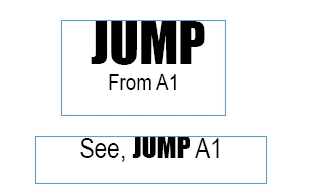
I have one text box that reads "See, JUMP A1"

The other text box reads "JUMP From A1.

I have a marker that automatically changes the page number where I move the "jump head" too...

But I would like to have the "jump line" also change the "Jump Head" to whatever I name that particular item.

See, Election A4

Should read, Election From A1.

When I type "election" in the first line.

Sorry this sounds confusing.

So when I change the word "JUMP" on the jump line, I would like it to automatically change the "Jump Header" to the same name.

I've watched videos and searched online, but I haven't found anything.

Thanks for any help you can offer.
    Correct answer Barb Binder

    Hi Larry:

    I tried cross references a couple of times, but either I wasn't doing it correctly

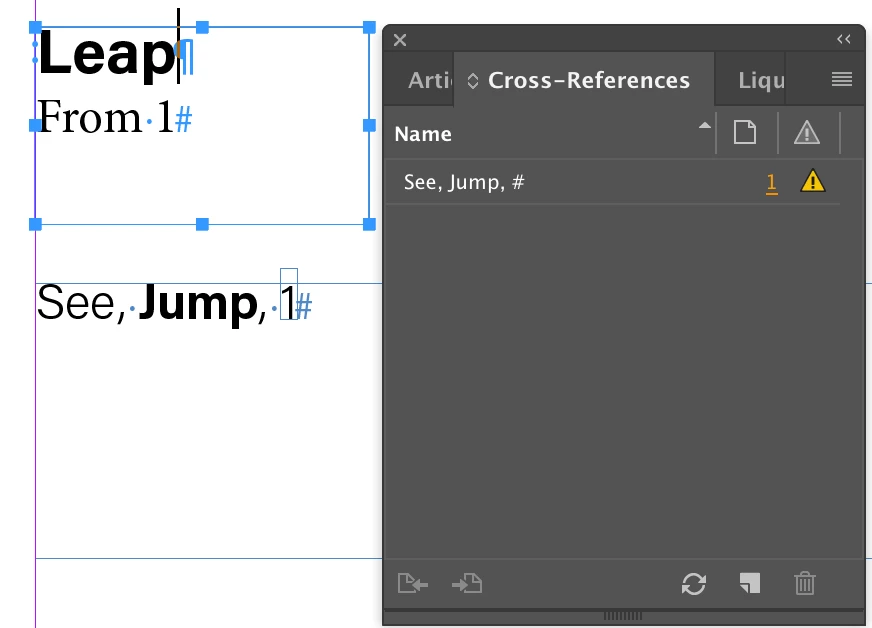
    I'd use Cross-References as follows:

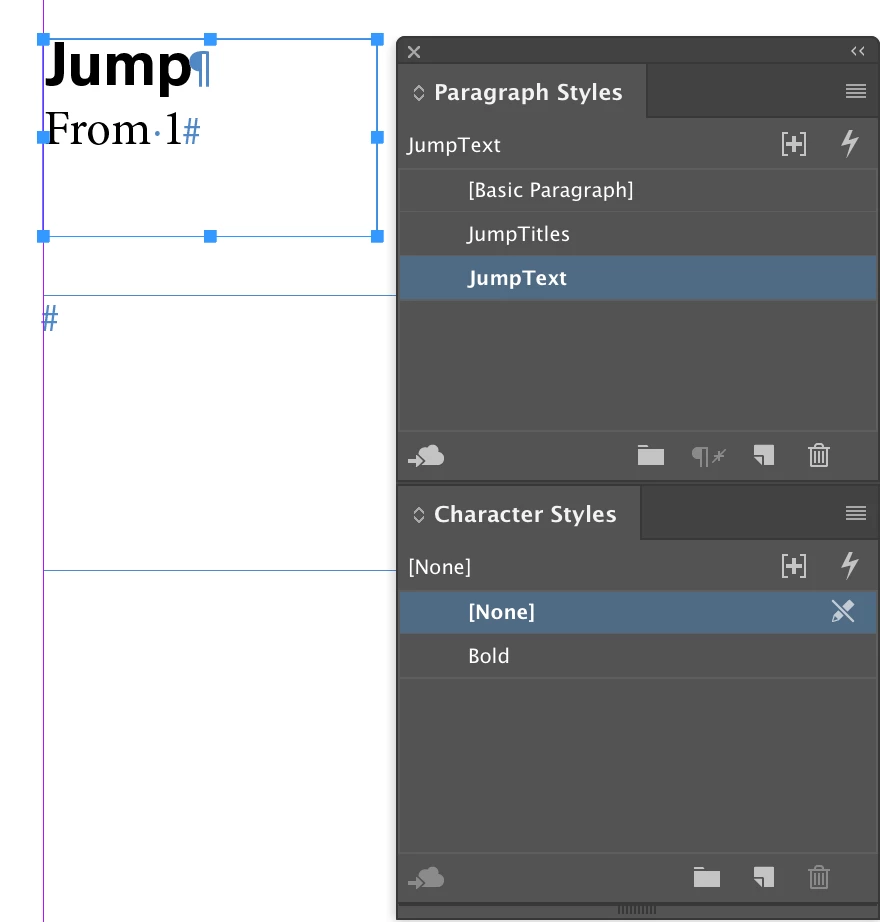
    1. Set up the styles and the text boxes.
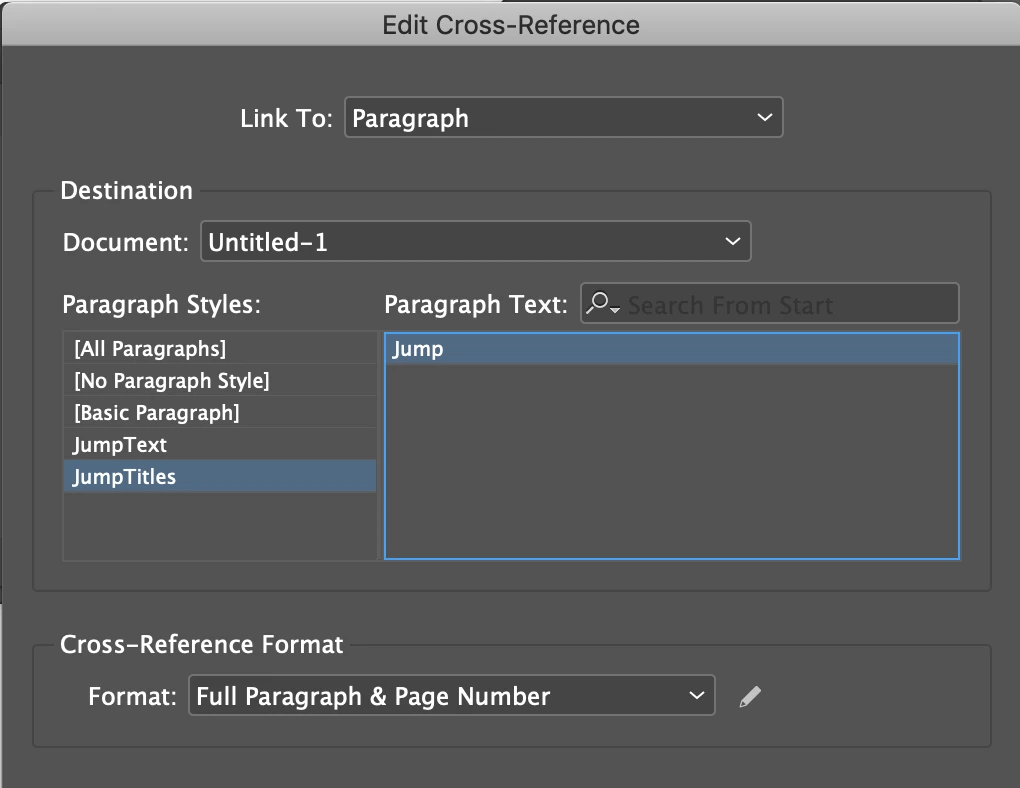
    2. In the second text box, create a new x-ref. Choose the jump title from the first column, and click the paragraph you want to link to in the second.
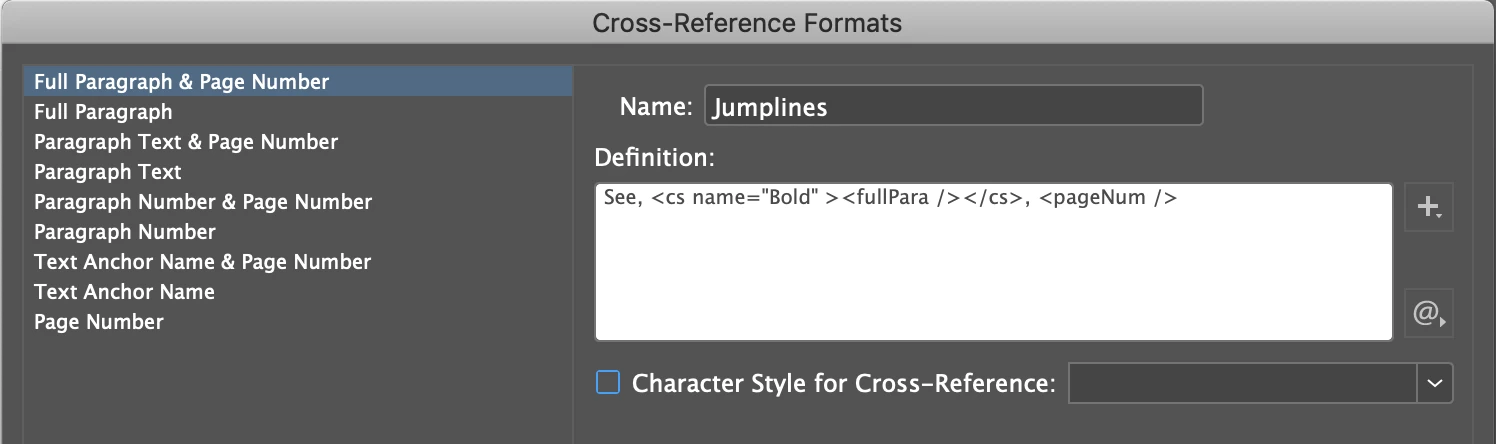
    3. Click the pencil icon to edit the cross reference style to suit your requirements. I used:
      See, <cs name="Bold" ><fullPara /></cs>, <pageNum />
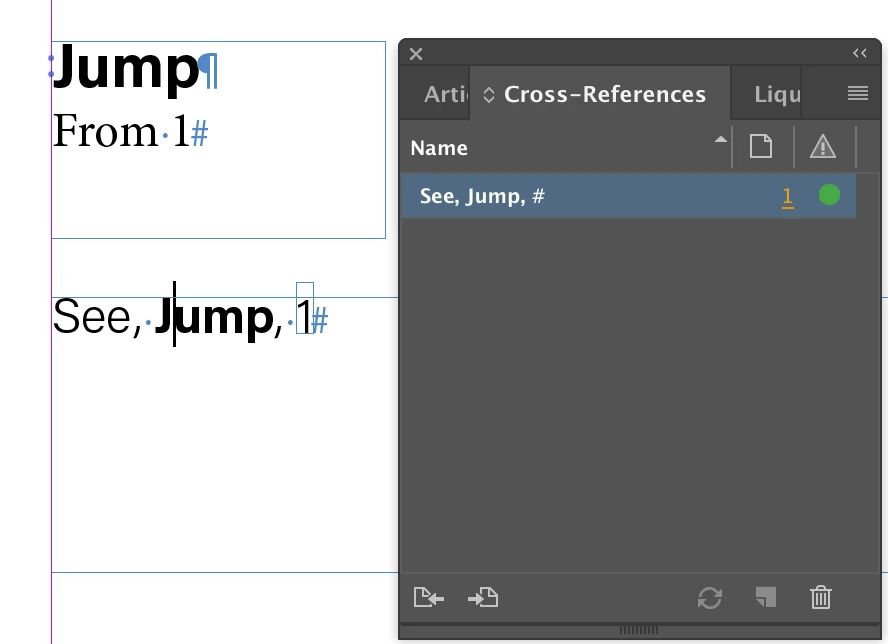
    4. This creates the text for the second box.

      Note: turn on Type > Show Hidden Characters. See the colon at the beginning of the first line? That's the x-ref marker. Don't delete it or you will break the x-ref.
    5. Once set up, when you edit the text, the x-ref shows as out of date. Click the Update X-Ref button on the bottom row (the circular arrows) and InDesign takes care of the x-ref.

    ~Barb

    4 replies

    Barb Binder
    Community Expert
    Barb BinderCommunity ExpertCorrect answer
    Community Expert
    November 5, 2018

    Hi Larry:

    I tried cross references a couple of times, but either I wasn't doing it correctly

    I'd use Cross-References as follows:

    1. Set up the styles and the text boxes.
    2. In the second text box, create a new x-ref. Choose the jump title from the first column, and click the paragraph you want to link to in the second.
    3. Click the pencil icon to edit the cross reference style to suit your requirements. I used:
      See, <cs name="Bold" ><fullPara /></cs>, <pageNum />
    4. This creates the text for the second box.

      Note: turn on Type > Show Hidden Characters. See the colon at the beginning of the first line? That's the x-ref marker. Don't delete it or you will break the x-ref.
    5. Once set up, when you edit the text, the x-ref shows as out of date. Click the Update X-Ref button on the bottom row (the circular arrows) and InDesign takes care of the x-ref.

    ~Barb

    ~Barb at Rocky Mountain Training
    Inspiring
    November 7, 2018

    Hi, Barb:

    I tried doing what you said...thanks so much BTW....It was very kind of you to take the time to help me out.

    But it didn't do what I wanted.

    I tried your method, and the others listed on the post as well.

    Variables, and Cross-reference..

    But either I'm doing it incorrectly, or it isn't having the effect I need.

    I'm just trying to get one text box to "mimic" what is typed in the other.

    So, for example, "See, JUMP, A2".

    When I change the word JUMP, to say, whatever... BANK.

    I also want the jump header to change to BANK too.

    I'm not even sure it's possible in InDesign...but it would be great if I could figure it out.

    I do have it changing the page number based on what page I move the Jump Header too...pretty cool...and I did that with Variables, add add marker.

    But no luck yet with changing the header info.

    Thanks for any help or suggestions you have.

    Larry

    Barb Binder
    Community Expert
    Community Expert
    November 17, 2018

    Hi Larry:

    I apologize for the long delay—I've been out of the office.

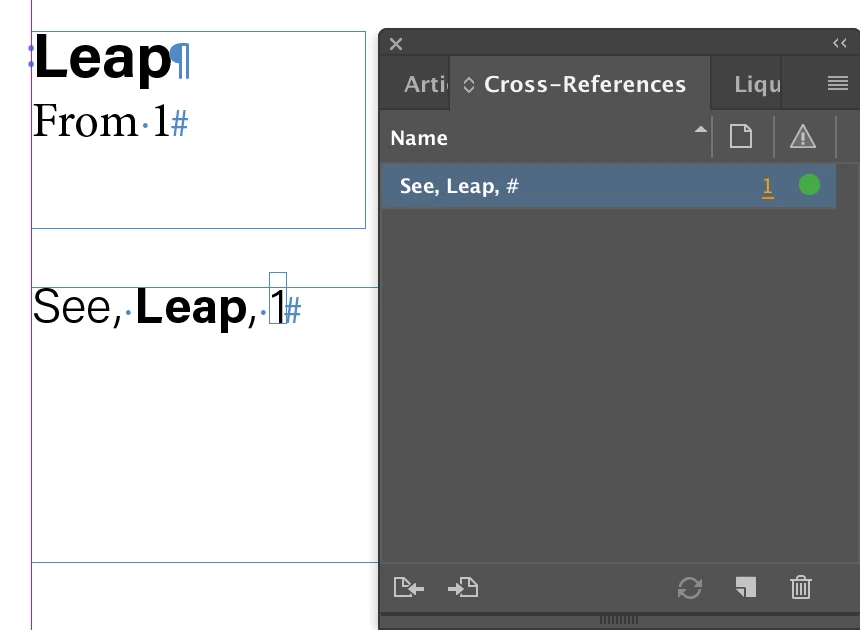
    The steps I showed above do exactly what you are asking. In my example above, once the x-ref was set up I changed the word Jump to Leap and it changed the reference. In your diagram, the arrow is pointing in the opposite direction of how this will work, however. You would change the word Jump to Bank or Leap under the arrowhead, and updating the x-ref will change the See xxx on the top of your image.

    This process relies on knowledge of paragraph styles, character styles and cross-references. If you aren't comfortable with these features, please some time to learn how they work in general and then come back and give the steps another go.

    ~Barb

    ~Barb at Rocky Mountain Training
    amaarora
    Community Manager
    Community Manager
    November 5, 2018

    Hi,

    You can also Edit-> "Place and Link" frames, if you want the content of entire frame to be linked. This allows you to map style of source frame with destination frame as well.

    Use linked content features in InDesign

    -Aman

    Community Expert
    November 4, 2018
    Inspiring
    November 4, 2018

    Thanks, Eugene:

    I tried cross references a couple of times, but either I wasn't doing it correctly (highly possible) or it didn't do what I had originally intended.

    I also tried variables, but that didn't work either.

    I only want to have to change one jump line, and I would like the other to mimic what I changed the jump line to.

    Seems like it would be easy, but I guess it isn't.

    Thanks for your help and advice.

    Larry

    JonathanArias
    Legend
    November 4, 2018

    Why do variables not work for this? What is the issue?

    Willi Adelberger
    Community Expert
    Community Expert
    November 4, 2018

    Try to work with text variables running header. Apply a specific Paragraph or Character Style to the first and let the other draw with this text variable the repeated instances.